Calculated Fields – an introduction with examples
In Tenzo, if you are among the lucky few to be part of our closed card creator trial, you should know that you are able to make custom cards, and within those custom cards you have the ability to make custom calculated fields of various degrees of complexity.
This article provides examples of calculated fields of various complexity and shows you how to make them.
*This article may evolve and change in the future so look out for edits!
1. Difficulty: Easy
Delta (difference/minus)
#
Typically used for making a card such as Profit and Loss where you want to subtract your costs from your revenues, or alternatively your sales budget from your revenue to determine if you are over or under your target.
Below is an example of how you can make a custom calculated field of Sales-Budget:
We start by adding the “Sales” and “Budget” values separately:
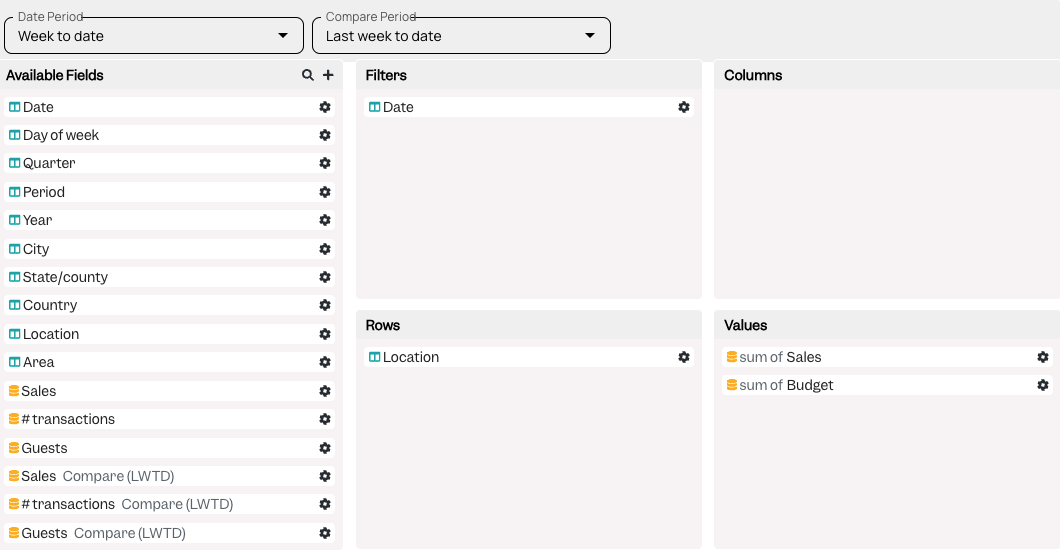
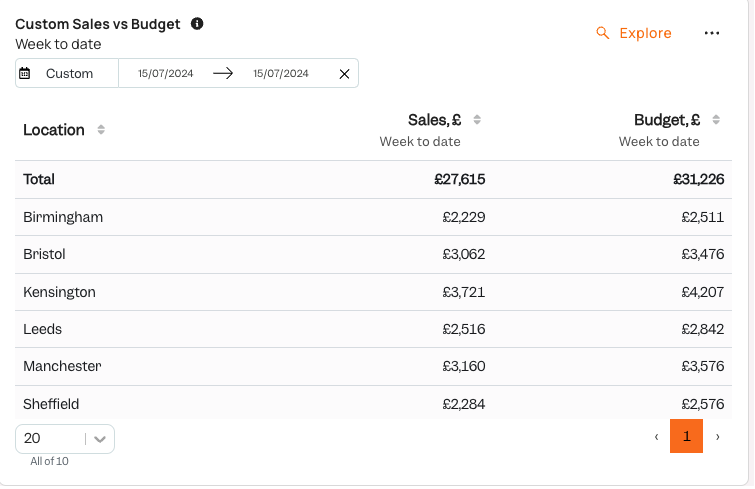
And our card preview would look like this:
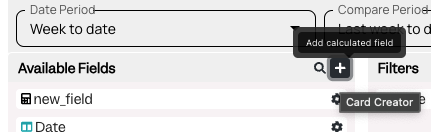
To add a “Sales – Budget” we would need to add the following custom calculated field:
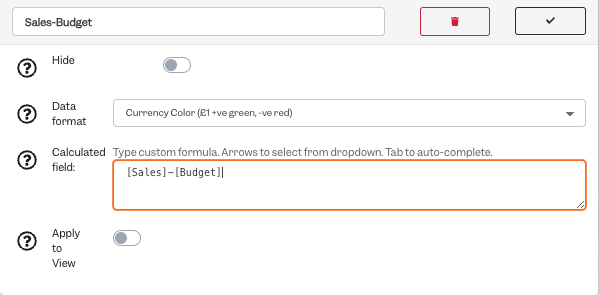
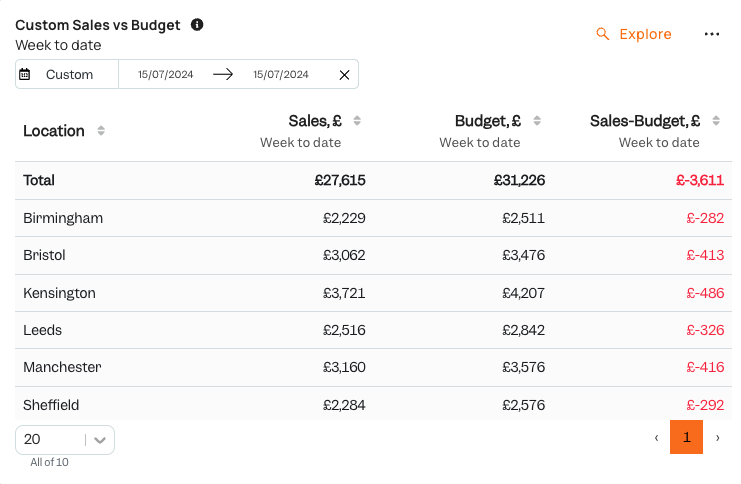
Notice the “Data format”, which is set to “Currency Color” so that it would be green if positive, red if negative.
Once it is implemented, you can drag it into “Values”:
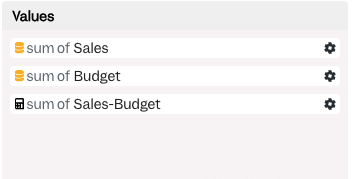
And in turn you get the following card:
The same type of formula can be used to calculate delta against last year, last week, or any other targets.
2. Difficulty: Intermediate
% difference #
Using the example above, if we wanted to to add a delta to budget %, we would need to make the following custom calculated field, and select the Percent Color formatter:
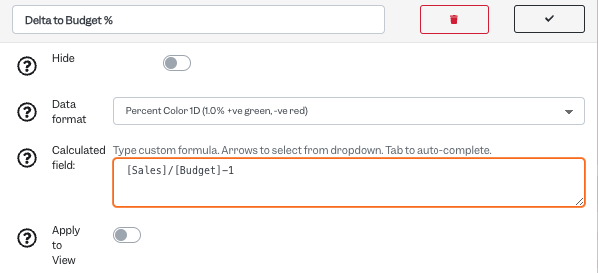
And then once you drag it into “Values” you will get the following view on the card:
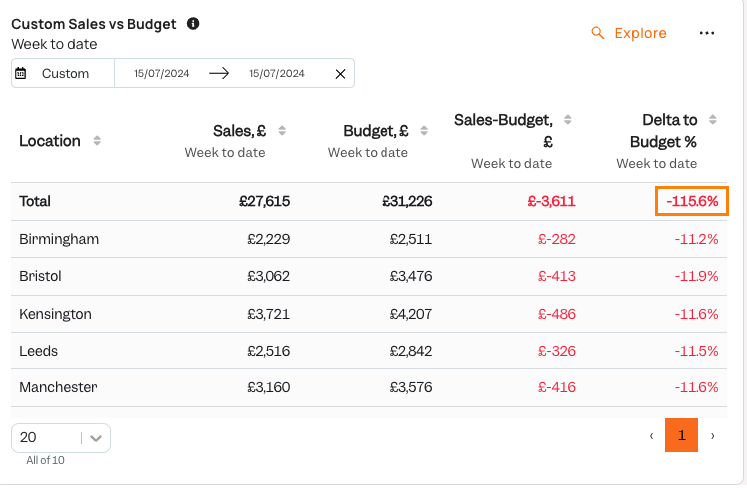
As you can see, you get the total calculated incorrectly, to remedy this you would need to click on the settings cog on the Delta to Budget % field that we created and make the following change once it is already sitting as a “Value”:
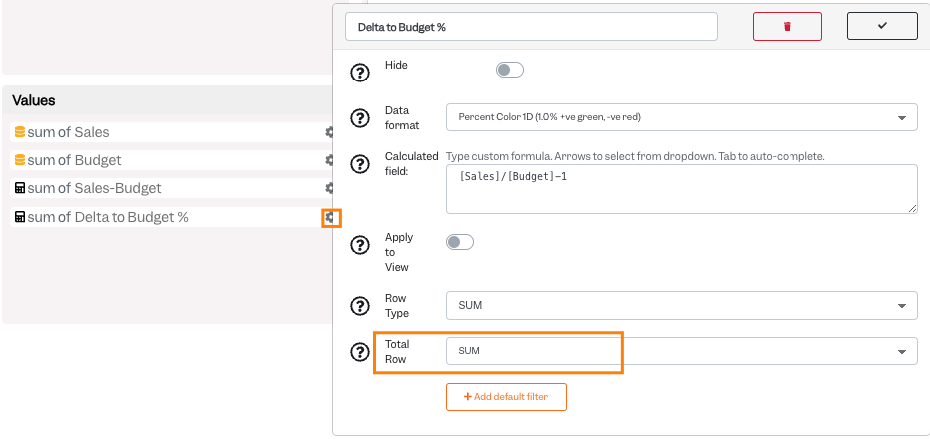
The Total Row needs to be changed from “Sum” to “Calculate”:

In turn you would get the following result upon completing this:
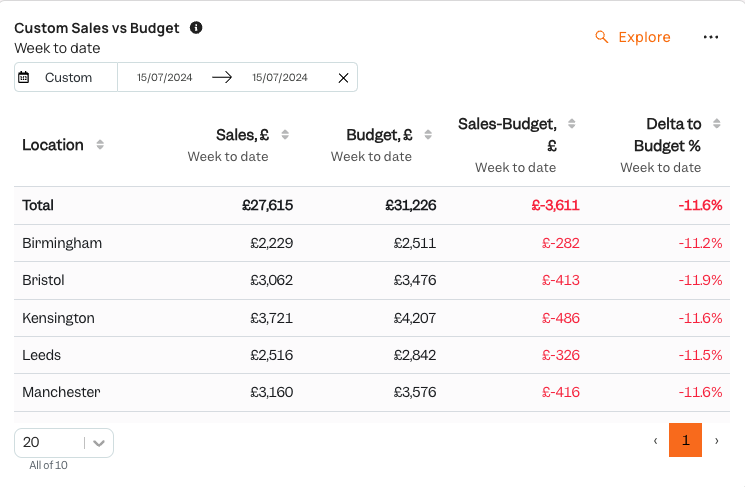
The same type of formula can be used to calculate delta against last year, last week, or any other targets.
3. Difficulty: Difficult
Grouping existing data points for simplifying reports #
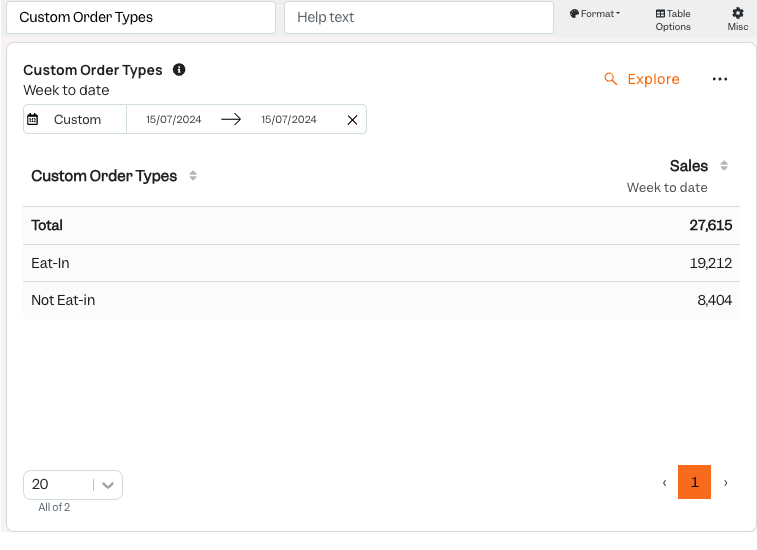
Sometimes you may have too many product categories or order types, or any other data field, that you would prefer to group into fewer data points. In this example, I will show you how we can take our Sandwich Shop UK’s five Order Types and turn them into two, “Eat In” and “Not Eat In”:
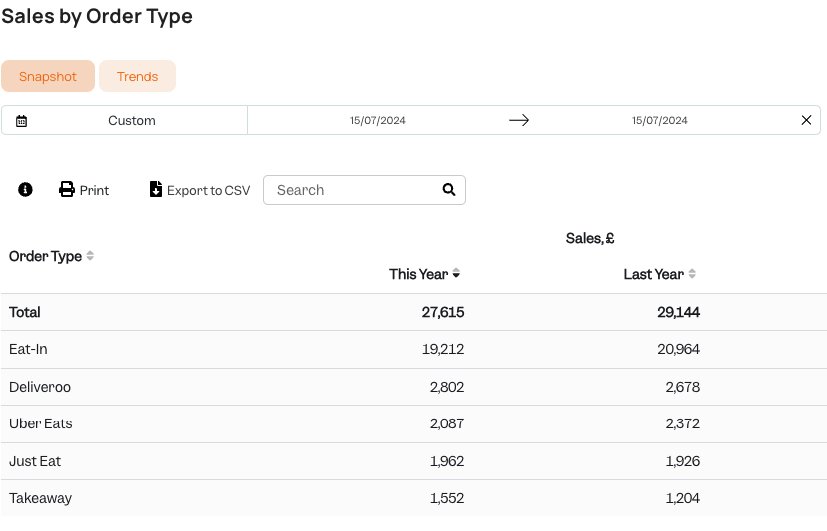
First we will open a card view that has order types, and begin making a custom field.
The Data Format should be “Left Justified”, and the formula that we are going to use is:
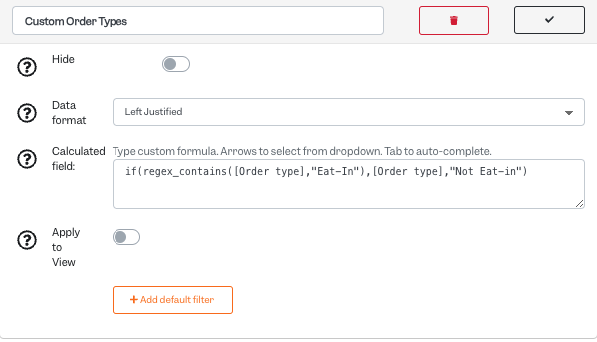
if(regex_contains([Order type],”Eat-In”),[Order type],”Not Eat-in”)
Note: the regex_contains function works by taking anything that contains the words in between quotation marks, even if they’re only partial; these can also be multiple and separated by a vertical bar, for example, if(regex_contains([Order type]),”Eat-In|Deliver”) would include anything that contains one of those two letter combinations (therefore Eat-In and Deliveroo).
We can then put it into the “Rows” field, and place Sales into the Values field:
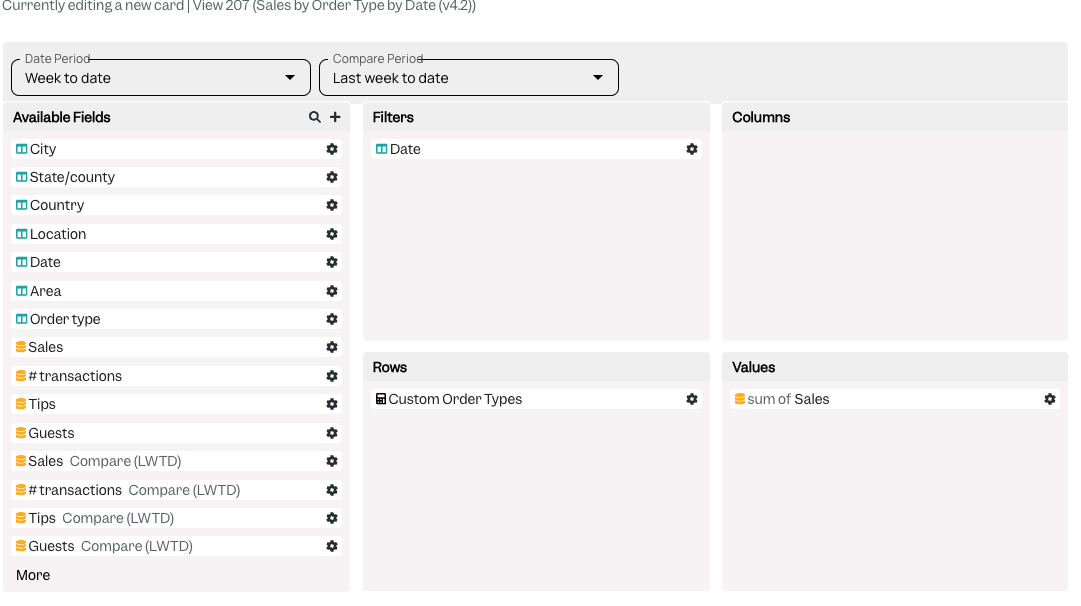
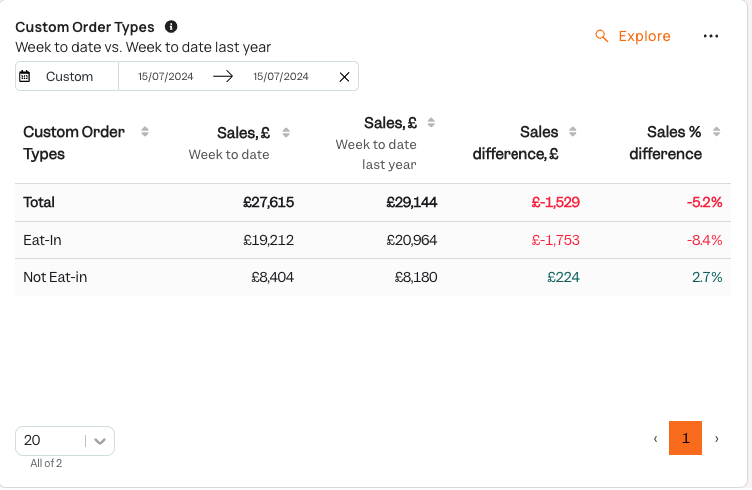
In return we get the following card:
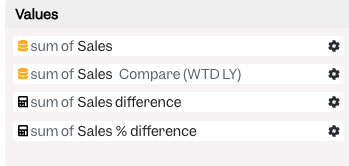
We can then also add the calculations learnt in the first parts of the article to add a difference year on year, as well as what it is as a %:
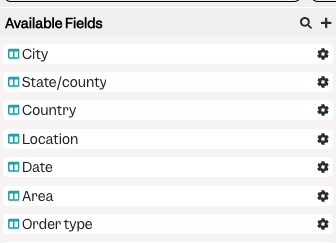
As mentioned, this methodology can be applied to not only Order Types, but to any of the fields that look like this in the Card Creator screen, and they vary and depend on the card view that you are utilising:
Another way to do this is by using “=” instead of regex_contains, which is a simpler formula if you want an exact match.
Let’s consider the following imaginary scenario:
You have four locations, but one of them does not have a standalone account in your POS system and it is viewable in Revenue Center instead.
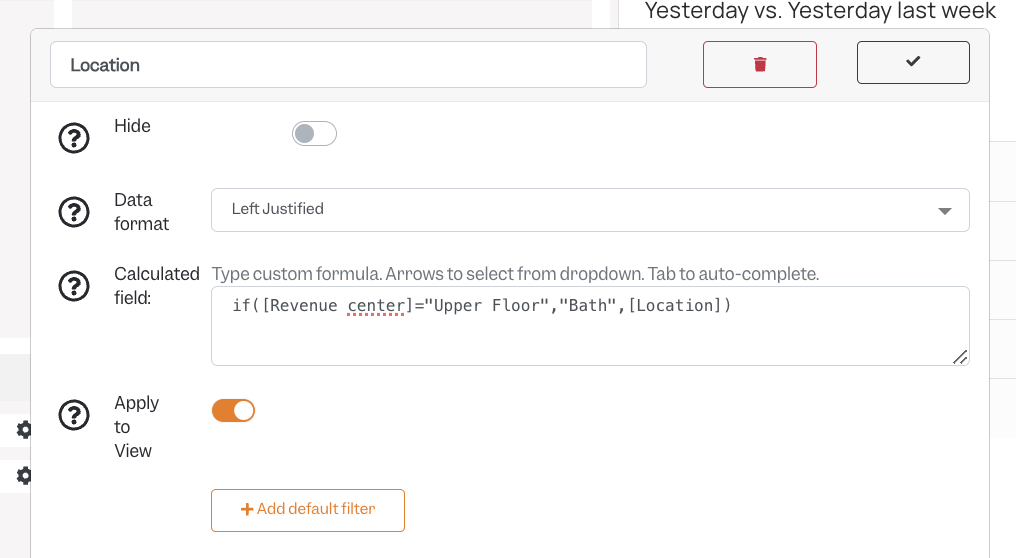
Therefore you need to map anything in the Revenue Center called “Upper Floor” to be called “Bath”, whereas in any other case, you can keep the original location name. The formula would be as follows:
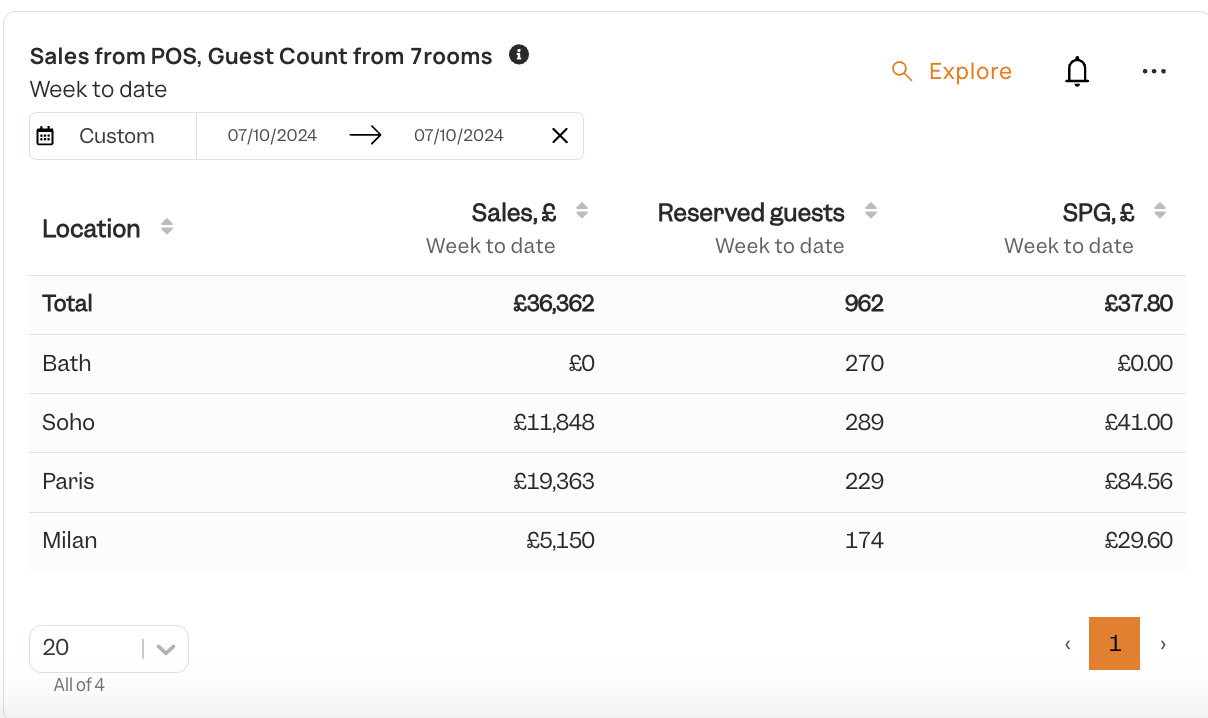
And the card would look like this:
Additional Examples and Formulae:
Day of Week instead of shortened DoW:

Custom Field Formula:
if([Day of week]=”mon”,”Monday”,
if([Day of week]=”tue”,”Tuesday”,
if([Day of week]=”wed”,”Wednesday”,
if([Day of week]=”thurs”,”Thursday”,
if([Day of week]=”fri”,”Friday”,
if([Day of week]=”sat”,”Saturday”,
if([Day of week]=”sun”,”Sunday”,”unknown”)))))))
Standard:
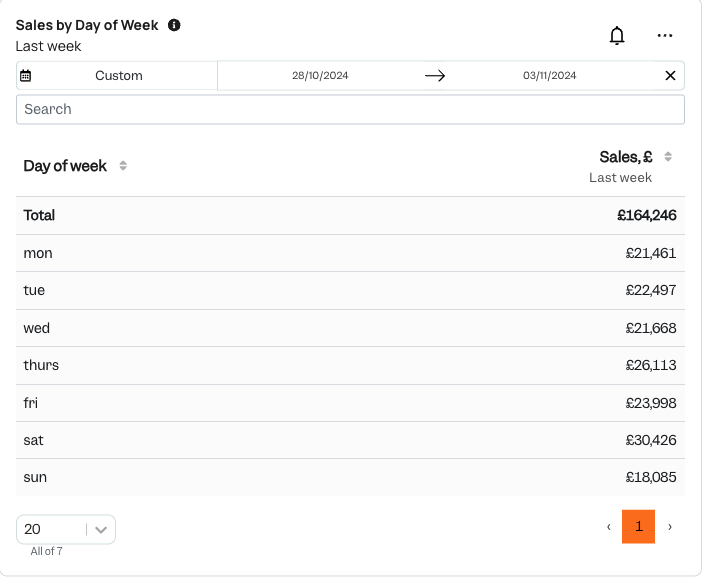
Custom: