
You can add, edit or remove users to your Tenzo account if you have User Admin access – you will need to be part of the Administrator group for your business to have this access.
Navigating to User Admin in Tenzo #
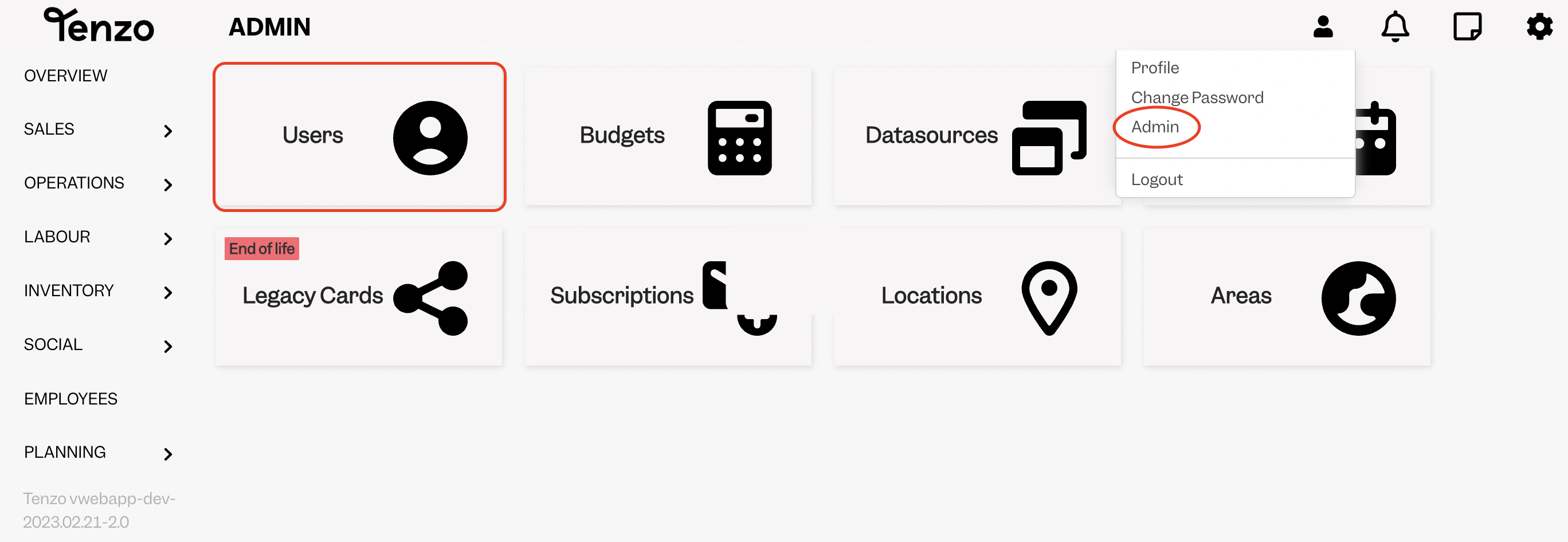
To see if you have the User Admin feature turned on for your user, click on the profile icon on the right-hand side of the header bar in Tenzo. Then see if you can see the option ‘Admin’ in the list that appears.
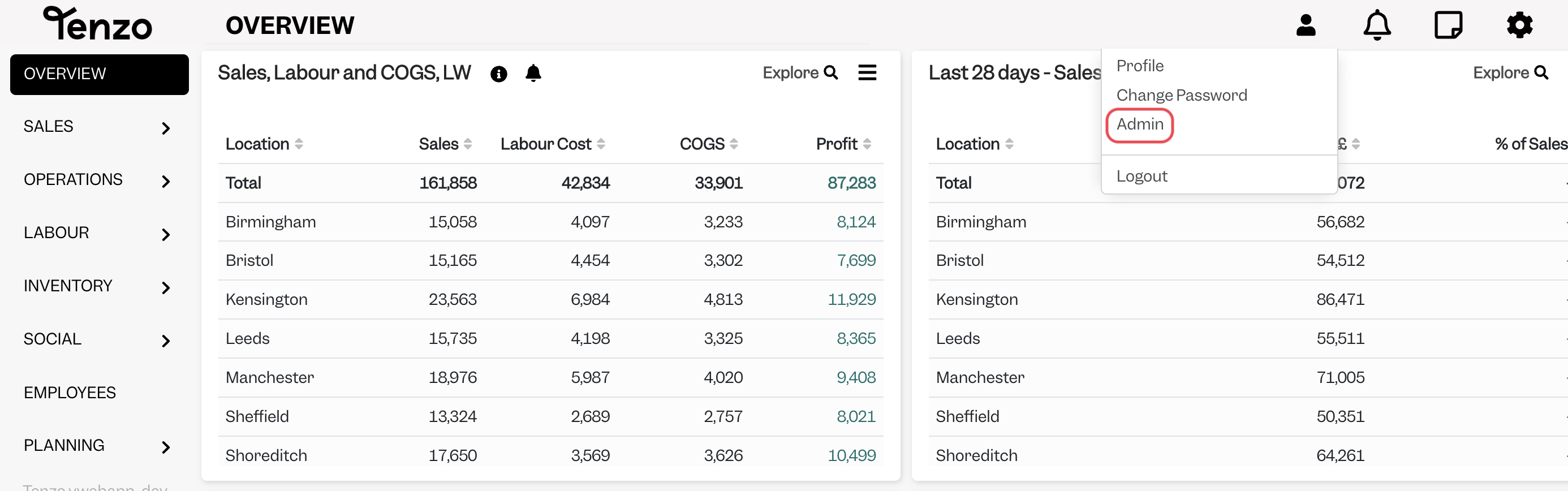
*Please note the User Admin is only accessible on the Tenzo Web App.
If you don’t have this feature turned on, contact the person that manages Tenzo in your business to see if they have User Admin access.
If they also don’t have this, please ask them to email the Tenzo support team at support@gotenzo.com to turn this on.
Adding a new user #
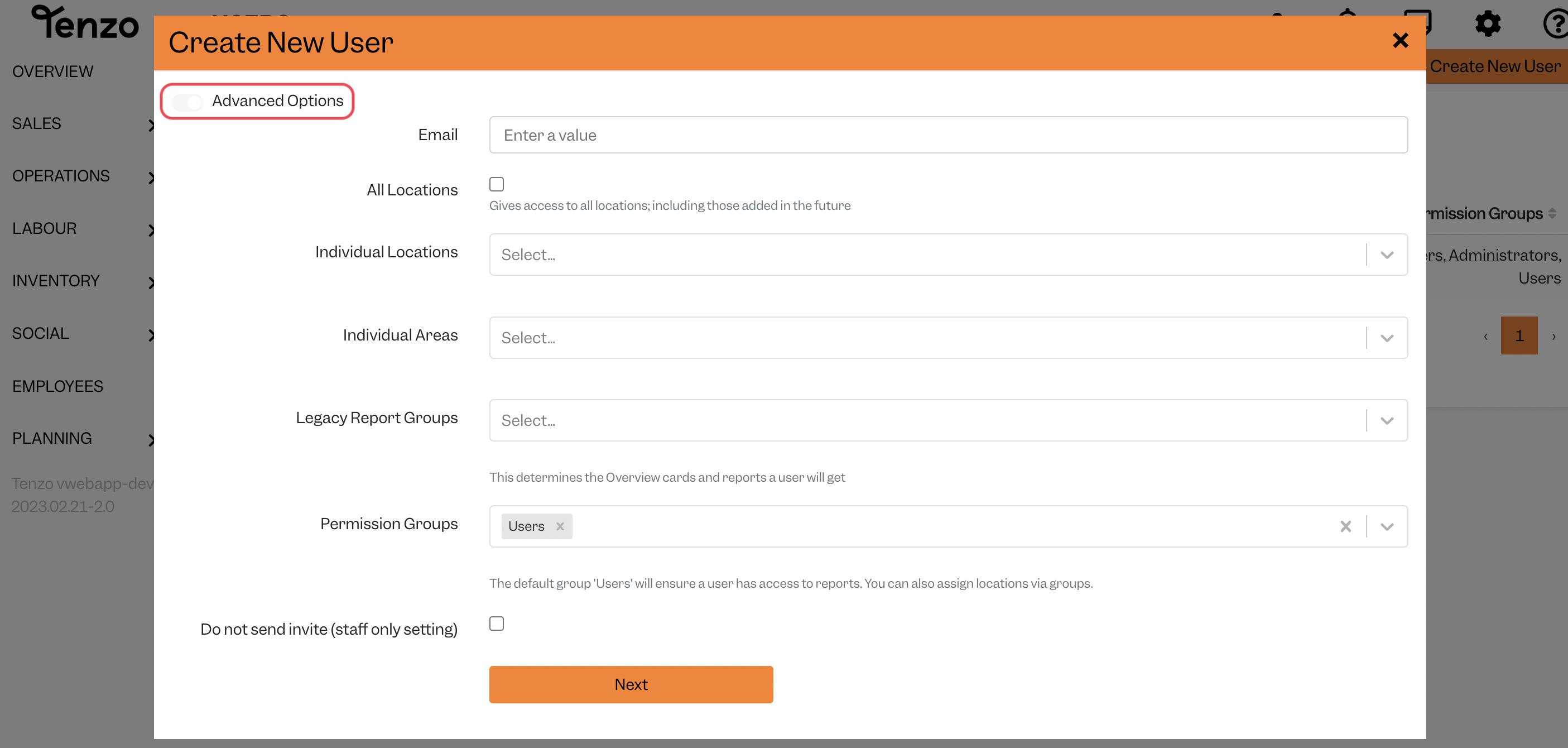
If you have User Admin access click on Admin > Users > Create New User, then the below screen will pop up:
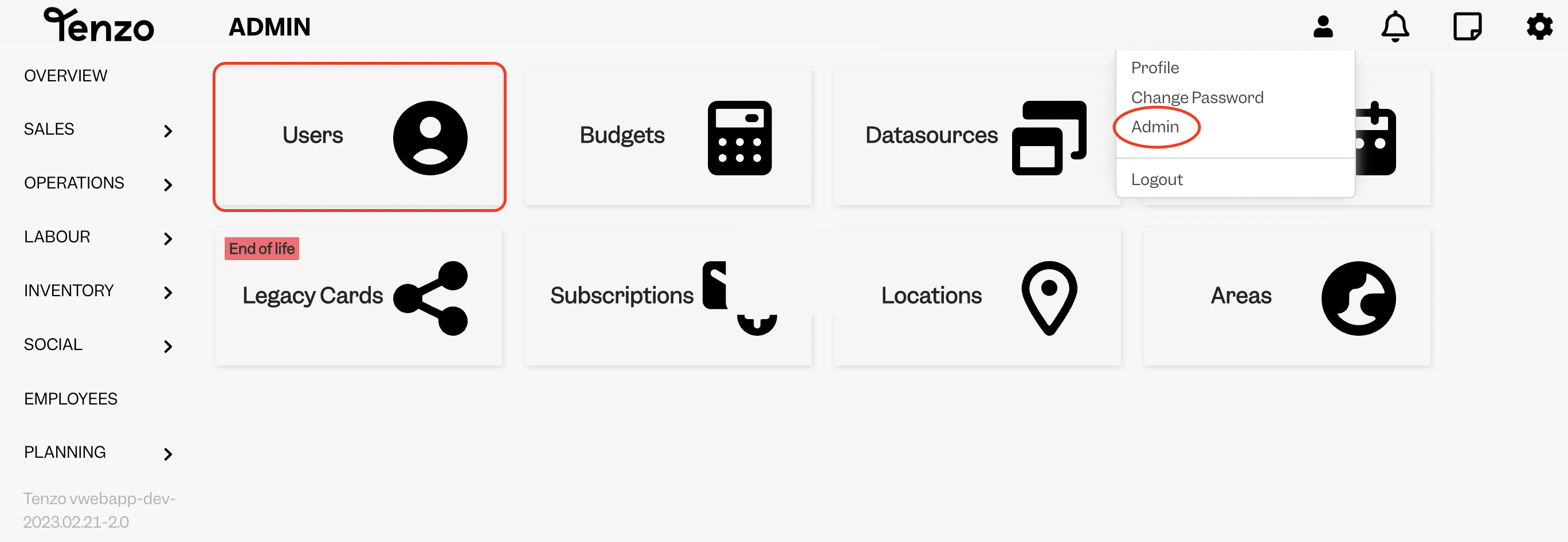
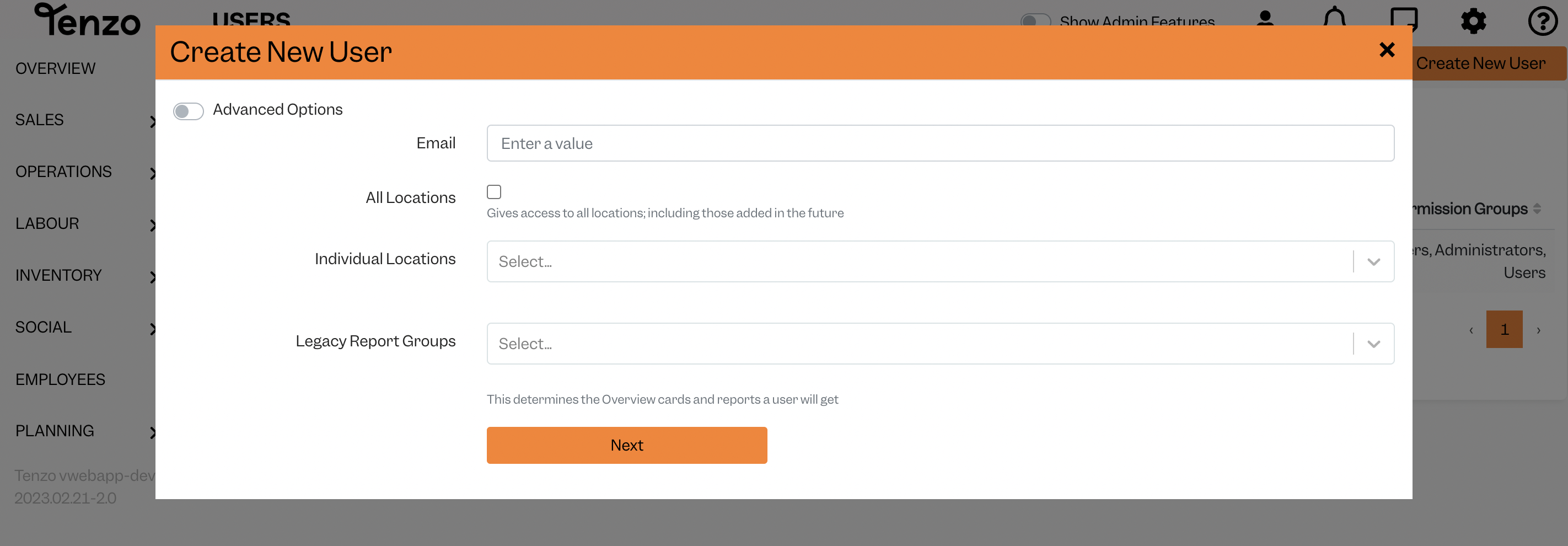
Complete all mandatory fields and select the relevant drop-down for each user:
- If they should have access to all locations, select ‘All location’; and
- If the user should only have access to selected reports, you can pick them by choosing the Legacy Report Groups
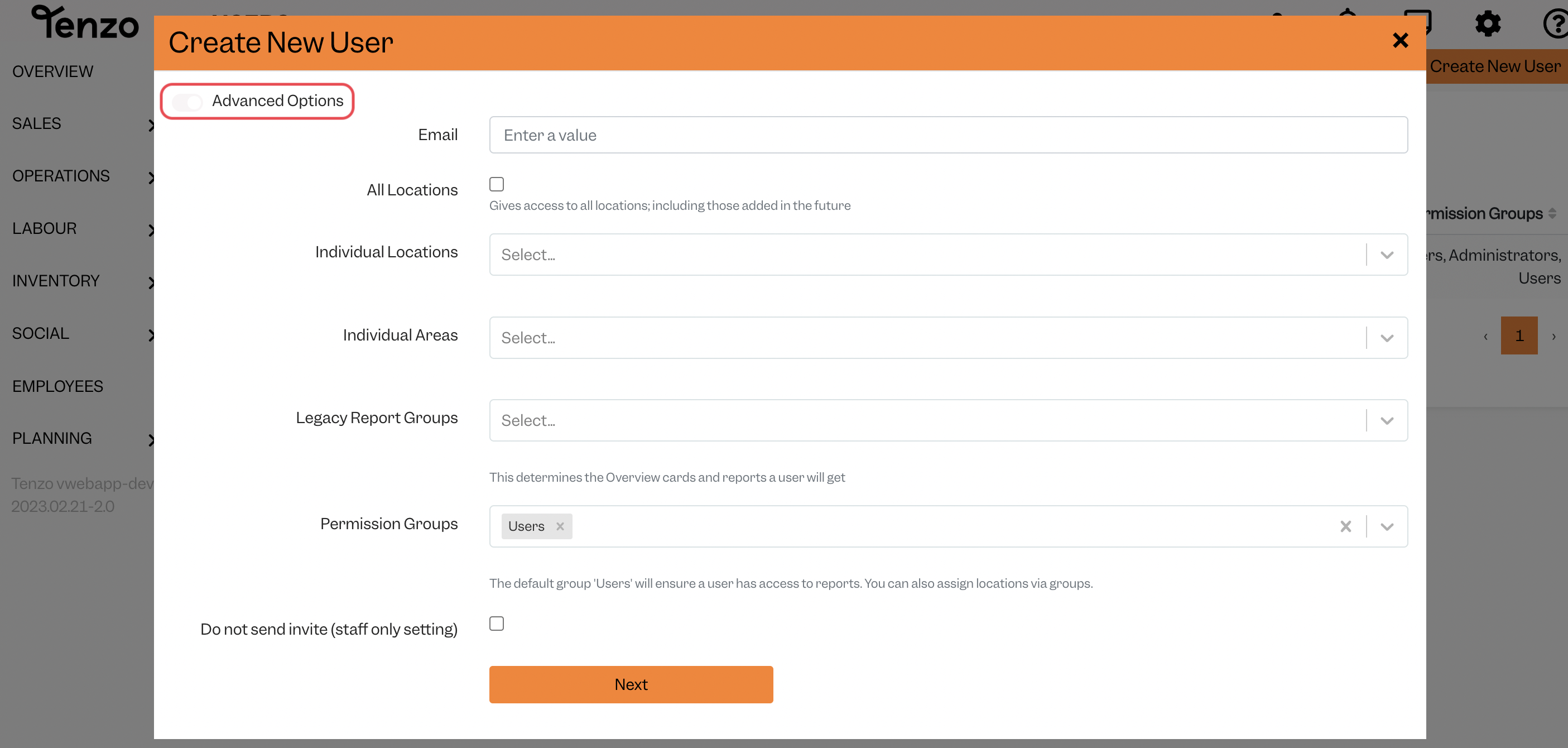
Toggle on the Advanced Options if:
- If the user should only have access to an area, you can select them by choosing the Individual Areas as per the below image
- If they should have Administrator access, e.g. to add new users or add budgets, then select ‘Administrators’ on Permission Groups;
A couple of points to note:
- You can only add or remove (user accounts); you can’t change an email address;
- You can add or change locations that someone has access to.
The new user will receive an email from Tenzo with a link prompting them to set up a password for their account and to download the Tenzo mobile app.
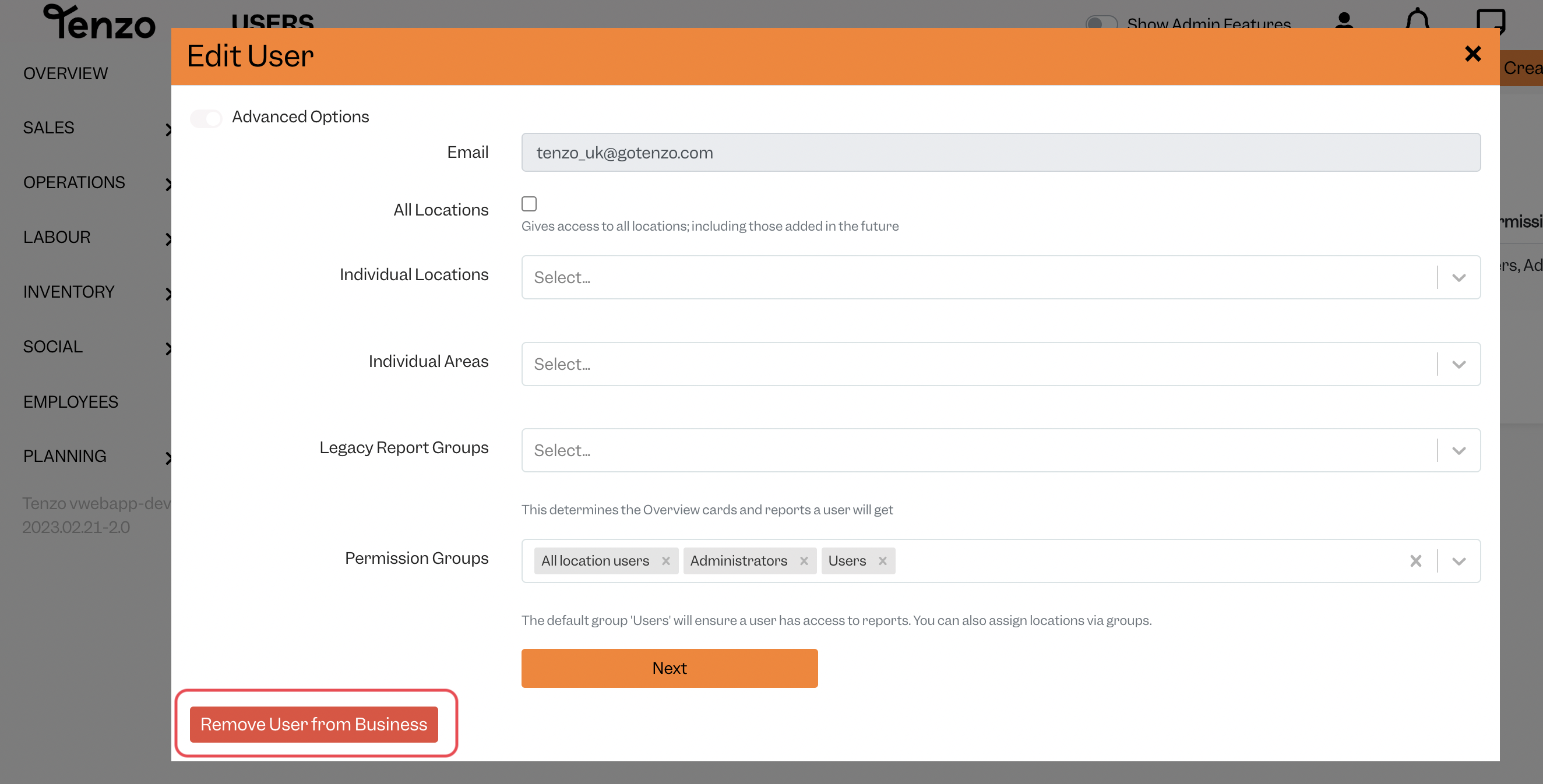
Once a user is created, you can have a user removed from your business by clicking on the button ‘Remove User from Business’, as per the below image:
Edit a user #
If you want to edit a user, just like before you have to head over to Admin > Users
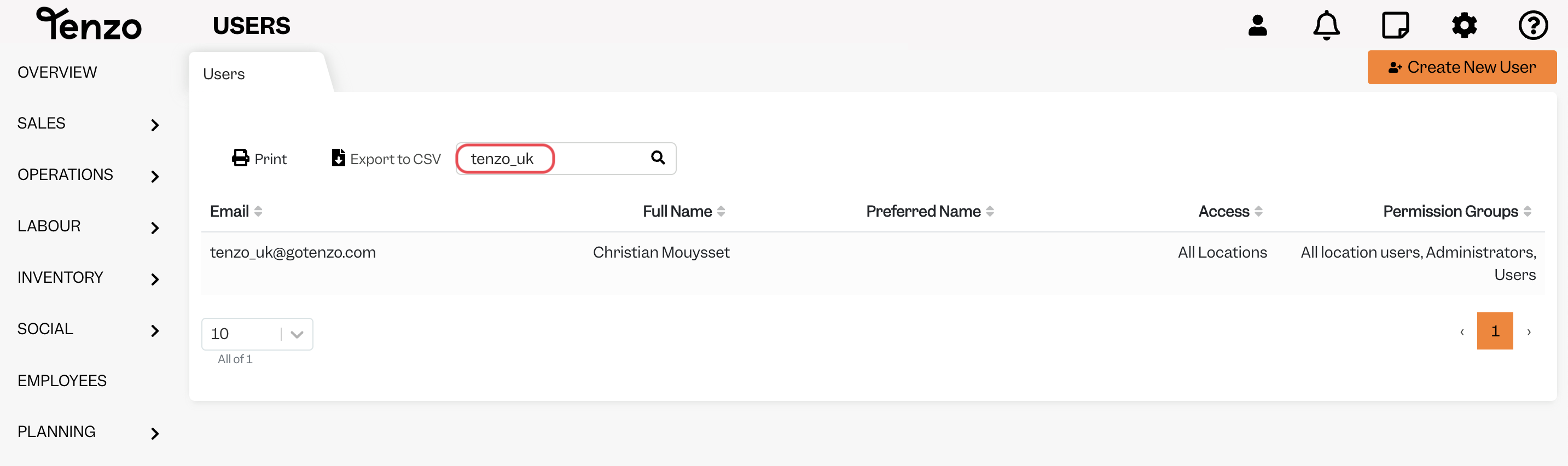
Search for the user you would like to edit:
Click on the user, and you will see the following window:
Here you can change their settings in terms of Locations Access (all locations or only some of them), Legacy Report Groups (having a custom Overview for groups of users), Permission Groups (Users, Administrators, etc.)
Once the changes are made, just click Next.
Added a new user, but they haven’t received an email from Tenzo? #
If this happens, you should:
- Check that their email address was correct for their invite; and
- Ask them to check their spam folder in case our email ended up there;
- or you can click the below to resend an invite
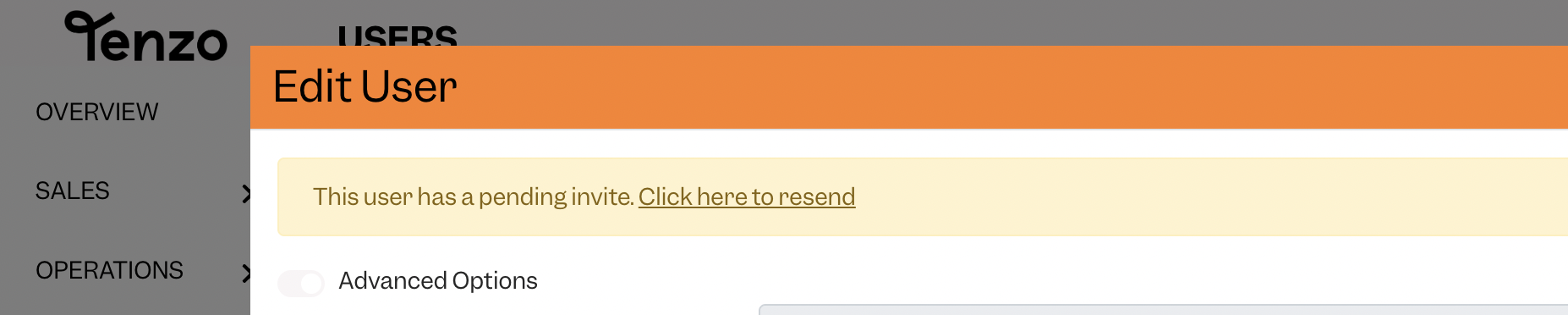
If this hasn’t solved the missing invitation to join Tenzo problem, please get in touch with support@gotenzo.com
#user #account #admin


