
Introducing Tenzo Alerts!! Now all account Administrators in Tenzo have access to this new feature.
As an Admin user, Alerts enable you to set up thresholds on the performance targets important to your team. If that threshold is hit, email notifications are proactively sent to you or a group of your choice.
How to Manage Alerts #
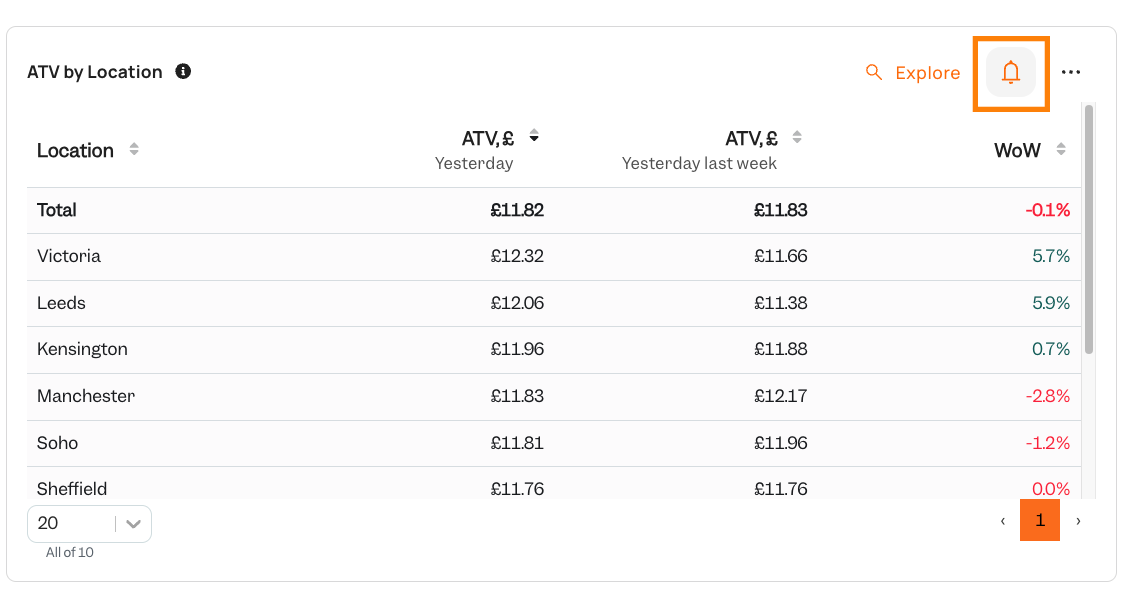
To add or to manage alerts on a desired card, click on the bell icon as shown below:
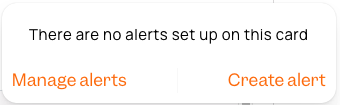
Once you click on it, the following menu will appear if no alerts are currently set:
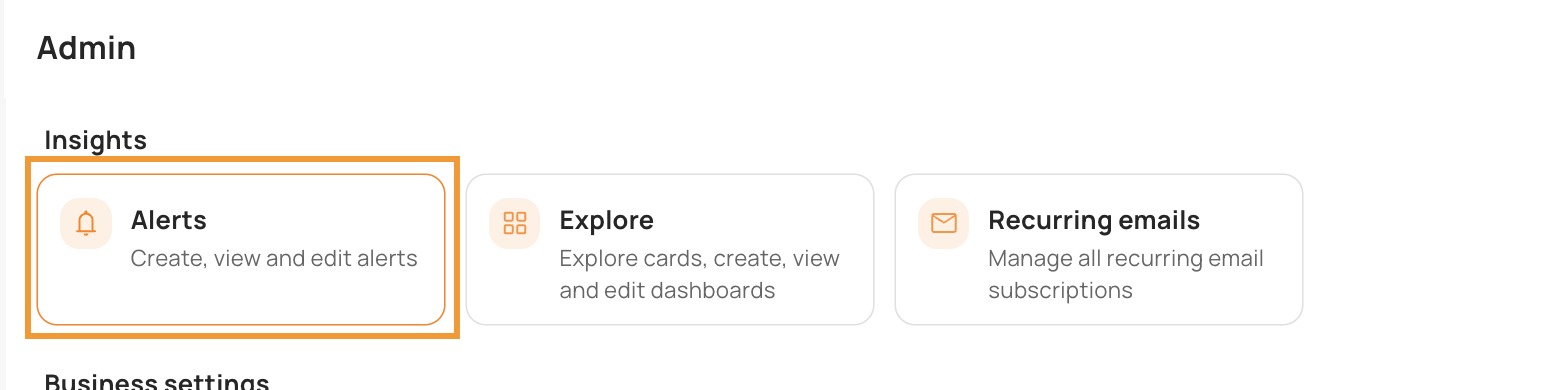
You can view and manage existing Alerts in Admin> Alerts:
How to Create a New Alert #
For this example we are going to be creating an alert for when our ATV yesterday was less than £12.
1. Click on the “Create alert” button;
2. You will then be taken to the following menu:
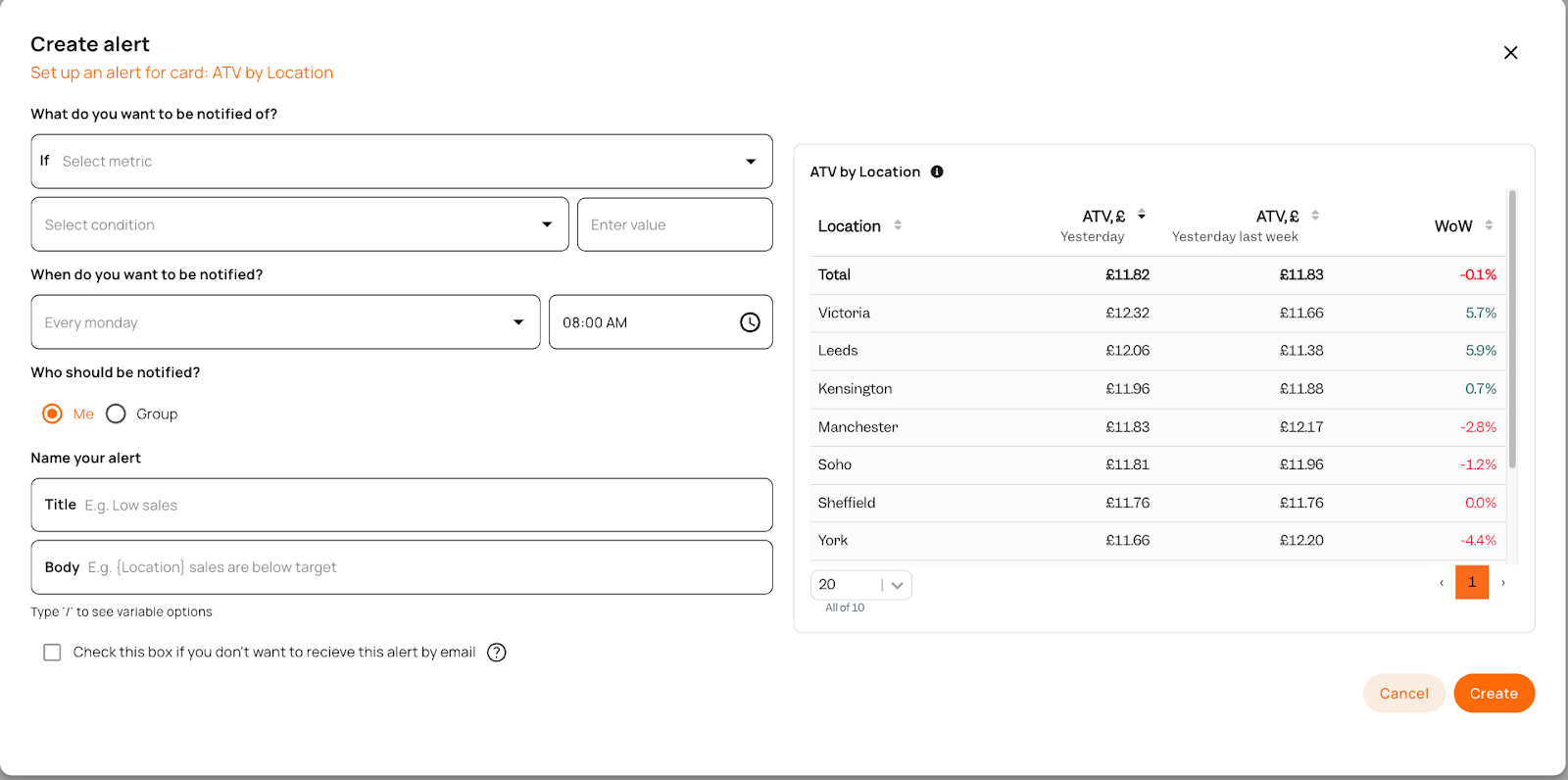
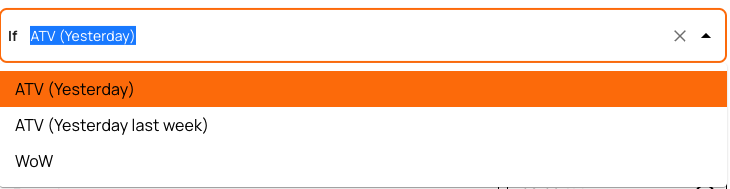
3. On the “If” selector we will select the desired field from the card, which in this case is the “ATV (Yesterday)”:
4. For the “Condition” we are going to set it to “Is less than”, but depending on your alert requirements you can select the one that works best for you at the dropdown shown below:
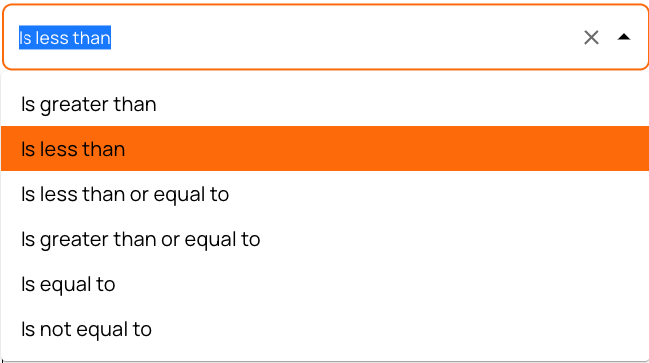
The Value in this case will be “12” for our trigger for the alert

5. Next you will need to select when the alert is run from a dropdown list of options shown below:
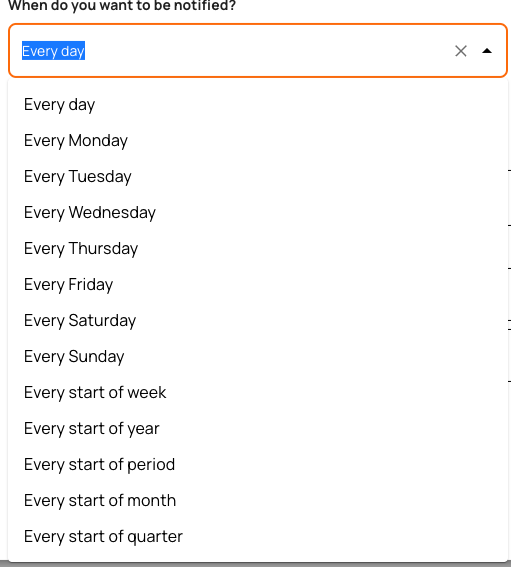
In our case we are going to go “Every day” at “10:00AM”:

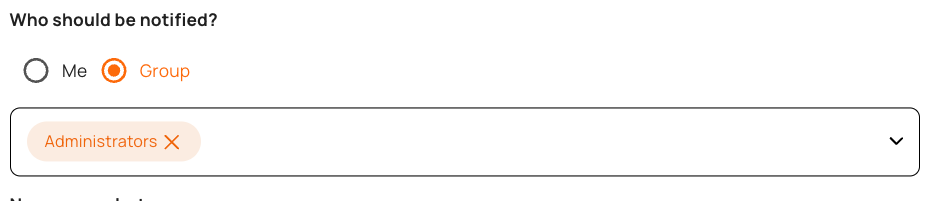
6. Next you will need to select who the alert should get sent to.
In our example it is going to be going to anyone who belongs to the User Group “Administrators”, but it is possible to assign it to a bespoke group you created such as General Managers, or alternatively you can set the alert to only go out to yourself:
7. Next we need to give our alert a heading, which we named as shown below:

8. Then we need to adjust the custom text of the alert text once you open it to view it on the card where it will be displayed. You can include specific metrics in the text.
You can view all available fields by typing “/” in the alert body field to get the drop down list on which you can click to select it as shown in the screenshot below:
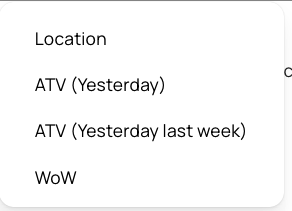
The end alert text looks as follows:
“ATV (Yesterday) is less than £12 for {Location}, it is {ATV (Yesterday)}”

8. The final option that you can choose is whether you want to only get the alert on the card, but not with an Alert Email that would go to your inbox.

9. The final step is to hit “Save” in the bottom right corner:
Now the alert is set and will go out if triggered every day at 10AM to your account administrators using the example above.
This is how it would look like in the email:
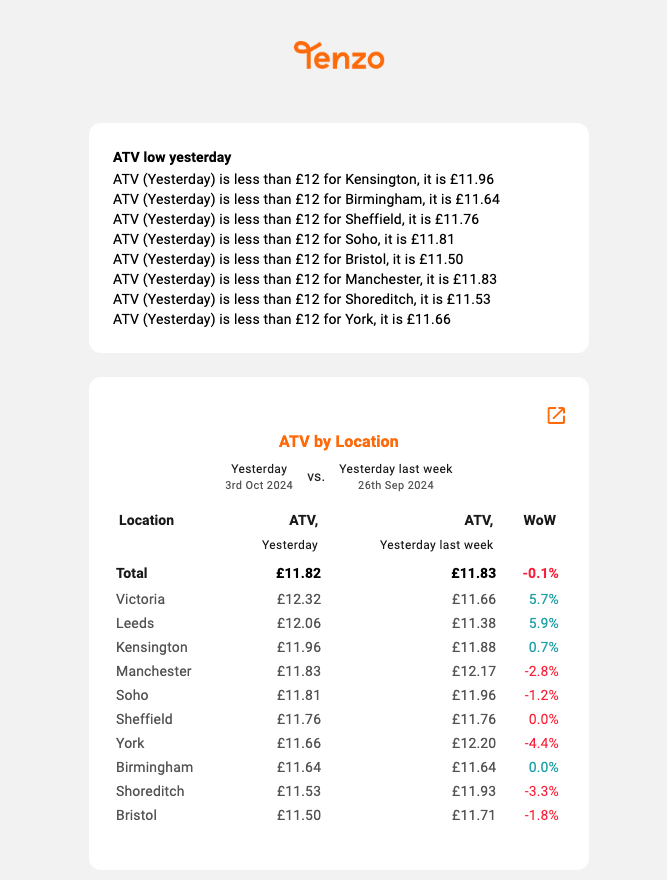
And this is how it would look like when you click on the Alert bell in the card after it ran:
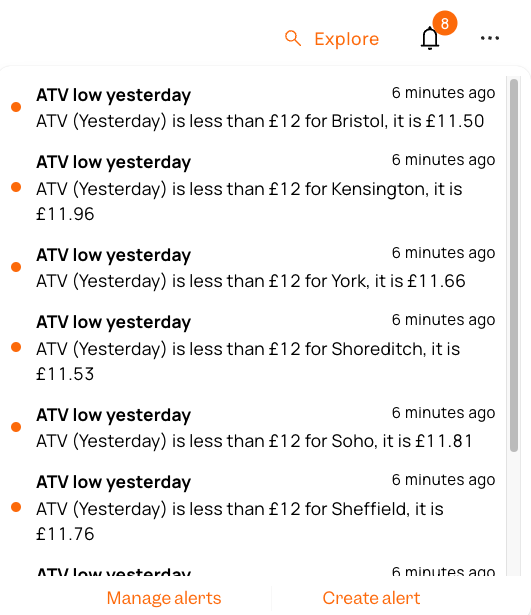
Happy Alert Creating!
If you have any questions on setting up alerts, or suggestions on how we could improve it please do not hesitate to reach out to your CSM or to support@gotenzo.com


