
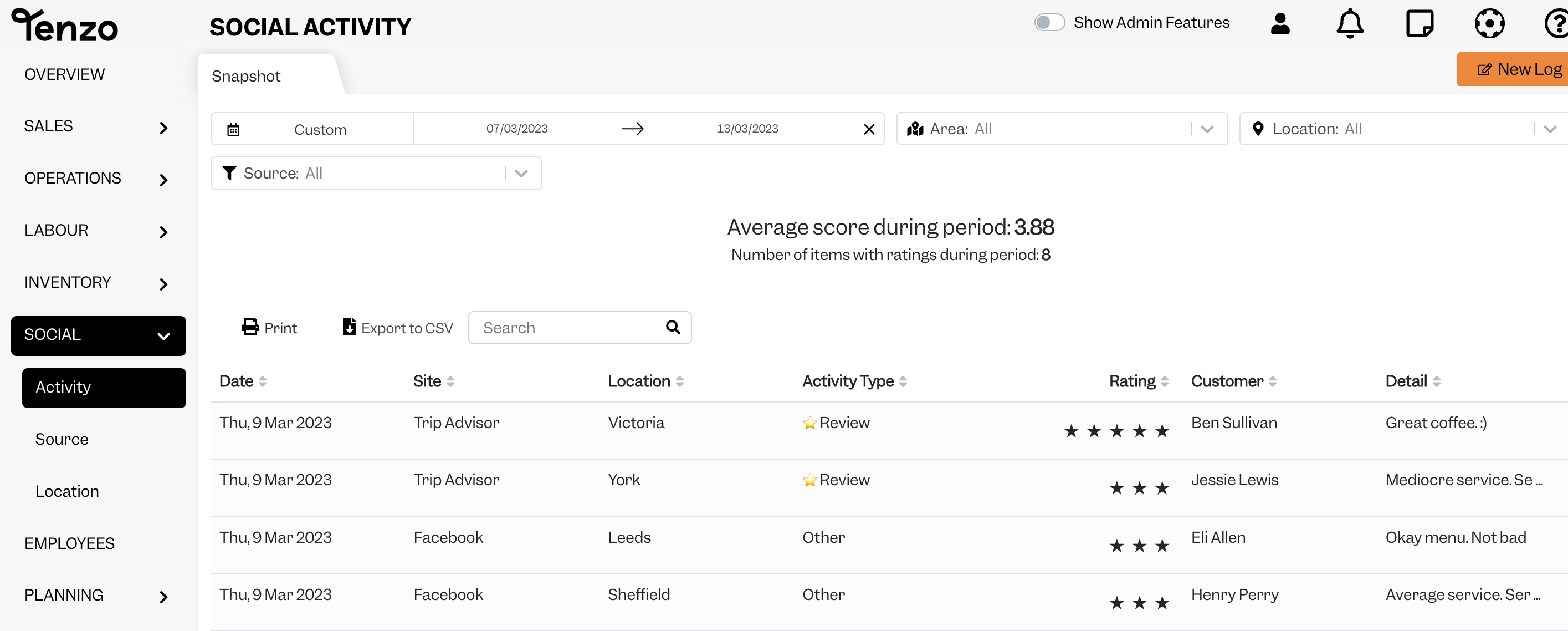
You’ll not only be able to track your reviews, but you’ll benefit from:
- Empowering your team to understand how they’re performing against the feedback received
- Providing them with pointers on areas for improvements,
- A central place to review all of your social reviews for all your locations
You can access the social reviews on web and mobile and receive alerts for new reviews.
#
Before you connect your social review feeds: #
Ask your Customer Success Manager (CSM) about adding the Social Module to your account if you don’t already have this included.
If social is part of your Tenzo package, then the person who has access to the business Facebook and Google Business accounts will need to action these steps. Your CSM will need to turn on the features after they’re connected, so please let them know once the connection has been made.
#
Social Set-Up for the First Time on your Account: (Facebook & Google Business) #
Instructions for adding a new location below
The social setup will roughly take 5 minutes by following the 5 easy steps below.
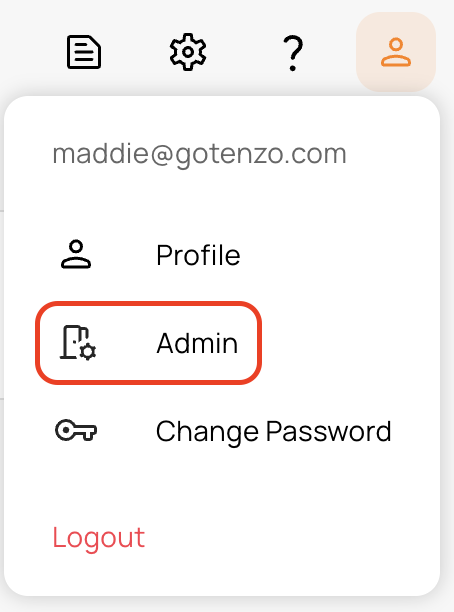
1. Click on Admin on the dropdown below your user:
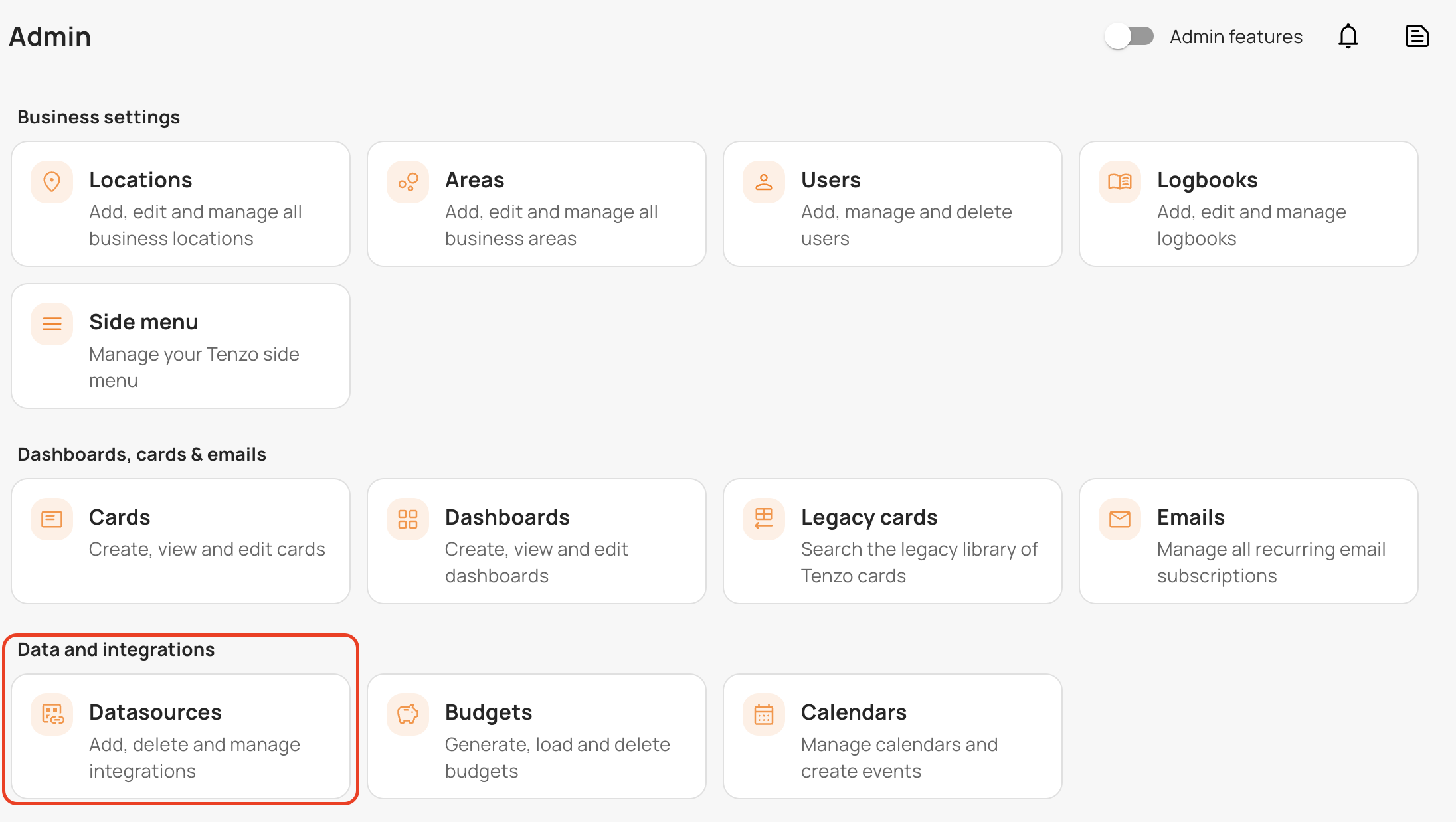
3. Select Add New to begin linking you Facebook or Google Business reviews. Follow the steps and complete your login to your Facebook or Google Business account to approve the social review connection.
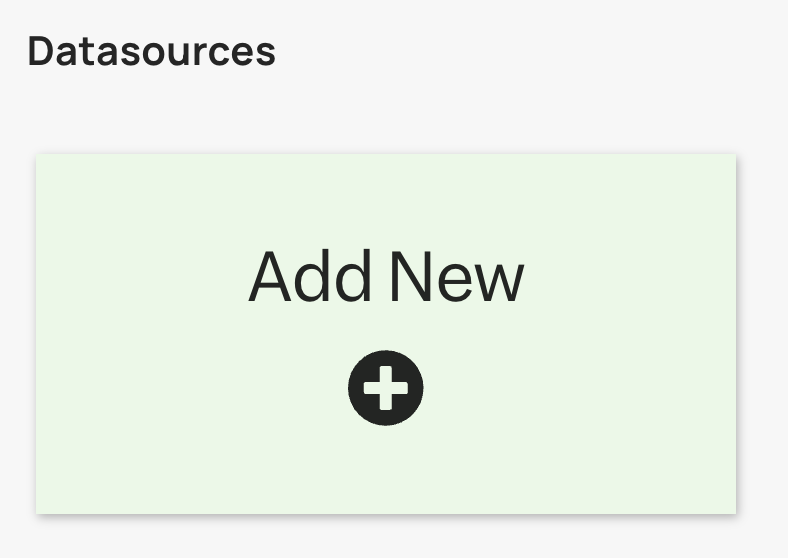
4. Provide a name for the connection e.g “(Business name) Facebook” for Facebook and/or “(Business Name) Google” for Google.
5. Once you have completed the above, kindly inform your Customer Success Manager or email support@gotenzo.com and we will have the reviews begin flowing into Tenzo.
If you’ve got any questions about using this tool, please do not hesitate to contact us.
Social Set-Up for adding a New Location: (Facebook & Google Business) #
The social setup will roughly take 5 minutes by following the steps below.
1. Click on Admin on the dropdown below your user:
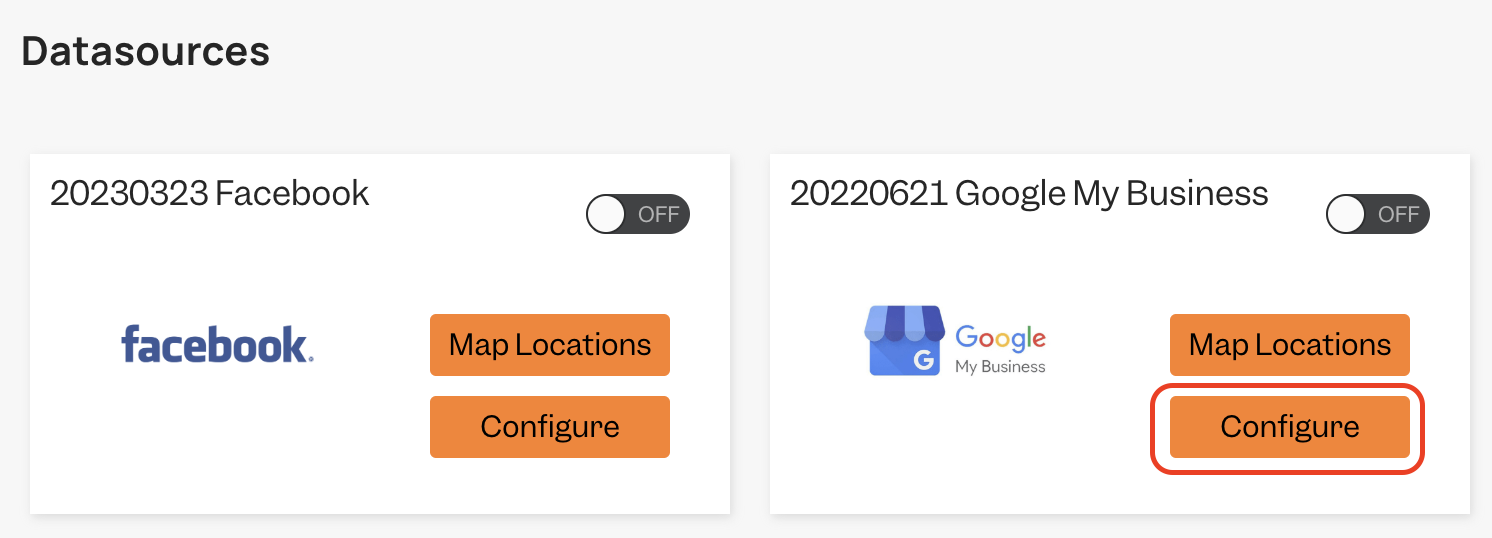
3. To add another location, please select ‘Configure’. Follow the steps and complete your login to your Facebook or Google Business account to approve the additional social review connection.
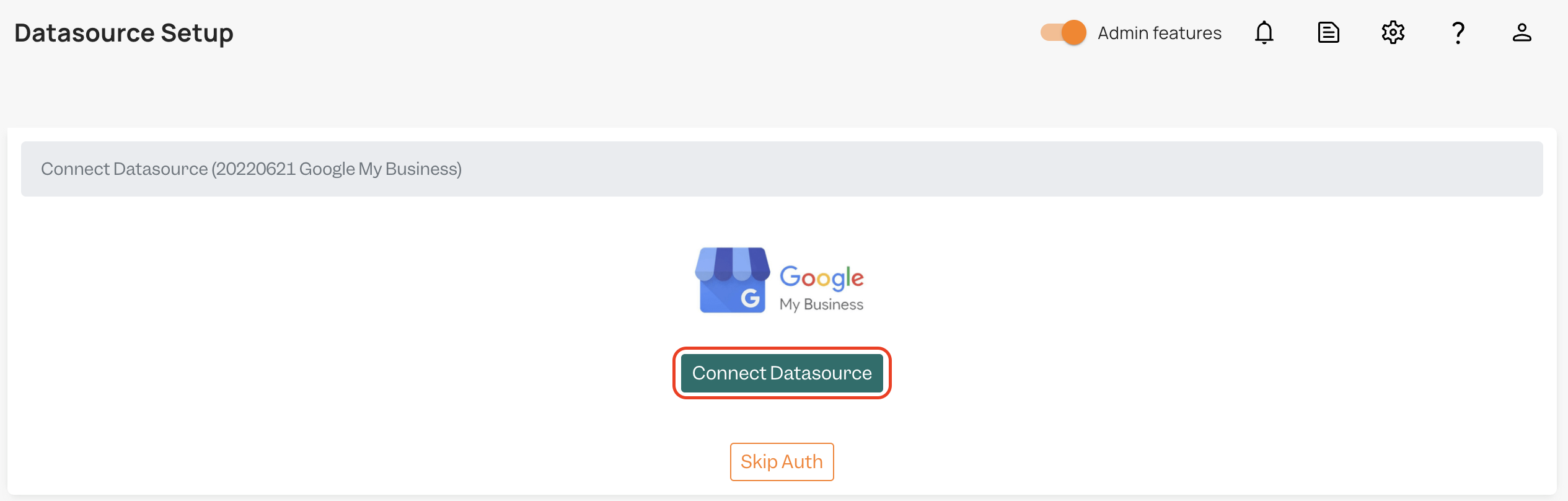
4. Be sure to select ‘Connect Datasource’
5. Once you have completed the above, kindly inform your Customer Success Manager or email support@gotenzo.com and we will have the reviews begin flowing into Tenzo.
If you’ve got any questions about using this tool, please do not hesitate to contact us.
#social #integrations


