
The first thing you see when you log into your Tenzo account is your Dashboard, which will show you an overview of all your cards.
Each Card comprises of the following elements:
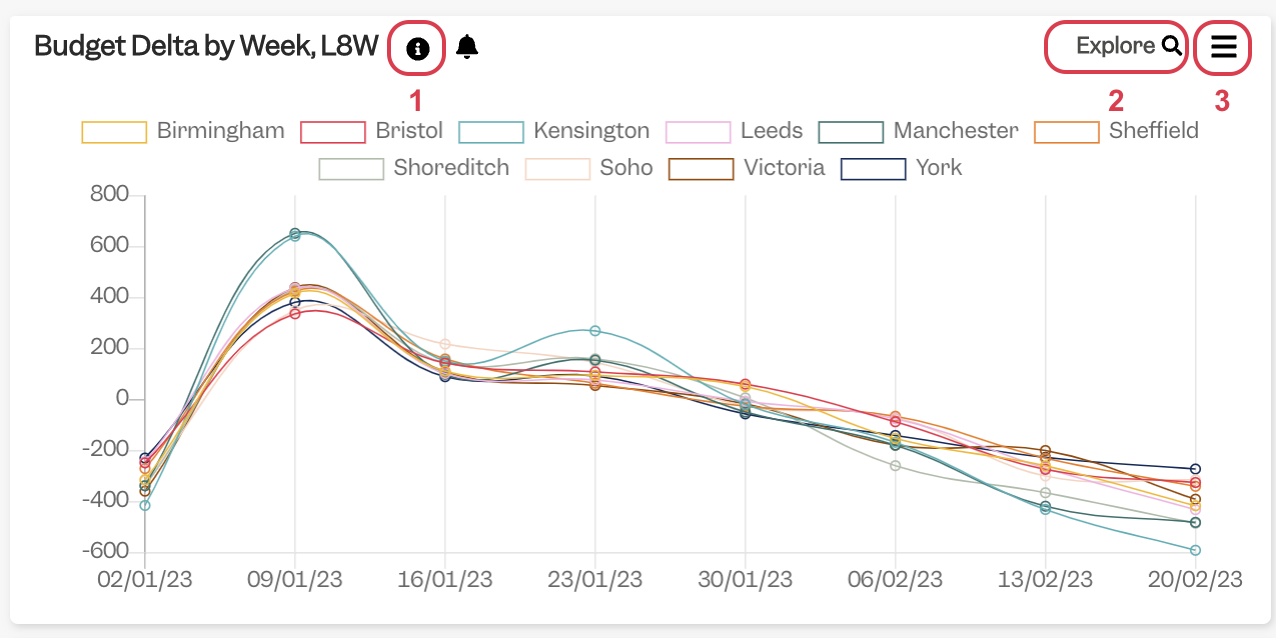
1. Info: This shows the metrics you are looking at:
- Location/s
- Date Range
- Settings: whether it includes VAT, Service Charge, Discounts/Promos, Staff Meals
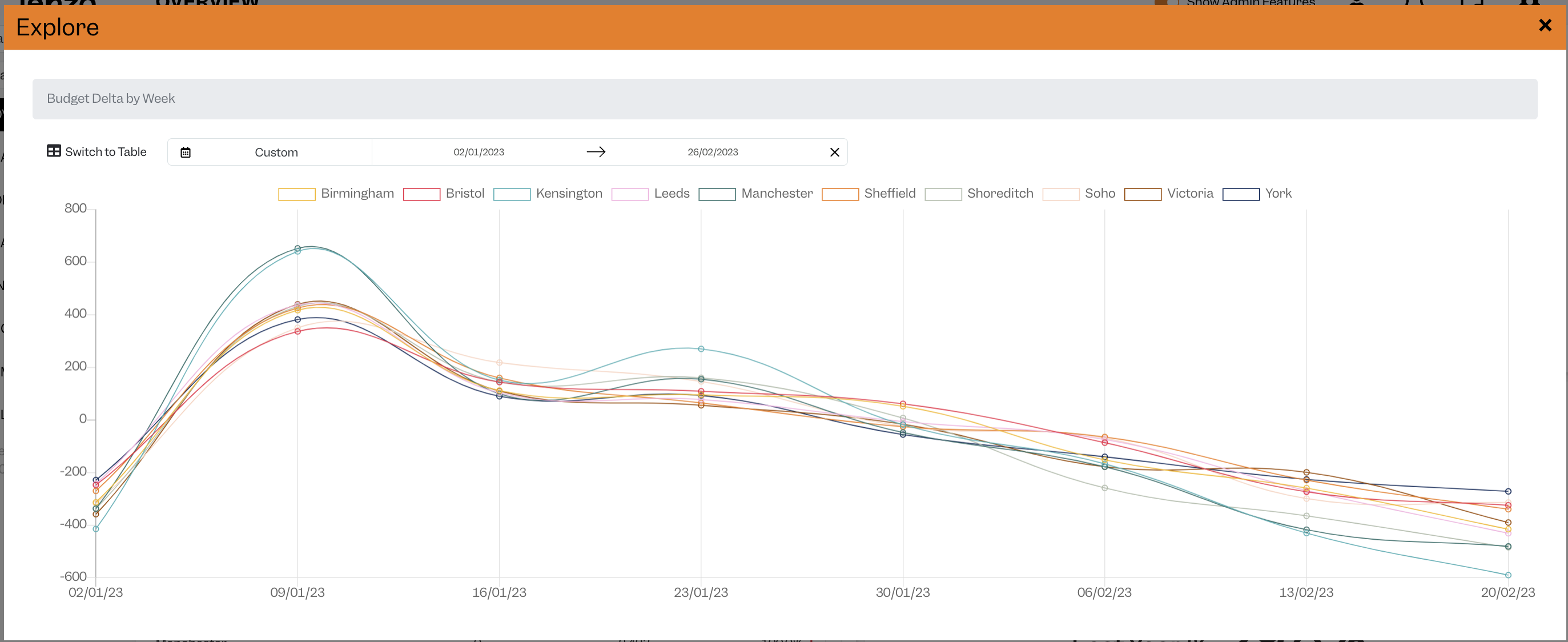
2. Explore: if you click here, you will be able to explore the card further; depending on the card, you will be able to select different date ranges or select a location:
3. Menu: when you click, a drop down menu appears which will allow you to:
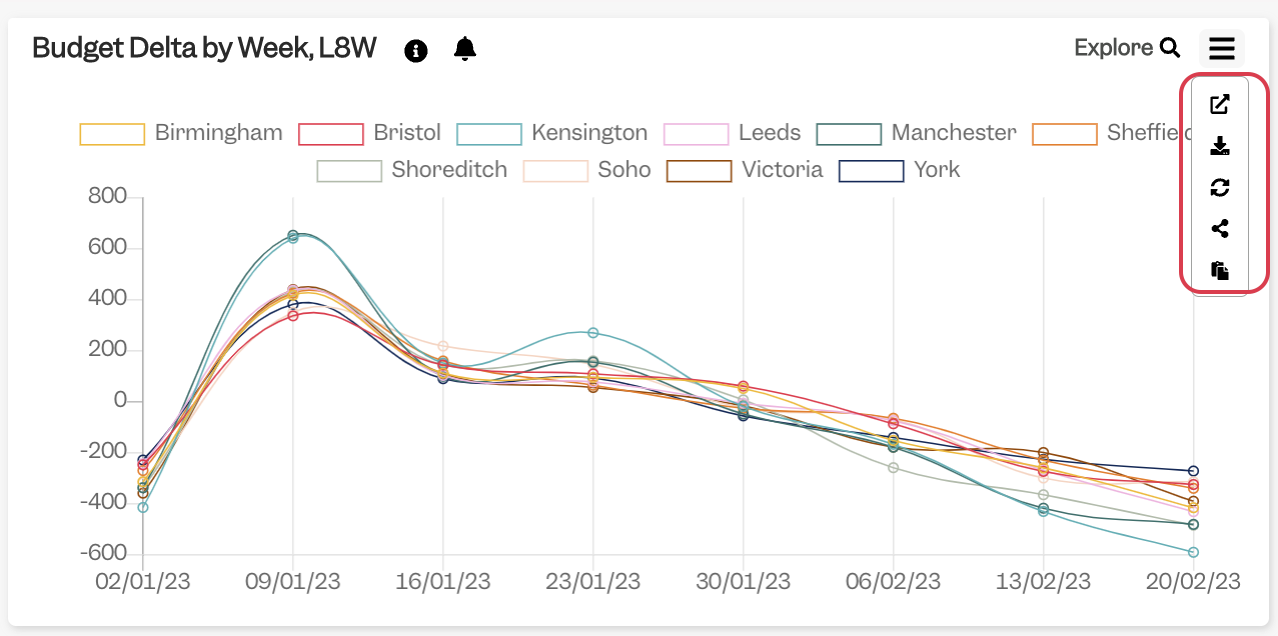
- Show only this card on a new tab
- Download this card into a CSV file
- Reload the Card
- Share the Card
- Copy the Card’s link onto your clipboard
Do drop us a note at support@gotenzo.com or contact your CSM, Customer Success Manager if you have any questions.
#cards #data #webapp #mobile #admin


