

Guide: Centegra Inventory
How Do Core Concepts Map to Tenzo?
Key: ✅ Supported 🚸 Work in Progress ❌ Not Supported
 |
|
|---|---|
| Location | ✅ Sites |
| Vendor | ✅ |
| Category | ✅ Nodes from Stock Count Groups |
| Item | ✅ Products |
| Purchases | ✅ Purchases (Stock Period End Date) — Supplier Info from SuppliedProducts from suppliers, item info from Stock Period Items, dates from Stock Supplier Orders |
| Actual Usage | ✅ Stock Period Items |
| Theoretical Usage | ✅ Stock Period Items |
| Recorded Wastage | ✅ Stock Period Items |
| Transfers | ✅ |
| Menu Items | ❌ Not Supported |
| Menu Item Costs | ❌ Not Supported |
Data Ingestion
| Real-time optionally available? | ❌ |
| Default polling frequency | Every 24 hours |
| Data retrieved on each poll | Last 2 weeks |
| Historical data | All data since you started using the system |
How Do I Compare Centegra Inventory Data to Data in Tenzo?
Getting the Correct Report in Centegra Plus
- Log in to Centegra Plus: https://www.centegraplus.com/login
- Navigate to Period Management -> Periods
- Fill in the required information:
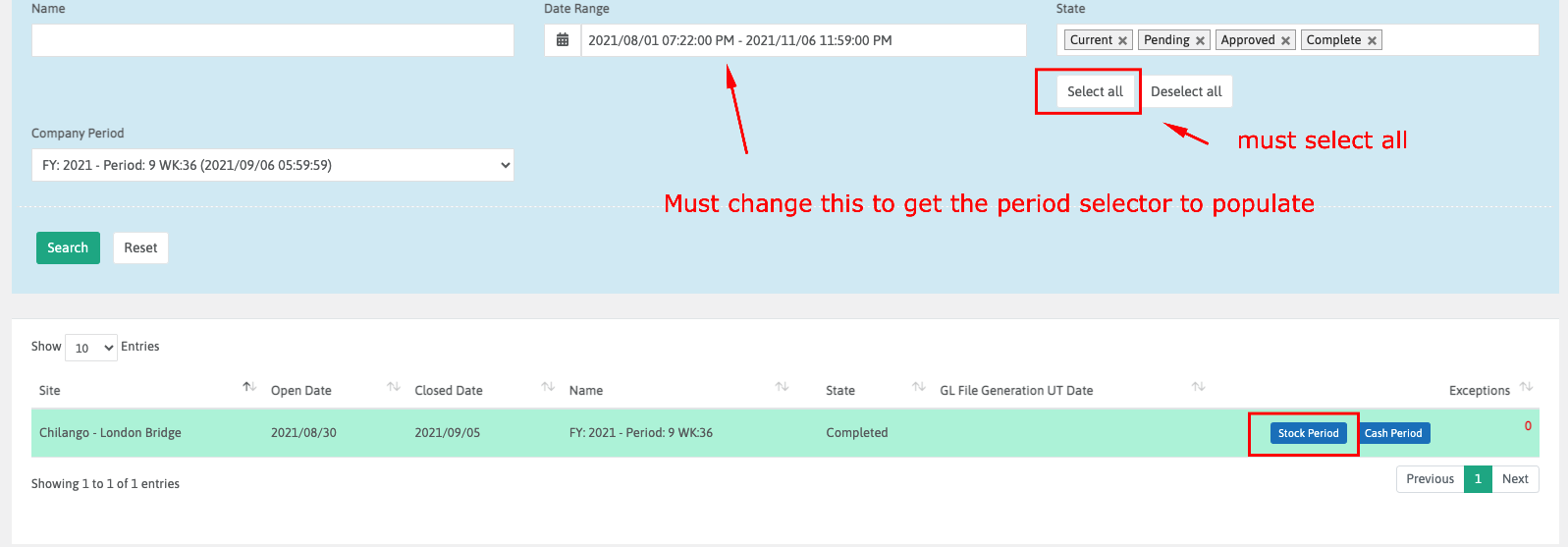
- Click search, then select Stock Period and then the Margin Summary and Stock KPIs report.
- The values to match are the ones in the ‘Total’ column.
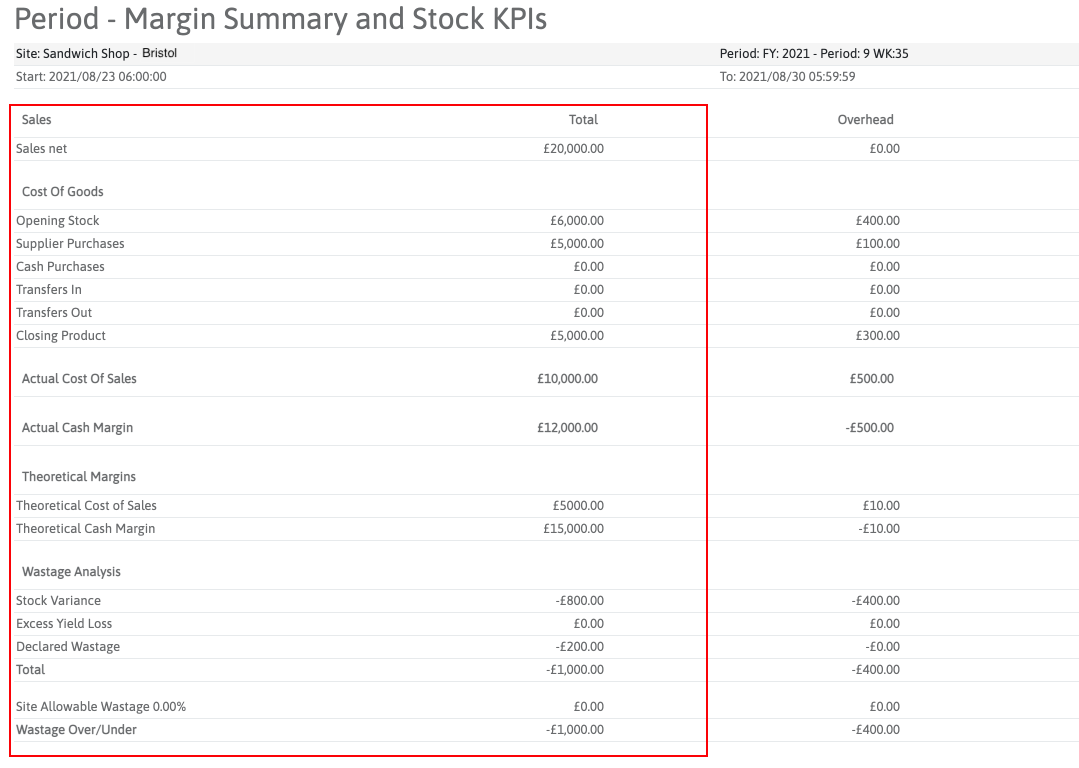
Tenzo Purchases = Centegra Supplier Purchases + Transfers In - Transfers Out
NOTE: If you cannot find periods via this method, you may have to change the location in the top menu bar.
Getting the Data in Tenzo
Actual Usage
In Tenzo navigate to Inventory -> Location and ensure the correct time period is selected.
Select ‘Actual Usage’ from the drop down menu.
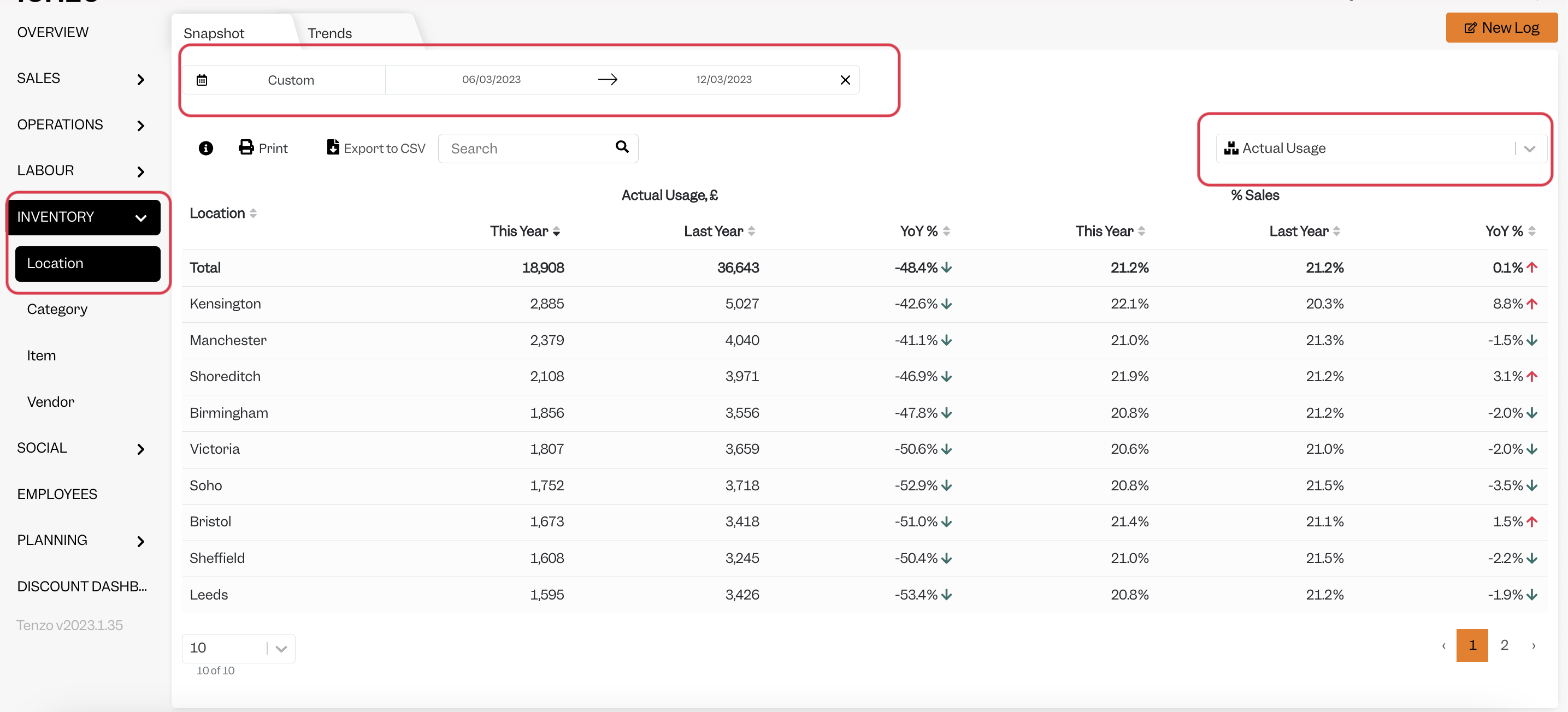
The value in the ‘This Year’ column should match the ‘Actual Cost of Sales’ value in the Centegra Plus report.
Purchases
In Tenzo navigate to Inventory -> Vendor.
Next select the time period and location that matches the report from Centegra Plus.
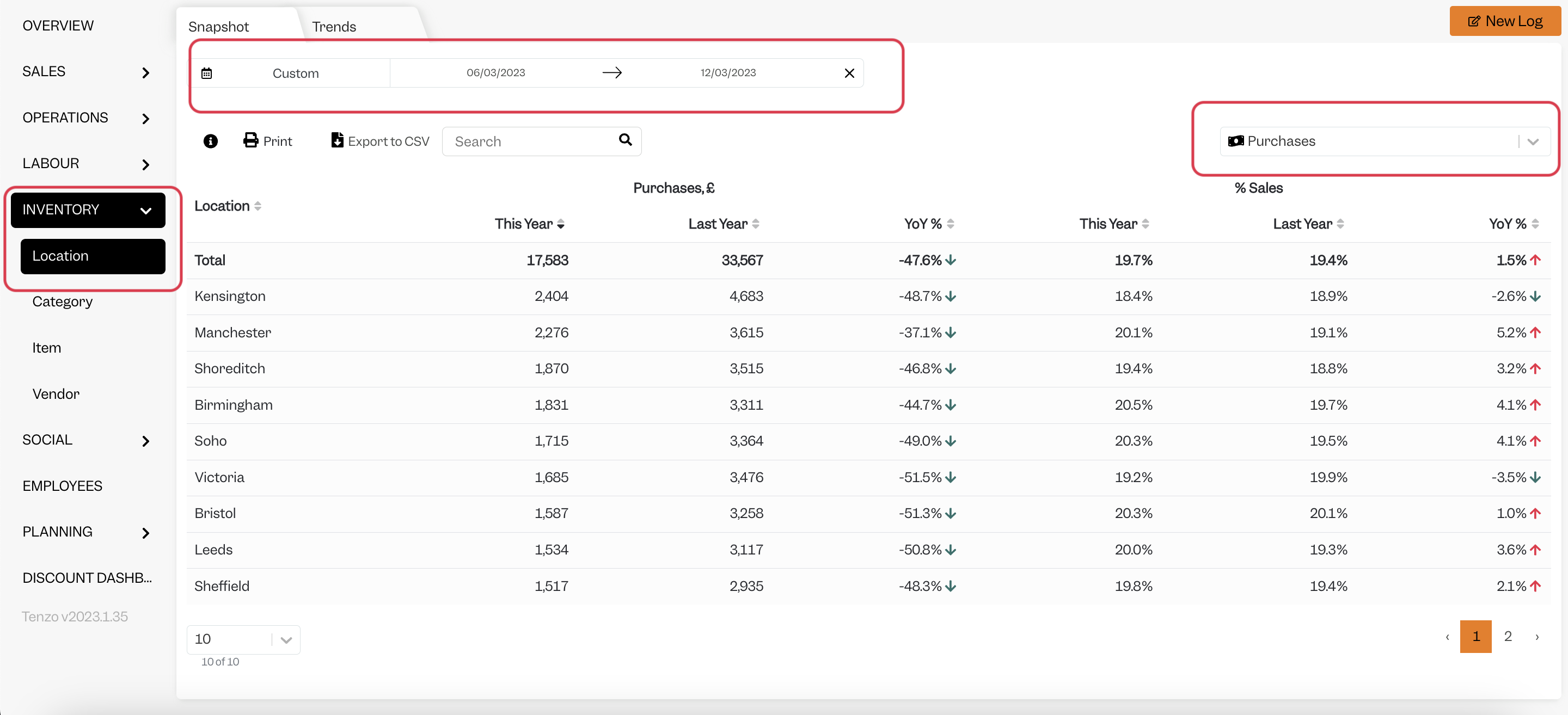
The ‘Total’ value in the ‘This Year’ column in Tenzo should match Total Vendor Purchases, where this is calculated from the Centegra Plus report as:
Total Vendor Purchases = Supplier Purchases + Transfers In - Transfers Out
Exceptions
- On an item level the totals seen in Centegra Plus do not take into account transfers in and out, whereas the item totals in Tenzo do.