Guide: Blinq
How Do Core Concepts Map to Tenzo?
Key: ✅ Supported 🚸 Work in Progress ❌ Not Supported
 |
|
|---|---|
| Location | ✅ Location |
| Order Type | ✅ Order Type |
| Revenue Center | ✅ Revenue Centre |
| Product Item | ✅ Product Item |
| Product Division | ✅ Product Division |
| Product Category | ✅ Product Category |
| Tender Type | ❌ Not Supported |
| Employee | ✅ Employee Name |
| Customer | ❌ Not Supported |
| Discount (Names) | ✅ Discount Name |
| TicketDiscounts (Amounts) | ✅ Discount Amount |
| Guest Count | ✅ Guest Count |
| Transaction length | ✅ |
| KDS Bump Time | ❌ Not Supported |
| Ticket Voids | ❌ Not Supported |
| Ticket Item Voids | ❌ Not Supported |
| Table | ❌ Not Supported |
| Service Charge | ✅ Service Charge |
| Tips | ❌ Not Supported |
| Price | ❌ Not Supported |
| Ticket Item Modifiers | ❌ Not Supported |
Data Ingestion
| Real-time optionally available? | ✅ |
| Default polling frequency | Every 20 minutes (today and yesterday) |
| Data retrieved on each poll | Today and yesterday |
| Historical data | All data made available by Blinq |
| Data received per day or continuous | Continuous (files arrive through the day; empty pre-10am files are skipped) |
| Transport | Push: Blinq uploads sales files in the Tenzo Data Importer format to a Tenzo SFTP account |
How Do I Compare Data to Data in Tenzo?
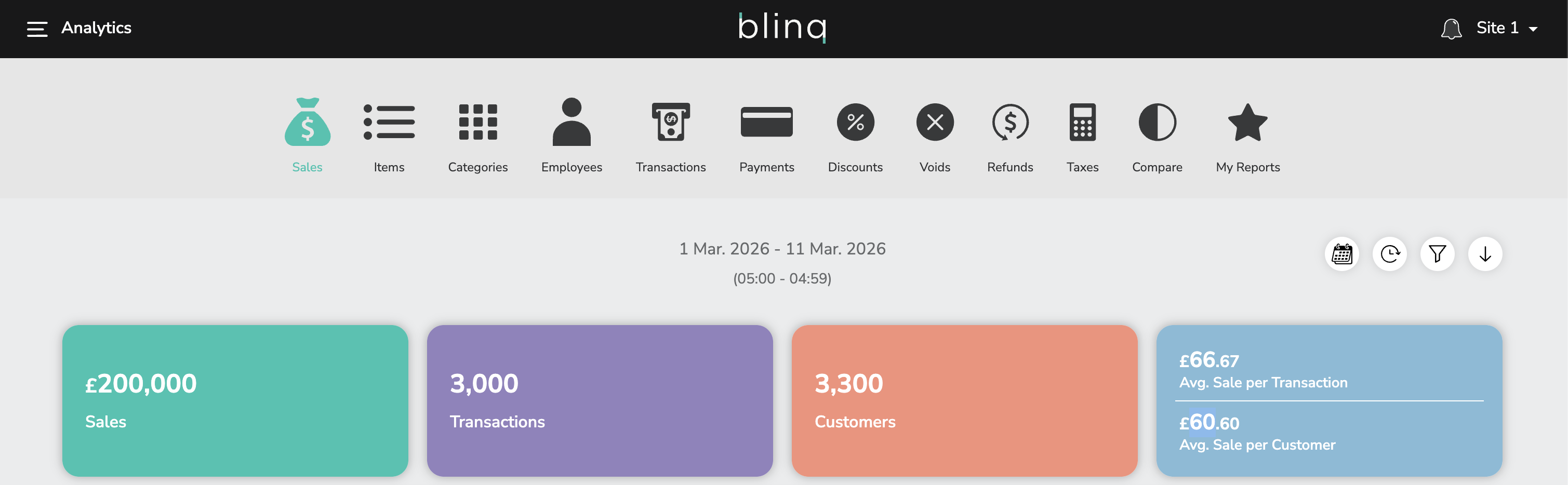
To compare Sales in Blinq:
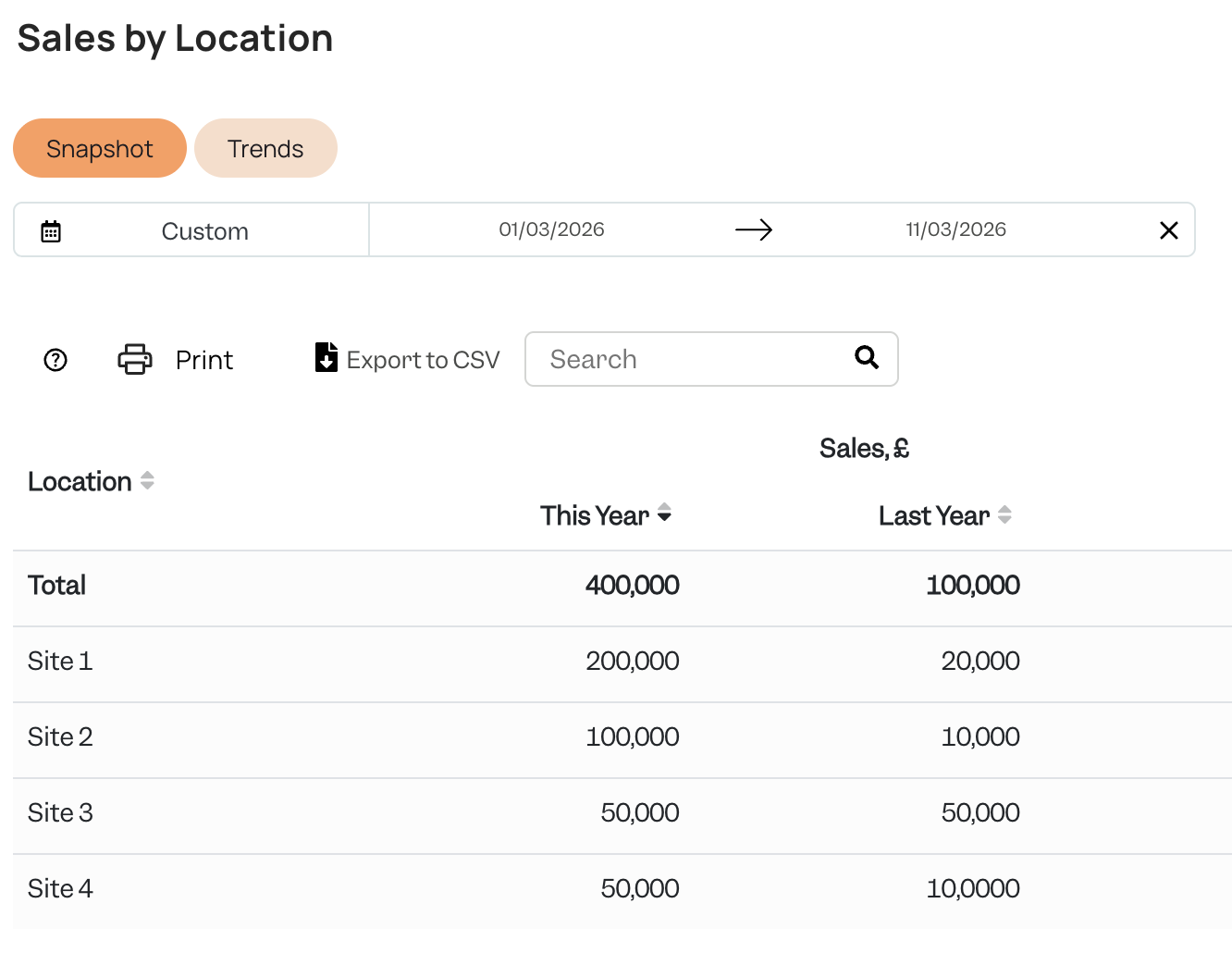
This can be seen in Sales by Location in Tenzo:
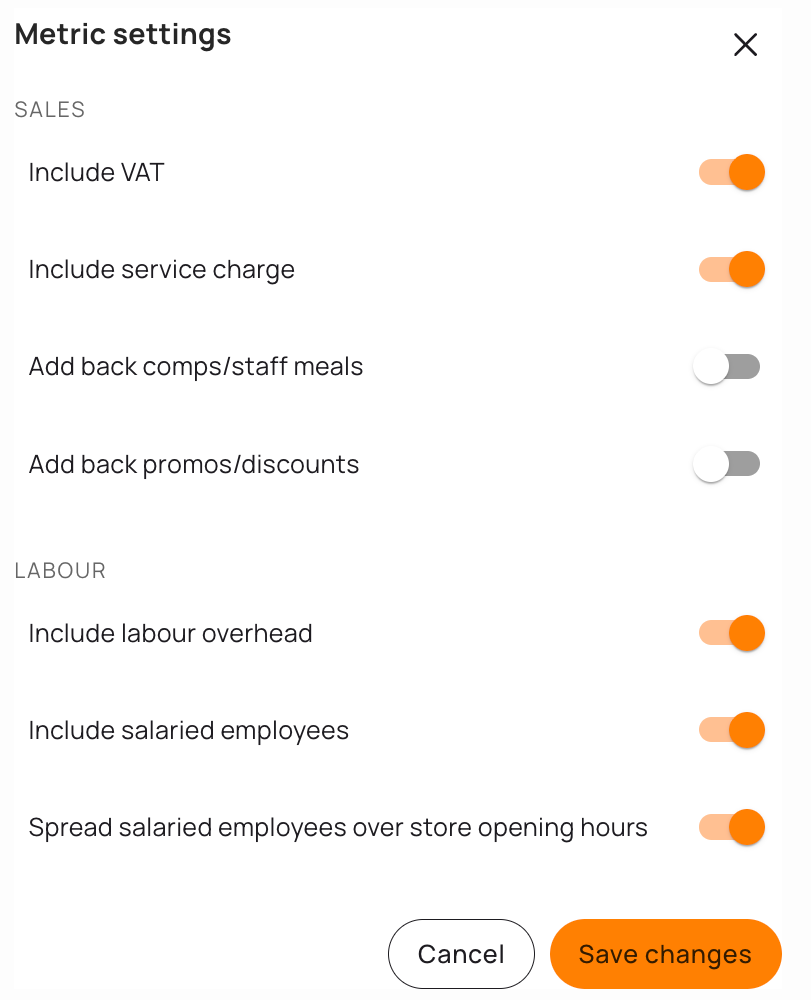
To match as shown above, you'll need VAT and Service Charge enabled in the settings: