

Guide: Tenzo Data Importer (Excel: Social)
How Do Core Concepts Map to Tenzo?
Key: ✅ Supported 🚸 Work in Progress ❌ Not Supported
 |
|
|---|---|
| Location | ✅ Location |
| Review | ✅ Review |
| Source | ✅ Source |
| Rating | ✅ Rating |
| Sub Ratings | ✅ |
Data Ingestion
| Real-time optionally available? | ❌ |
| Default polling frequency | Twice daily |
| Data retrieved on each poll | Reviews dated in the last 7 days |
| Historical data | All data you input into the workbook |
| Transport | Push: you fill in the workbook and Tenzo reads it on a schedule |
How Do I Populate the Template?
Your workbook should be an Excel version of this template — the tab names and column headers need to match.
Please head to the tab called "Social". Here you can add Source of the Review, Comment, Rating.
Format the Date column as a date, or as text in YYYY-MM-DD form (e.g. 2024-08-01). A Date column formatted as plain text in a regional format such as 01/08/2024 is rejected, because 01/08 is ambiguous between day-first and month-first.
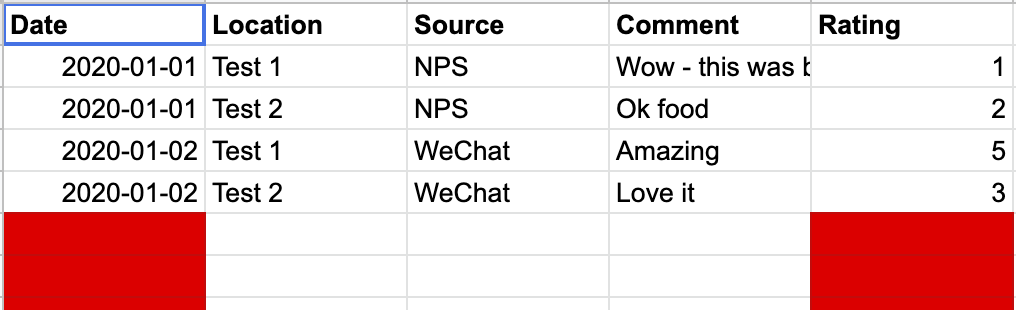
You should delete all other tabs in the workbook that are not needed.
How Do I Compare Workbook Data to Data in Tenzo?
In Tenzo, Navigate to Social > Activity:
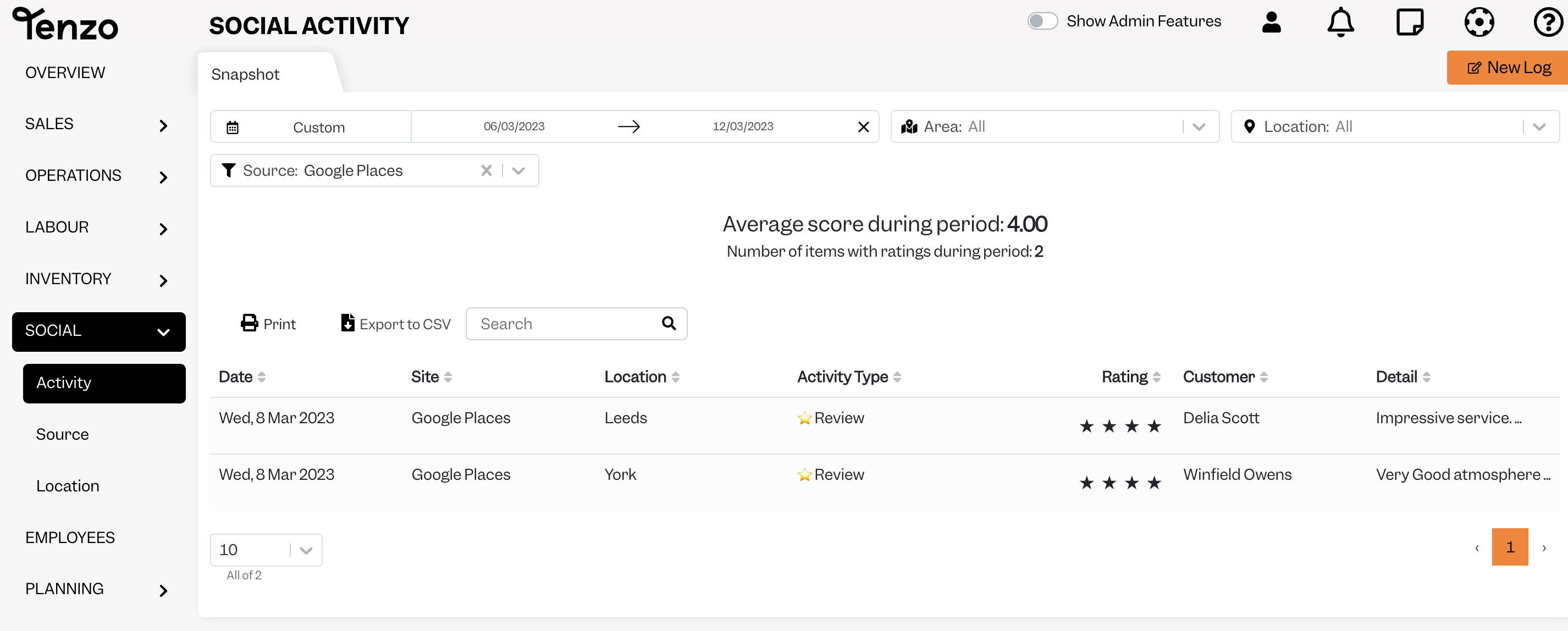
Compare the reviews you find here with the ones in your workbook. You can use Tenzo's search bar if you want to find a specific review.
These reviews will not appear in the dropdown, nor will they be visible when breaking down by "Source", but can be seen in Social Cards (for example this) alongside all other reviews.
Exceptions
The workbook must live in OneDrive or SharePoint. A file kept only on a local drive cannot be reached by Tenzo.
Other Ways to Send This Data to Tenzo
As well as an Excel workbook, Tenzo can receive data in the Tenzo Data Importer format by Email or as CSV files over SFTP. Talk to your Customer Success Manager if you would like to send your data one of these ways.