

Guide: When I Work
How Do Core Concepts Map to Tenzo?
Key: ✅ Supported 🚸 Work in Progress ❌ Not Supported
 |
|
|---|---|
| Location | ✅ Locations |
| Shift (actual) | ✅ Shifts |
| Shift (planned) | ✅ Shifts Planned |
| Hours | ✅ Hours |
| Salaried workers | ❌ Not Supported |
| Employee | ✅ Users |
| Role | ✅ Positions |
| House Part | ✅ Sites |
| Overheads | ✅ The overhead rate you set when connecting is added to each hourly rate |
| Holiday | ❌ Not Supported |
| Breaks | ✅ Breaks |
| Overtime | ❌ Not Supported |
| Exception costs / one-off costs | ❌ Not Supported |
| Borrowed/loaned employees | ❌ Not Supported |
Data Ingestion
| Real-time optionally available? | ❌ |
| Default polling frequency | Every 8 Hours |
| Data retrieved on each poll | Back 4 weeks, forward 2 weeks, per location per day |
| Historical data | All data since you started using the system |
How Do I Compare When I Work Data to Data in Tenzo?
Matching Hours
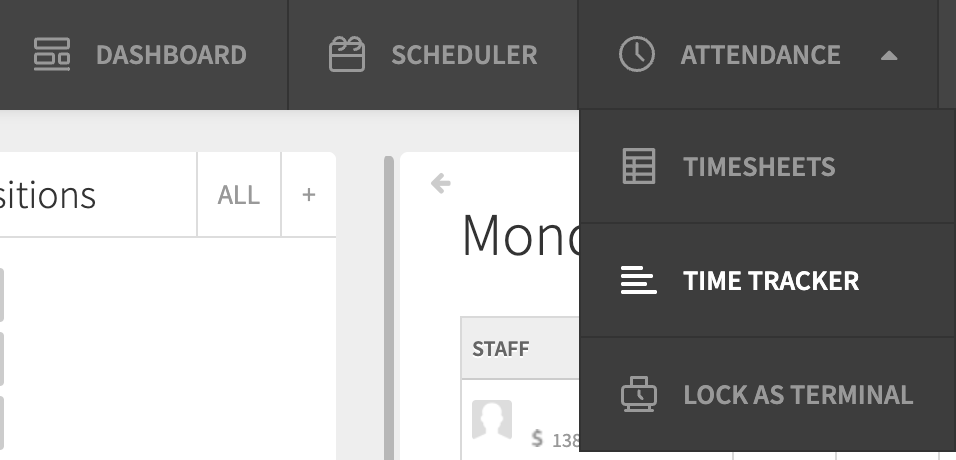
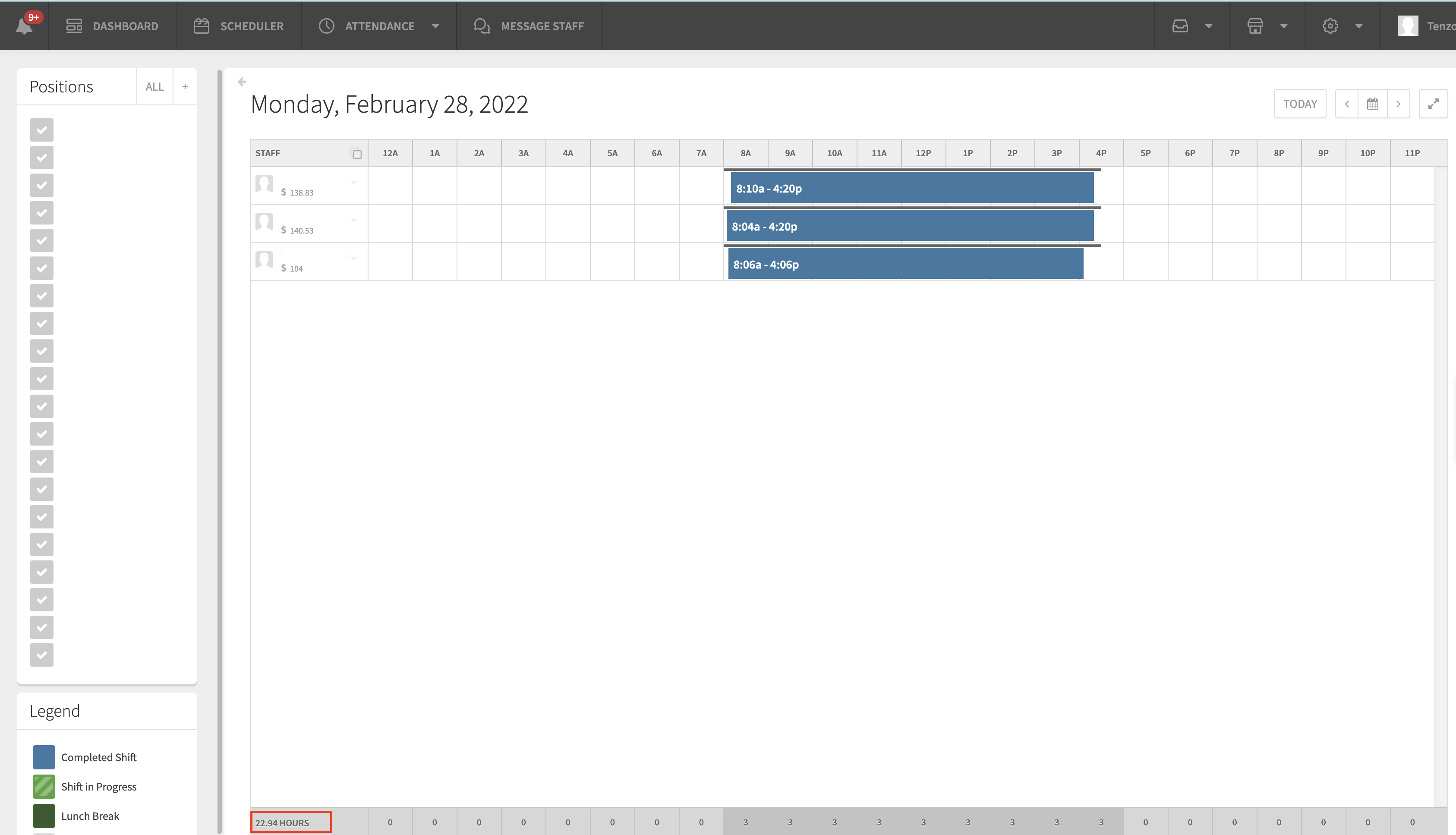
Tenzo will match the hours shown in the Attendance > Time Tracker View in When I Work.
The total value shown at the bottom of this view will match Tenzo's hours.
Matching Cost
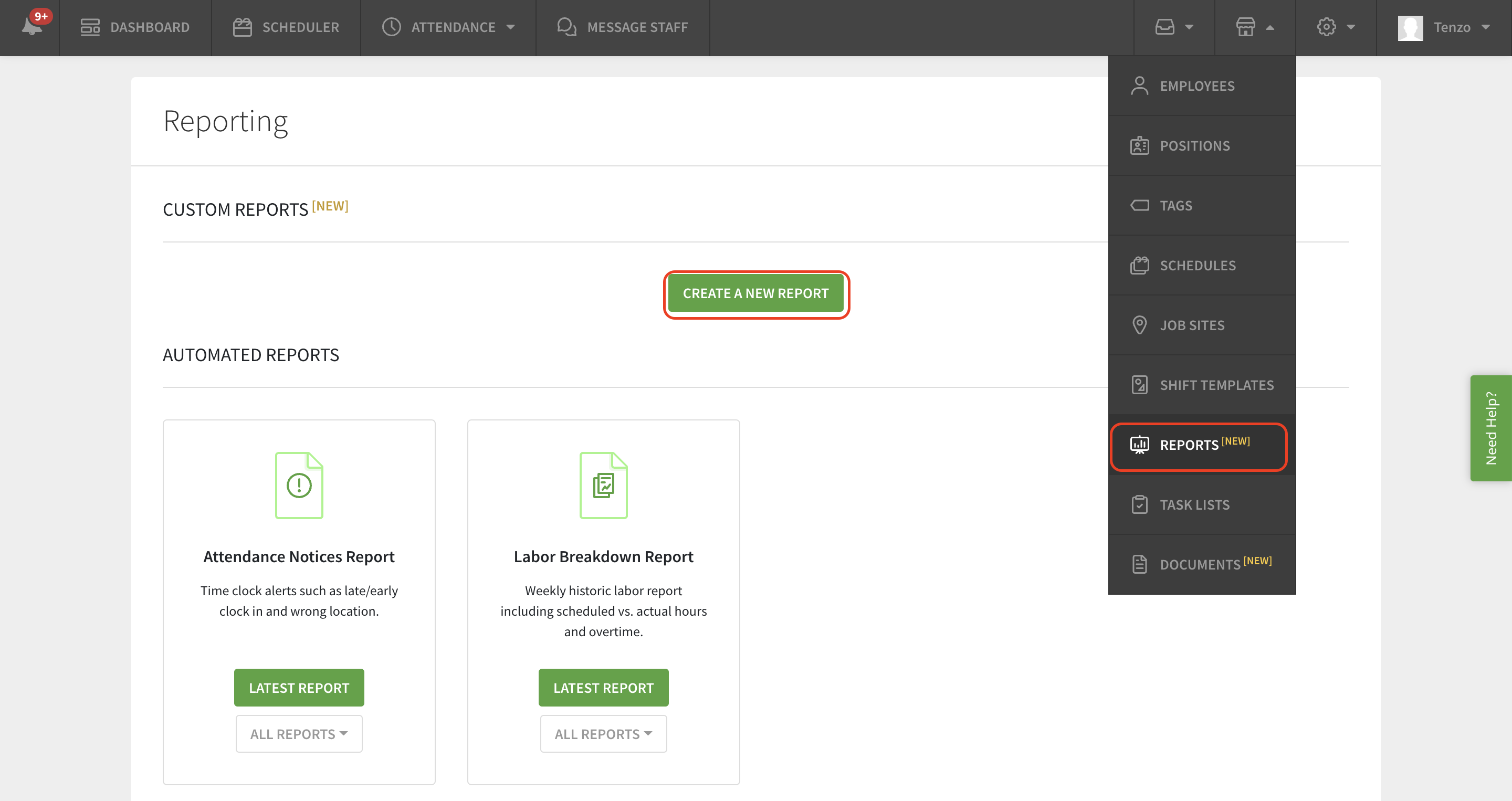
Tenzo will match the cost which can be exported from When I Work. This can be found in Reports, then choose 'Create a New Report'. From here choose 'Times' and the same date range as you will compare to in Tenzo and export the report.
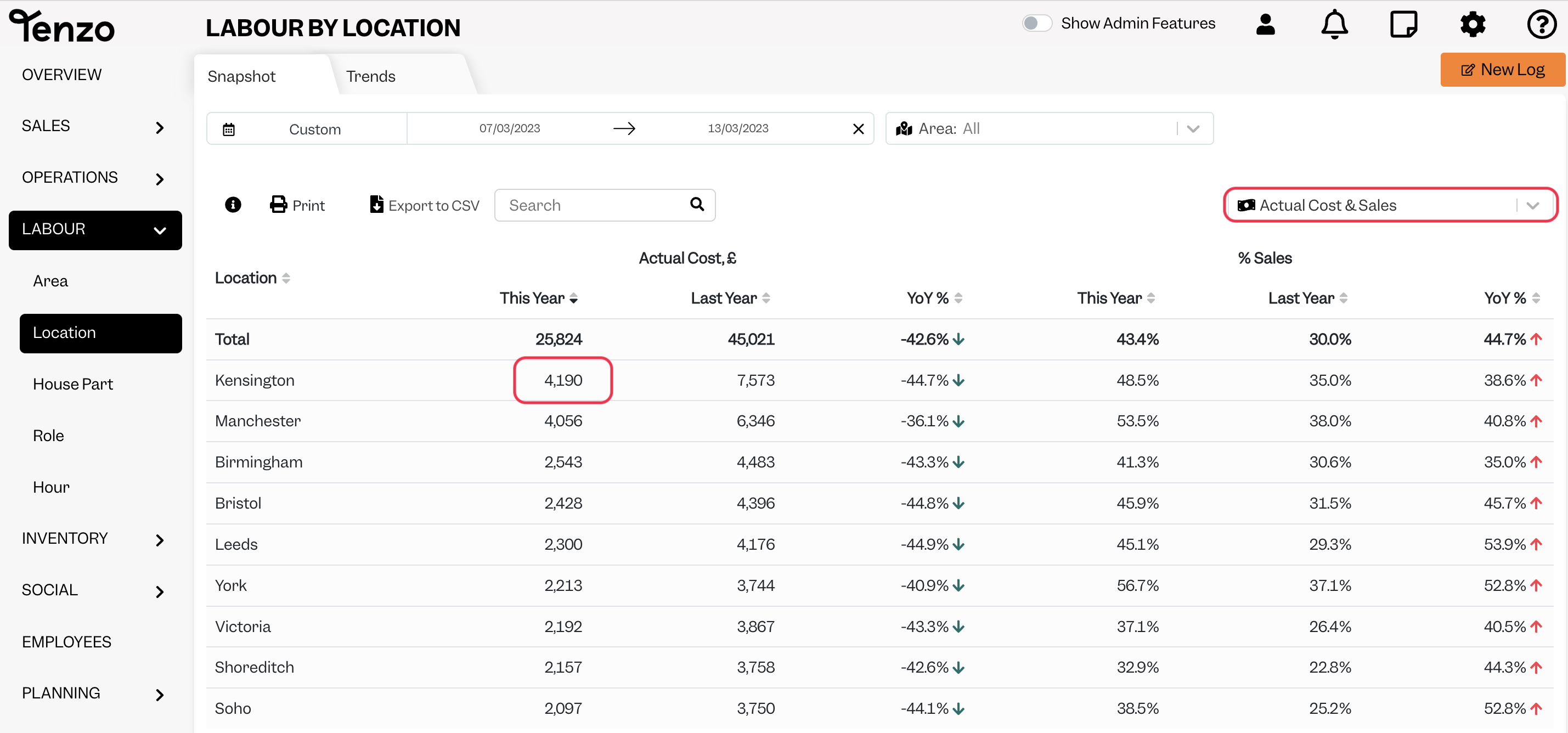
A column needs to be added to this export to multiply the pay rate by the hours worked.
The sum of this column will match Tenzo in the Labour → Location module, when Actual Cost & Sales is selected.
Exceptions
None