

Guide: Bizimply
How Do Core Concepts Map to Tenzo?
Key: ✅ Supported 🚸 Work in Progress ❌ Not Supported
 |
|
|---|---|
| Location | ✅ Locations |
| Shift (actual) | ✅ Shifts |
| Shift (planned) | ✅ Shifts Planned |
| Hours | ✅ Hours |
| Salaried workers | ✅ Salaried workers |
| Employee | ✅ Employee |
| Role | ✅ Position |
| House Part | ✅ Schedule |
| Overheads | ✅ Overheads |
| Holiday | ❌ Not Supported |
| Breaks | ✅ Breaks |
| Overtime | ❌ Not Supported |
| Exception costs / one-off costs | ❌ Not Supported |
| Borrowed / loaned employees | ❌ Not Supported |
Data Ingestion
| Real-time optionally available? | ❌ |
| Default polling frequency | Every 20 minutes (Tenzo processes new files Bizimply uploads to its Tenzo SFTP folder) |
| Data retrieved on each poll | Whatever dates and locations are in the files Bizimply sends; the date range is set by Bizimply's export |
| Historical data | All data since you started using the system |
How Do I Compare Bizimply Data to Data in Tenzo?
Matching Hours
Finding the data in Bizimply
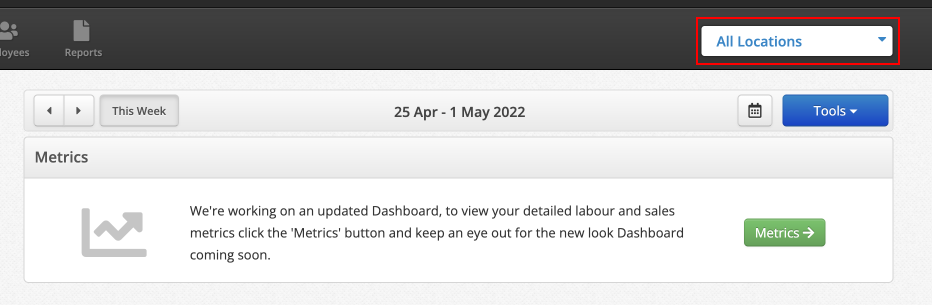
Login to Bizimply. Select the location you’d like to compare from the dropdown in the top right hand corner of the website.
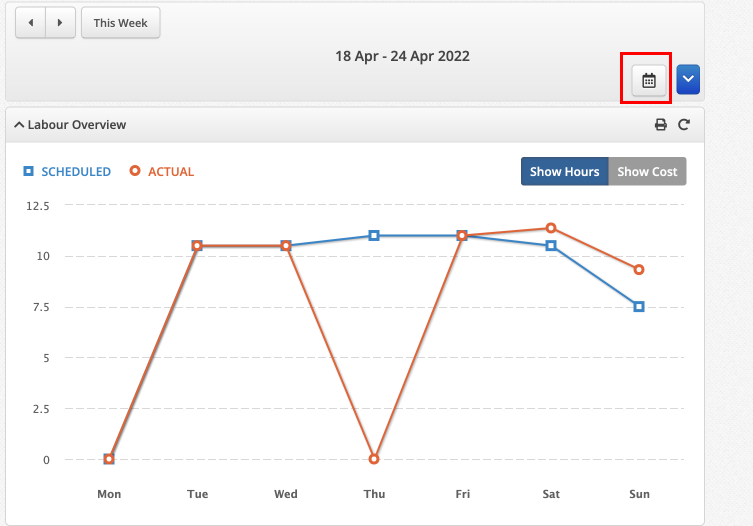
Select the date(s) you’re interested in using the date selector.
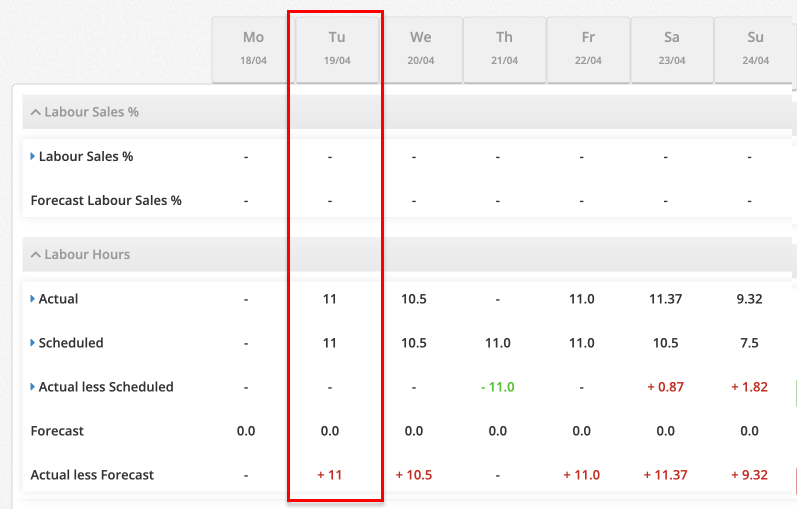
To compare hours, scroll down to the ‘Labour Hours’ section in Bizimply and find the day you are interested in.
Comparing to data in Tenzo
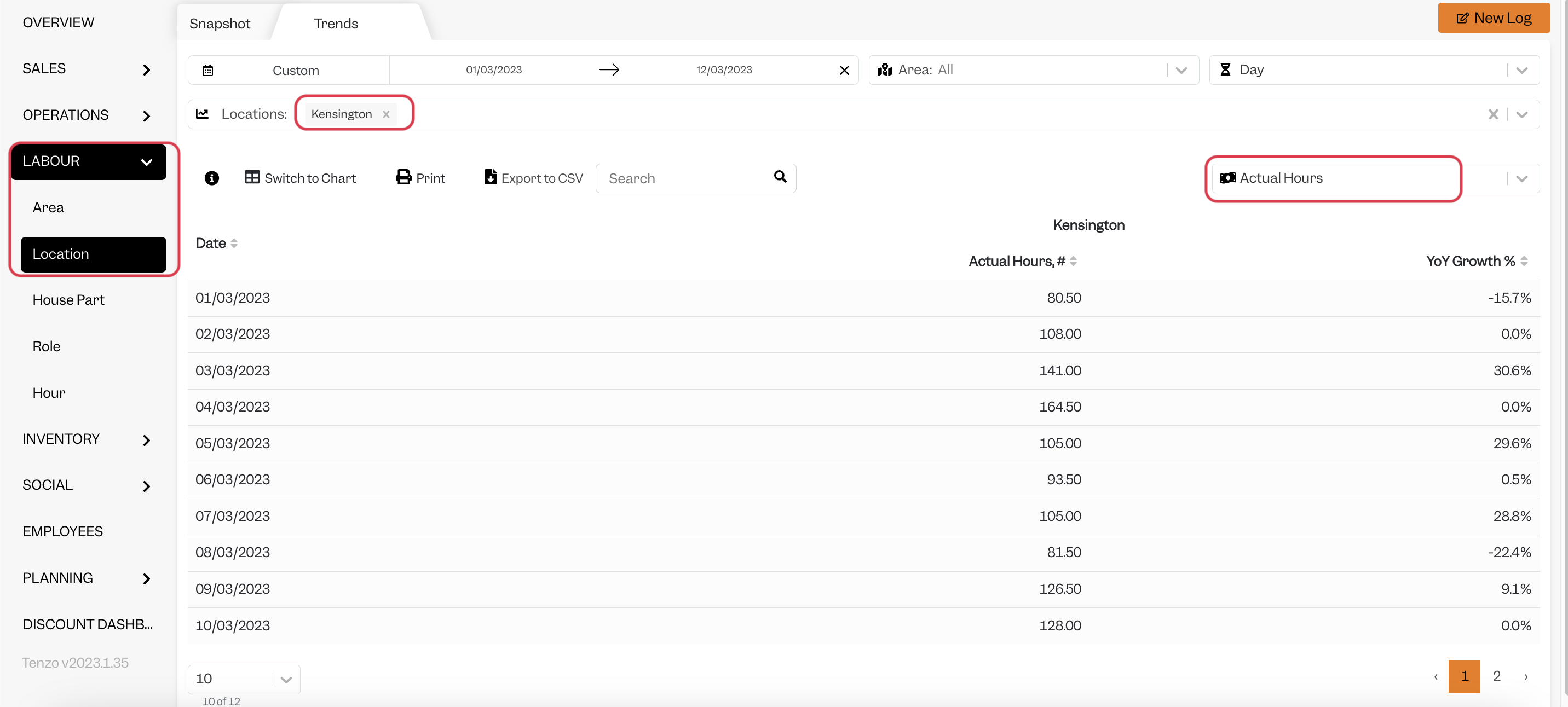
- Navigate to Labour -> Location in the sidebar.
- Then select ‘Trends’ at the top.
- Choose the dates you want to match (same as the ones selected in Bizimply)
- Ensure that ‘Actual Hours’ is selected in the drop down on the top right
- Click ‘Switch to Table’
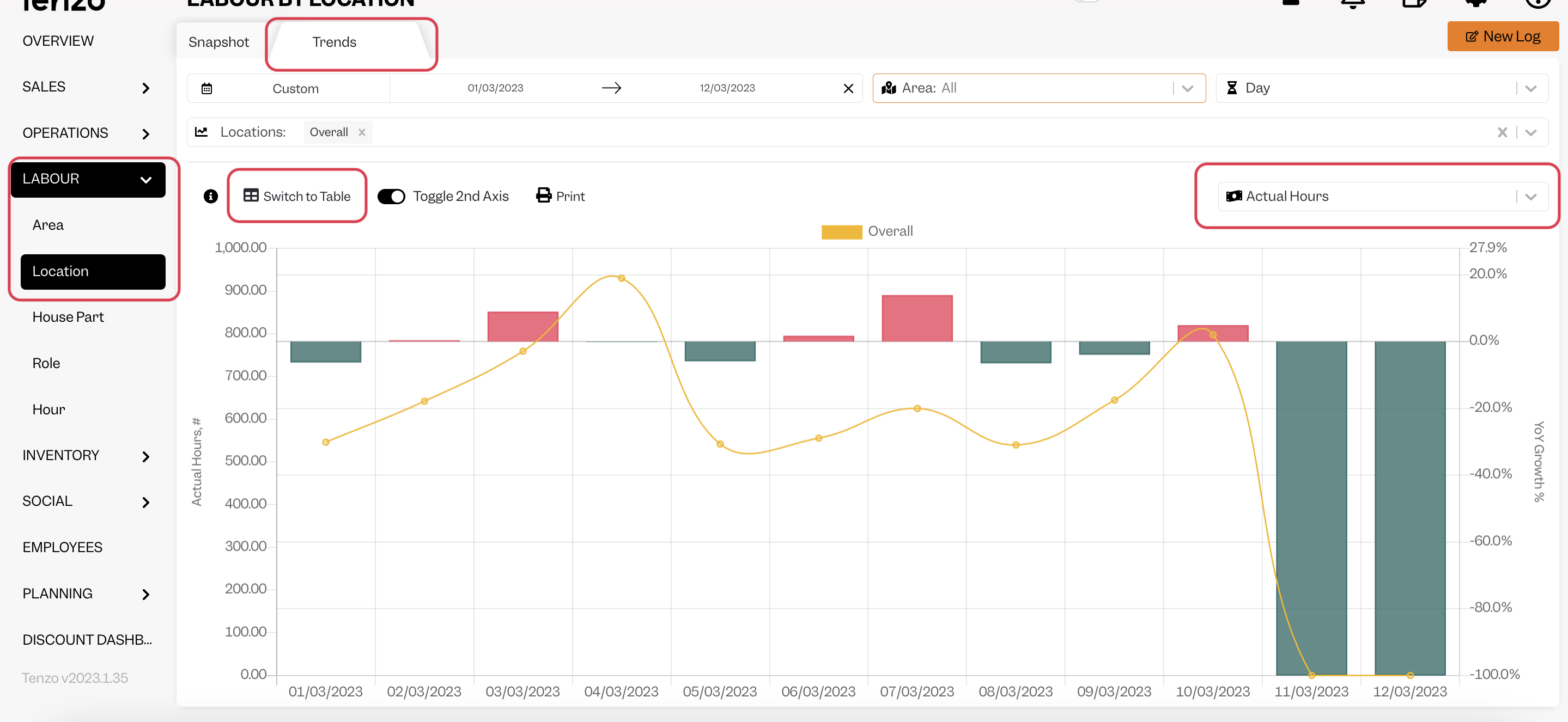
- Make sure the Location is selected to match the one in Bizimply.
- The number of hours in the table should then match what is in Bizimply
Matching Costs
Getting the data in Bizimply
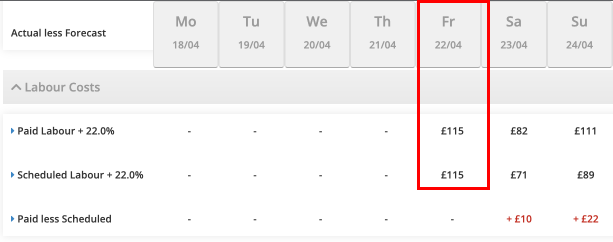
The process for costs is very similar. Select your location again and the date you are interested in, but this time scroll down to the ‘Labour Costs’.
Getting the Data in Tenzo
Select all the options as above for hours, but this time make sure that the drop down box in the top right is set to ‘Actual Cost’. The overhead costs in Tenzo are set via the % overhead rate in Bizimply. In the example screenshot above, it is 22%.
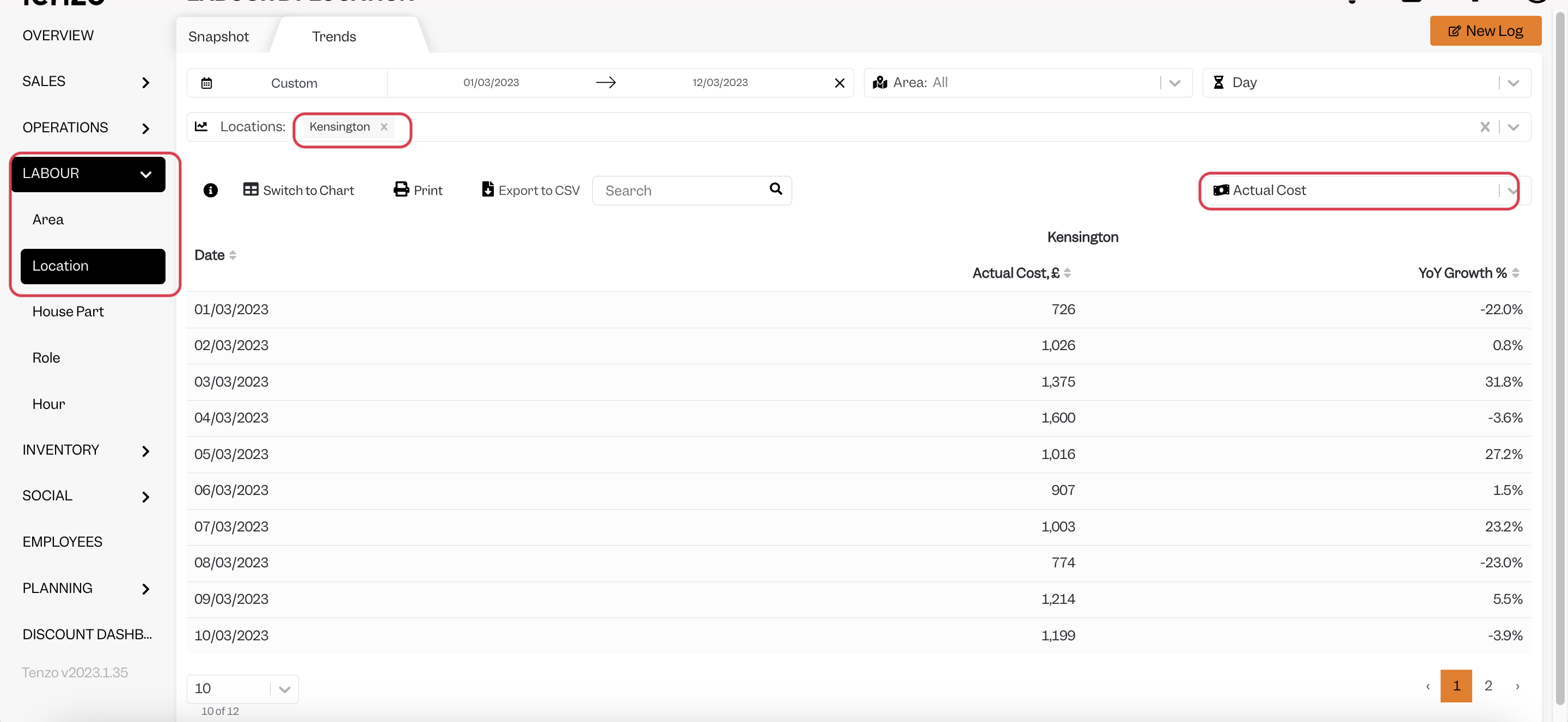
You should then find that the cost matches Bizimply.