
Guide: Zonal Inventory
How Do Core Concepts Map to Tenzo?
Key: ✅ Supported 🚸 Work in Progress ❌ Not Supported
 |
|
|---|---|
| Location | ✅ Set in Tenzo |
| Vendor | ✅ Purchase -> Supplier |
| Division | ✅ |
| Category | ✅ stkEntity -> Cat |
| Item | ✅ stkEntity |
| Purchases | ✅ Purchase |
| Actual Usage | ✅ StkMain |
| Theoretical Usage | ✅ StkMain |
| Recorded Wastage | ✅ StkMain |
| Menu Items | ✅ |
| Menu Item Costs | ✅ |
| Transfers | ❌ Not Supported |
Data Ingestion
| Real-time optionally available? | ❌ |
| Default polling frequency | Every 8 hours (from the Tenzo agent installed on site) |
| Data retrieved on each poll | Last 7 days |
| Historical data | All data since you started using the system |
How Do I Compare Zonal Inventory Data to Data in Tenzo?
Getting the Correct Report in Zonal Inventory
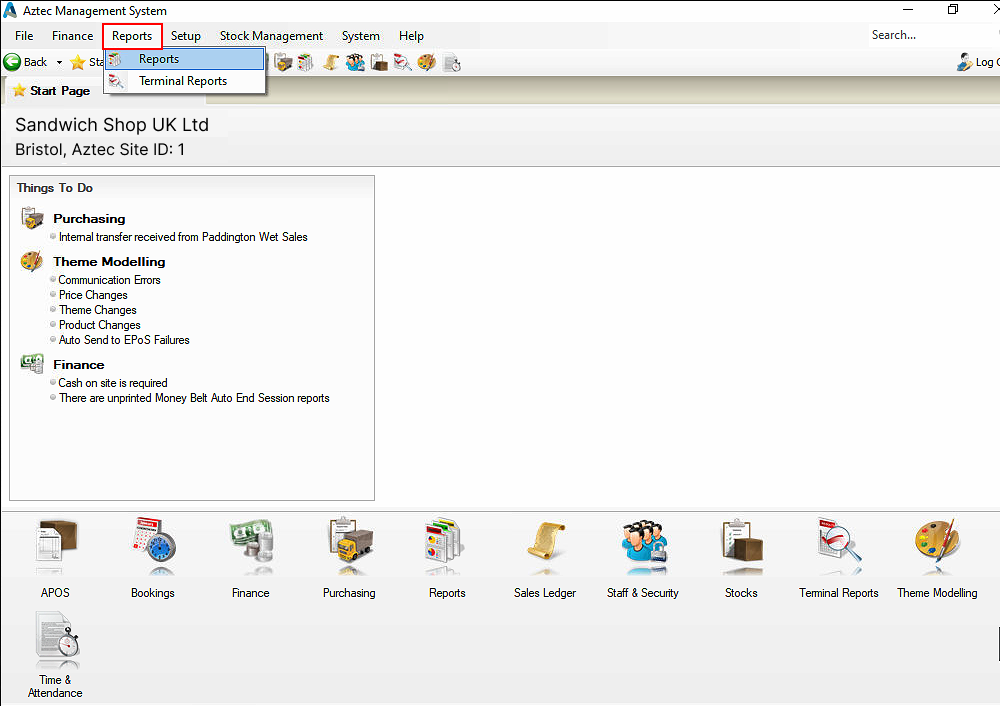
Open Aztec, log in and click on Reports -> Reports.
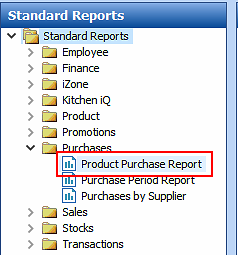
Then in the window that opens click Standard Reports -> Purchases and then select Product Purchase Report.
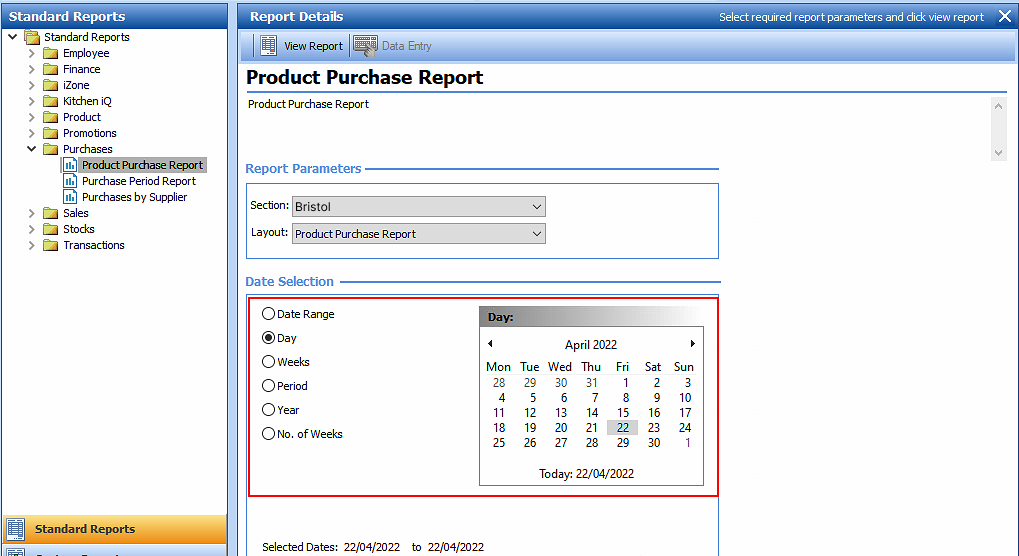
Then choose the date you want to compare on the date picker.
You should then see the ‘Product Purchase Report’, similar to the one below:
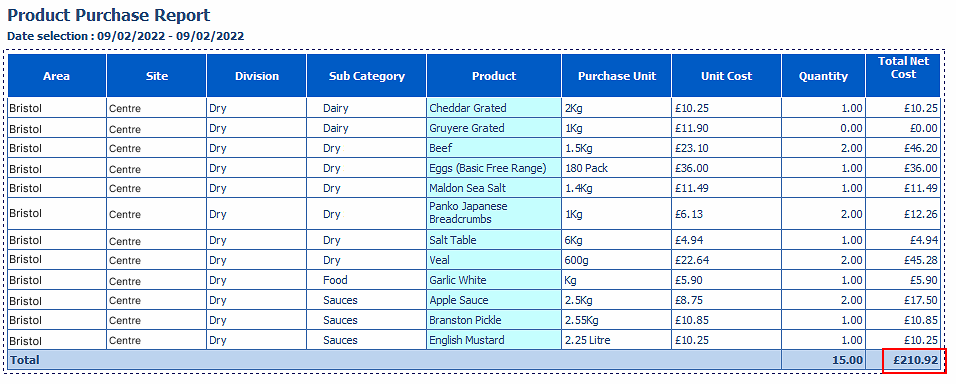
This is the report you will be using to match the data in Tenzo.
Getting the Data in Tenzo
In Tenzo click Inventory -> Location in the side bar, then make sure the dropdown in the top right is set to “Purchases”.
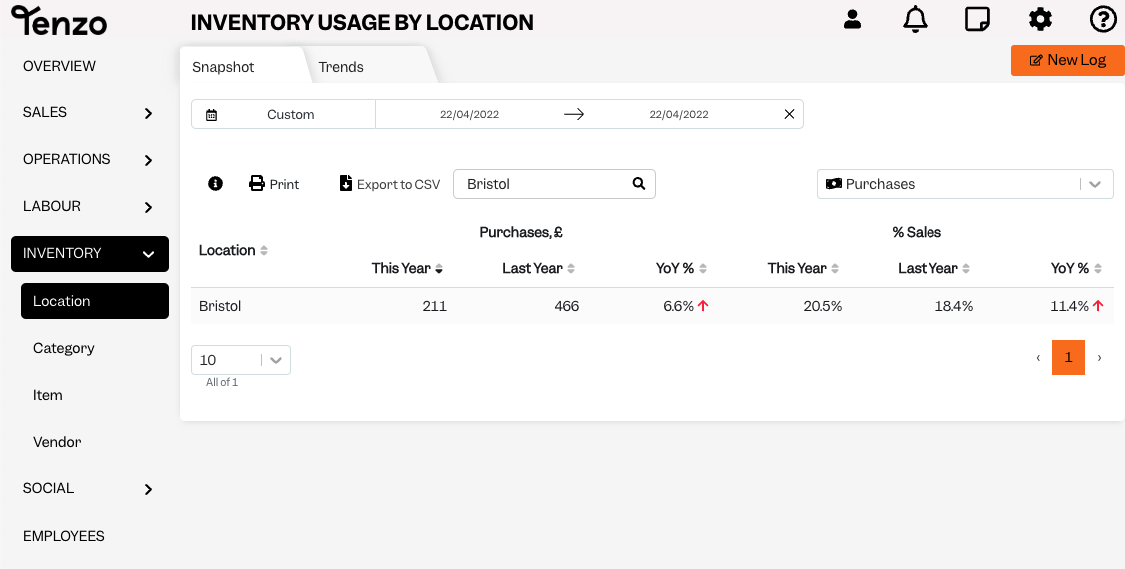
Make sure that the date selection matches the date(s) selected on the Aztec report. The total amount for that location and date should match total from the report in Aztec.
Exceptions
None