
Guide: BirchStreet
How Do Core Concepts Map to Tenzo?
Key: ✅ Supported 🚸 Work in Progress ❌ Not Supported
 |
|
|---|---|
| Location | ✅ Hotel, plus its storerooms and outlets |
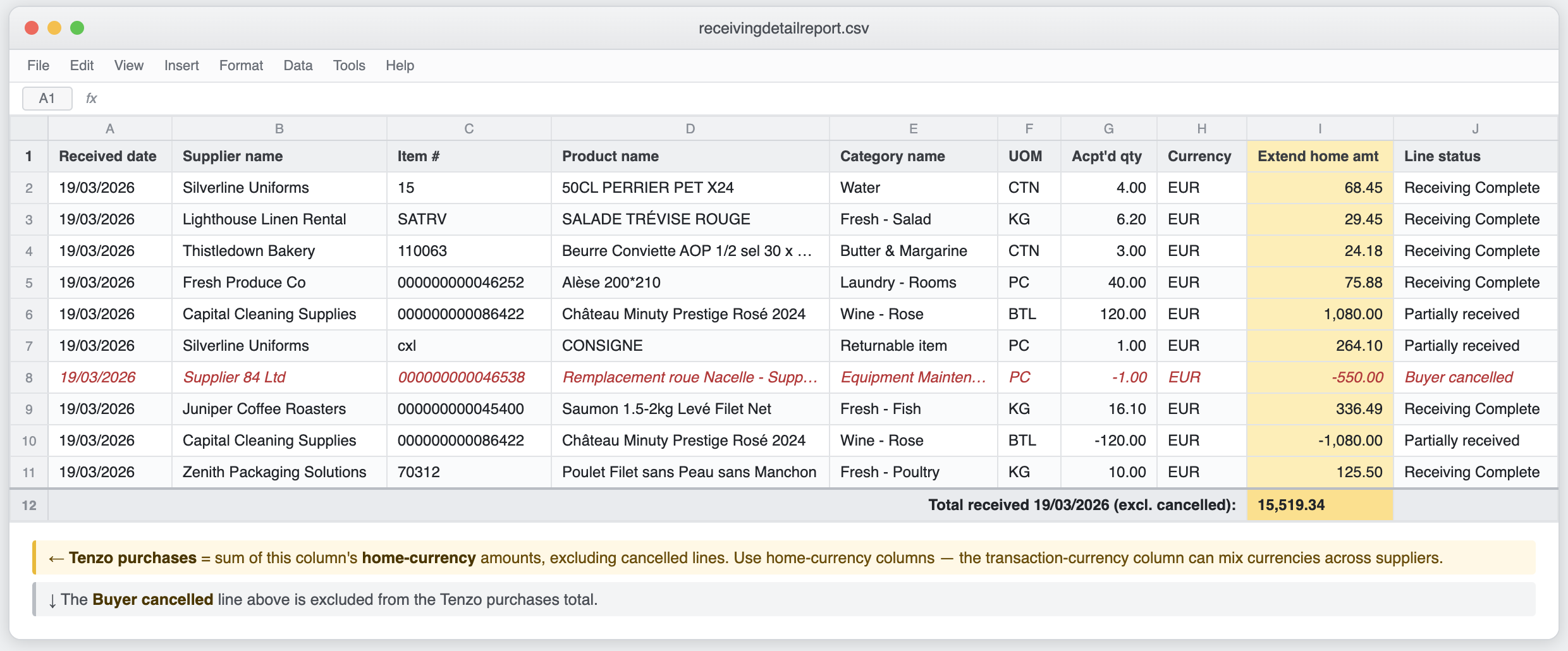
| Purchases | ✅ Purchases (Delivered Date) — Receiving Detail report (received order lines, including credits) |
| Supplier | ✅ Vendor |
| Purchased items | ✅ Item # (supplier catalogue number) |
| Stock items | ✅ Part # (internal part number) |
| Matching purchased items to stock items | ❌ BirchStreet's reports carry no link between Item # and Part #, so purchases and usage cannot be compared item by item — totals and category views are unaffected |
| Item categories | ✅ Category (single level, no parent grouping) |
| Transfers between locations | ✅ Fulfillment transactions between storerooms and outlets |
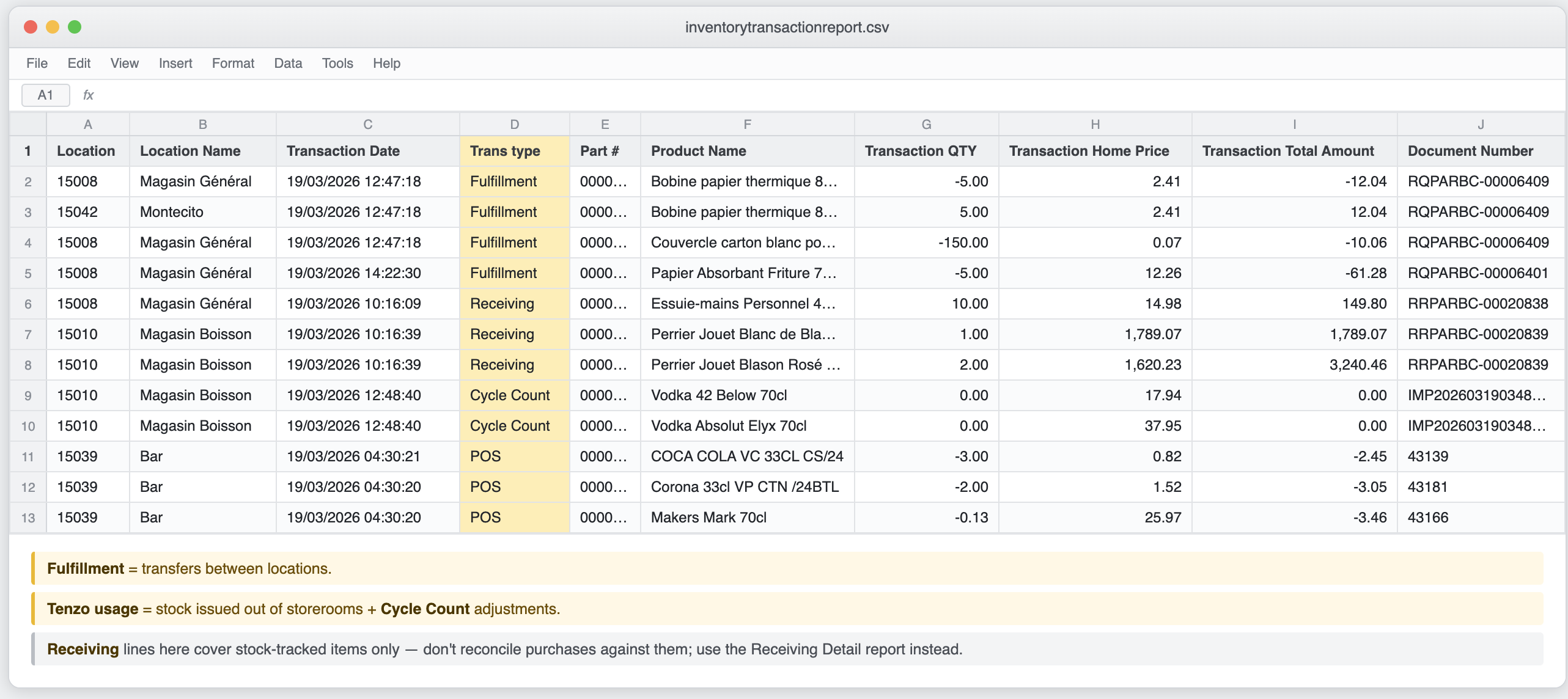
| Actual usage / consumption | ✅ Stock issued out of storerooms (fulfilments) plus stock-count adjustments — how well this reflects true consumption depends on each hotel's stock-keeping practice |
| Theoretical usage | ✅ POS-type transactions — volumes stay near zero until recipes are linked to POS items in BirchStreet |
| Wastage | ❌ BirchStreet provides no wastage report |
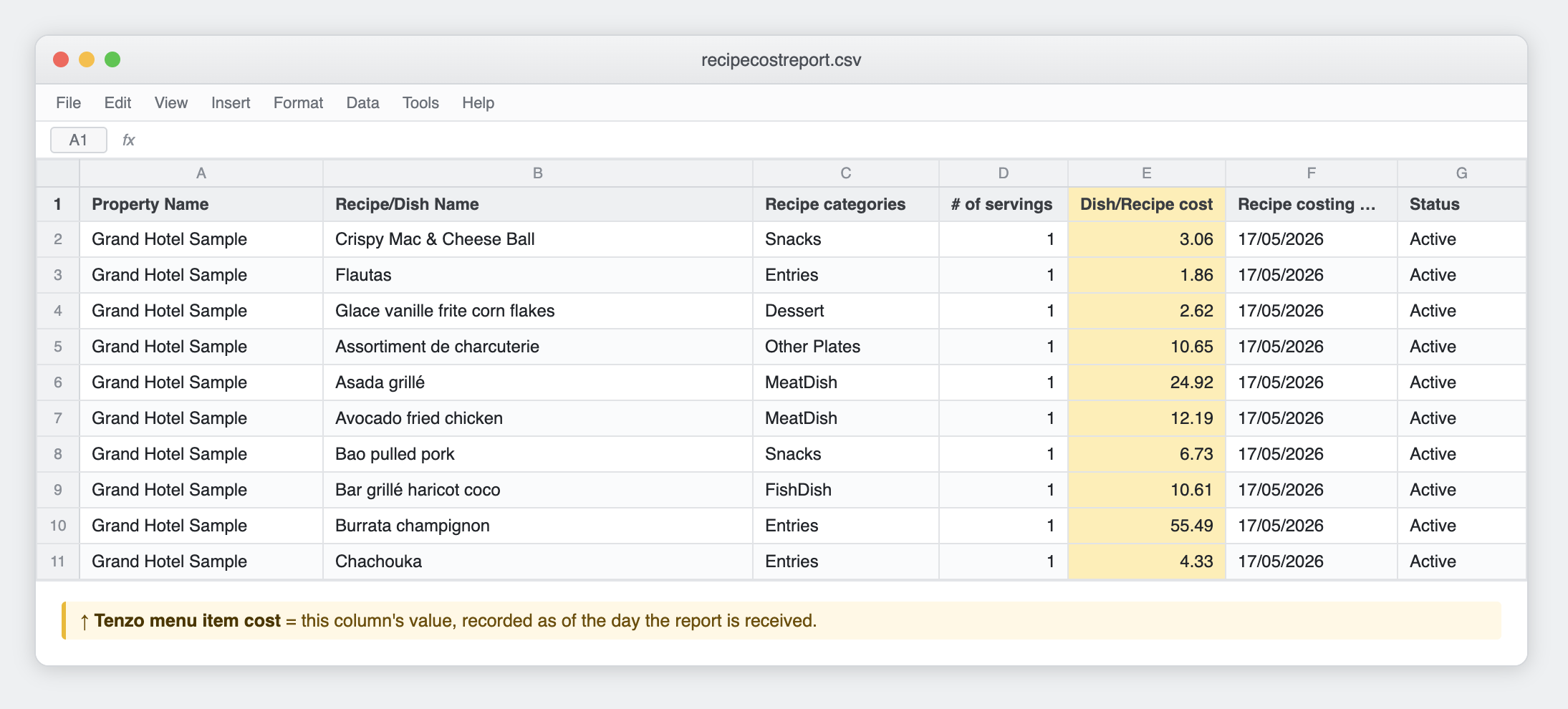
| Menu item costs | ✅ Recipe Cost report (Dish/Recipe cost per recipe) |
| Menu Items | ✅ |
Data Ingestion
| Real-time optionally available? | ❌ Data arrives by email when BirchStreet runs its scheduled reports — freshness depends on the report schedule (daily recommended) |
| Default polling frequency | Every 20 minutes (Tenzo checks for newly arrived report emails) |
| Data retrieved on each poll | All newly received report emails — each report covers the period it was run for |
| Historical data | Only the periods covered by reports emailed to Tenzo — BirchStreet history cannot be re-requested, so a missed report is a gap until it is re-sent |
How Do I Compare BirchStreet Data to Data in Tenzo?
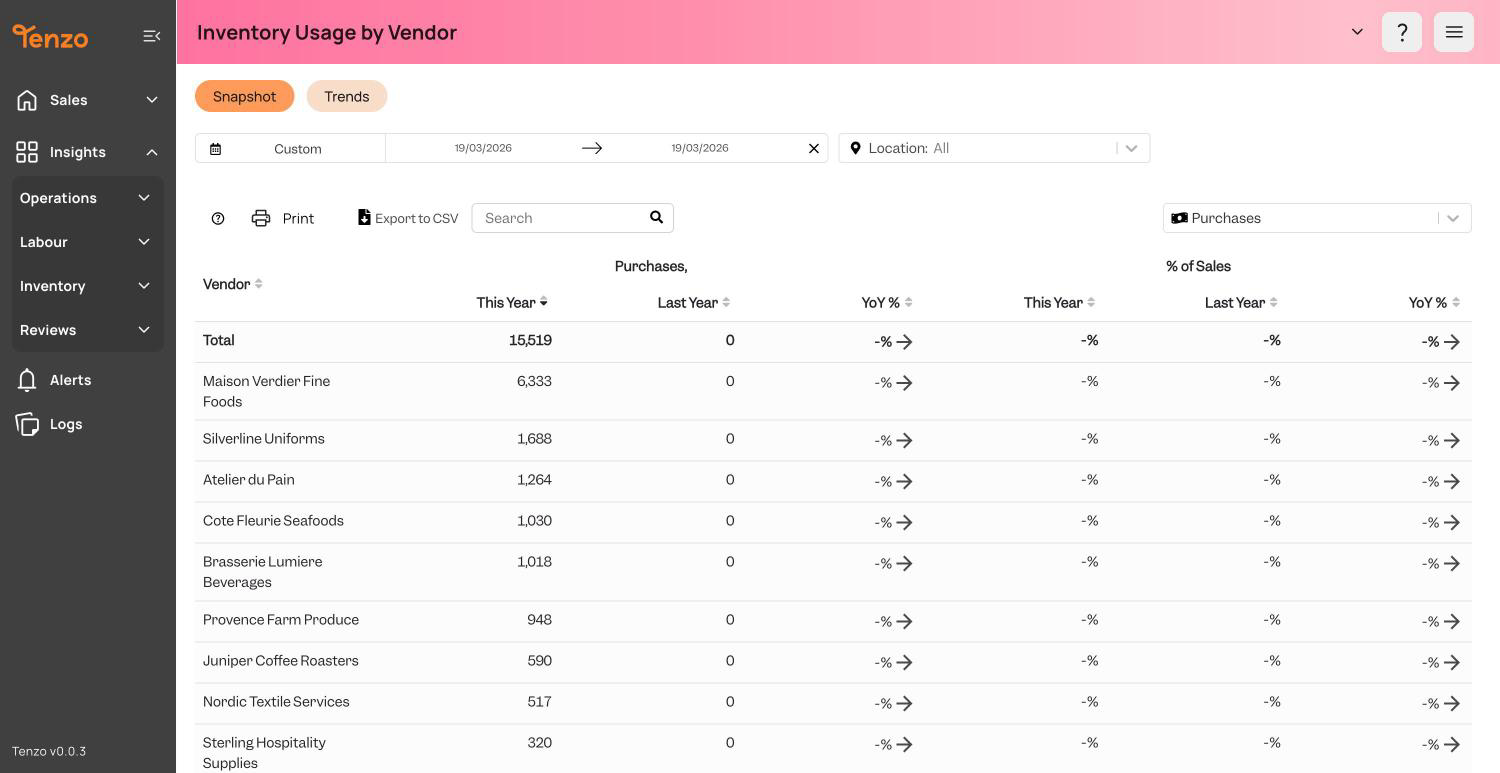
Purchases in Tenzo match the Receiving Detail report: the sum of the received lines' home-currency amounts, excluding cancelled lines. Use the home-currency columns when checking — the report's transaction-currency amounts can mix currencies across suppliers.
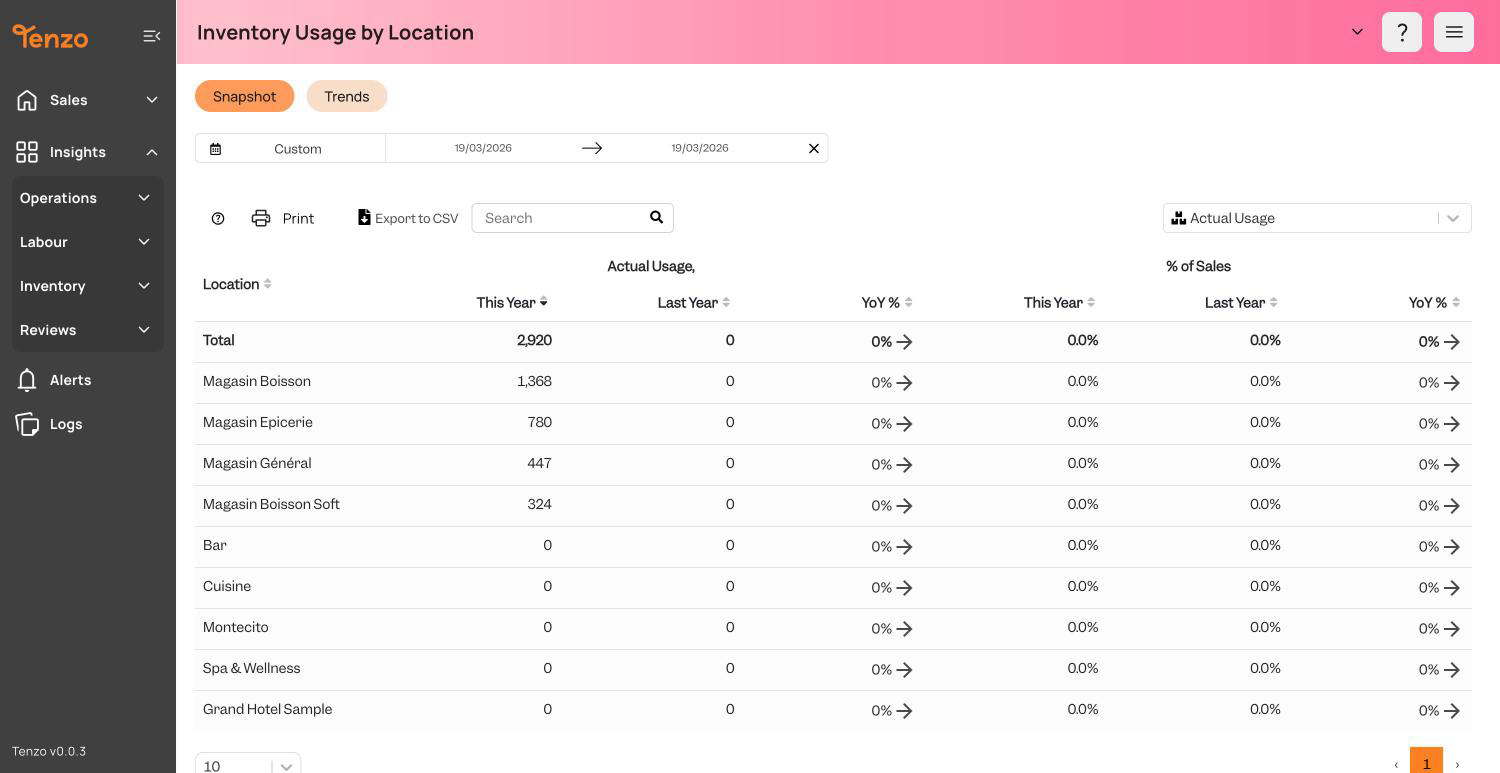
Usage and transfers in Tenzo match the Inventory Transaction report: consumption is the value of stock issued out of storerooms plus stock-count adjustments, and transfers are the Fulfillment lines between locations. Do not compare purchases against the Inventory Transaction report's Receiving lines — those only cover stock-tracked items, so they are expected to be smaller than the Receiving Detail totals.
Menu item costs in Tenzo match the Recipe Cost report's Dish/Recipe cost values, recorded as of the day the report is received. Recipe costs are only as accurate as the recipes maintained in BirchStreet — if recipes are incomplete there, costs will read low in both systems.