

Guide: SumUp (Goodtill)
How Do Core Concepts Map to Tenzo?
Key: ✅ Supported 🚸 Work in Progress ❌ Not Supported
 |
|
|---|---|
| Location | ✅ Outlet |
| Order Type | ✅ Order Type |
| Revenue Center | ✅ Register |
| Product Item | ✅ Product |
| Product Category | ✅ Category |
| Product Division | ✅ Parent Category |
| Tender Type | ✅ Tender Type |
| Employee | ✅ Employee |
| Customer | ✅ Customer |
| Discount | ✅ Discount |
| TicketItemDiscounts | ✅ Discount |
| TicketDiscounts | ❌ Not Supported |
| TicketItemModifiers | ✅ Modifiers |
| Guest Count | ✅ Table Covers |
| Transaction length | ❌ Not Supported |
| KDS Bump Time | ❌ Not Supported |
| Ticket Voids | ✅ Voided Sales Items |
| Ticket Item Voids | ✅ Voided Sales |
| Table | ✅ Table |
| Service Charge | ✅ Service Charge |
| Tips | ❌ Not Supported |
| Price | ✅ |
| Menu Item Size | ✅ |
| Menu Item Visibility | ❌ Not Supported |
Data Ingestion
| Real-time optionally available? | ✅ |
| Default polling frequency | Hourly |
| Data retrieved on each poll | Yesterday and Today |
| Historical data | Yes, the date of the first data to pull is required in set-up |
| Business date cutoff time is determined by the POS or Tenzo | POS |
How Do I Compare SumUp (Goodtill) Data to Data in Tenzo?
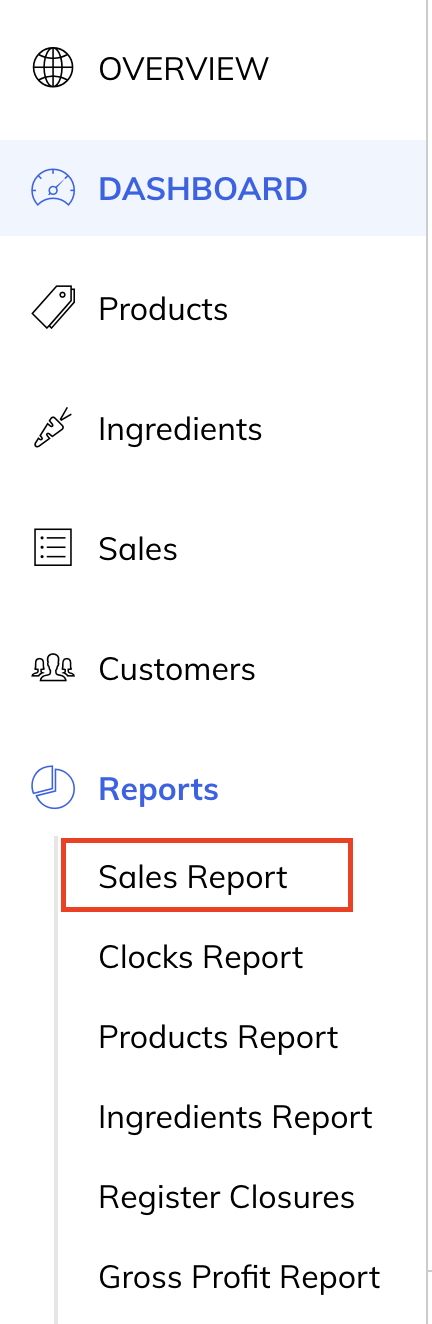
In SumUp (Goodtill) select the outlet you want to compare and then navigate to the Reports > Sales Reports tab.
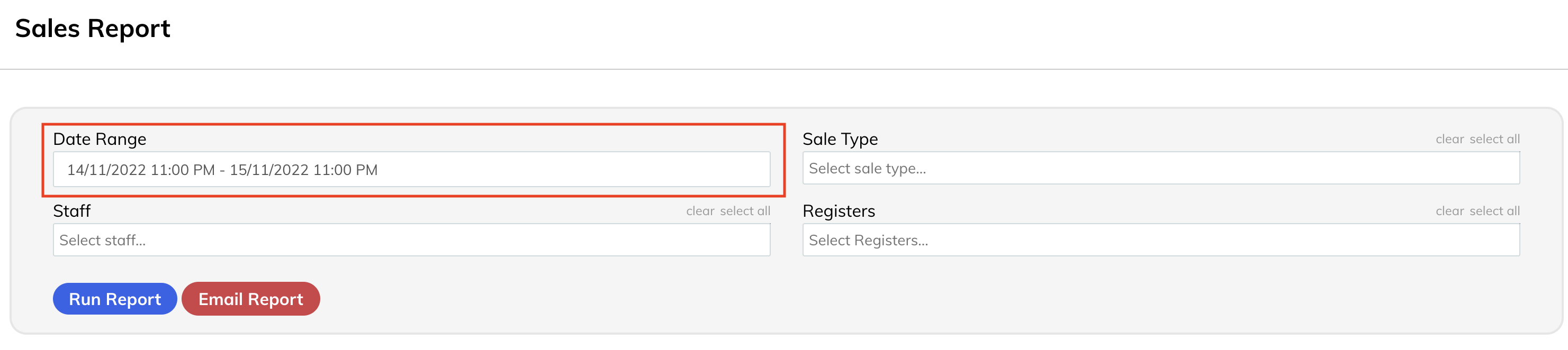
Select the date period you would like to compare and then click on Run Report, this will generate a report below which is also able to be downloaded as a pdf.
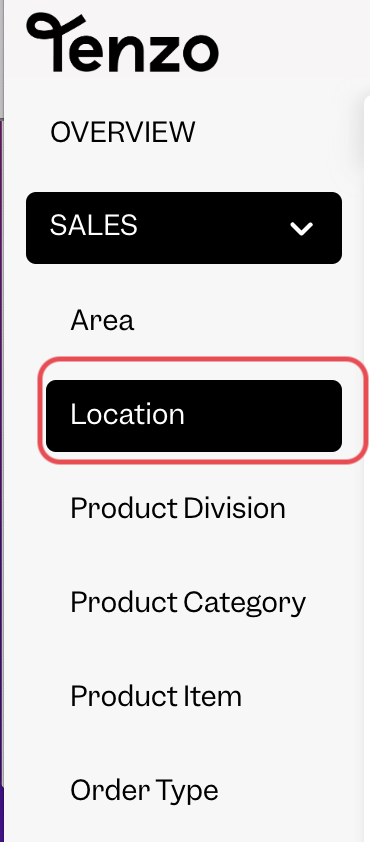
The number on this report will match Tenzo in the Sales > Location menu.
Exceptions
- There may be a 'MISC' product on SumUp (Goodtill)'s front-end. This is usually a discount and is therefore included in the 'PROMO'/'Promotion' item in Tenzo.