Guide: Harri
How Do Core Concepts Map to Tenzo?
Key: ✅ Supported 🚸 Work in Progress ❌ Not Supported
 |
|
|---|---|
| Location | ✅ Location or Brand |
| Shift (Actual) | ✅ Shifts |
| Shift (Planned) | ✅ Schedule |
| Salaried workers | ✅ Salaried workers |
| Employee | ✅ Shifts |
| Role | ✅ Position |
| House Part | ✅ Category |
| Overheads | ✅ UK NI, Pension and Holiday Accrual |
| Holiday | ✅ Via holiday accrual |
| Breaks | ❌ Not Supported |
| Overtime | ❌ Not Supported |
| Exception costs / one-off costs | ❌ Not Supported |
| Borrowed / loaned employees (Transfers) | ❌ Not Supported |
Data Ingestion
| Real-time optionally available? | ❌ |
| Default polling frequency | Tenzo checks for new Harri files every 20 minutes. Harri sends updates about 3 times a day, and planned shifts whenever a schedule is published |
| Data retrieved on each poll | Whatever Harri sends (usually about the last 4 weeks); planned shifts up to 14 days ahead |
| Historical data | 1 year - 60 days of historical data quality assured. |
| Business date cutoff time is determined by the Staff Scheduler or Tenzo | Defined by Harri |
How Do I Compare Harri Data to Data in Tenzo?
Matching Costs
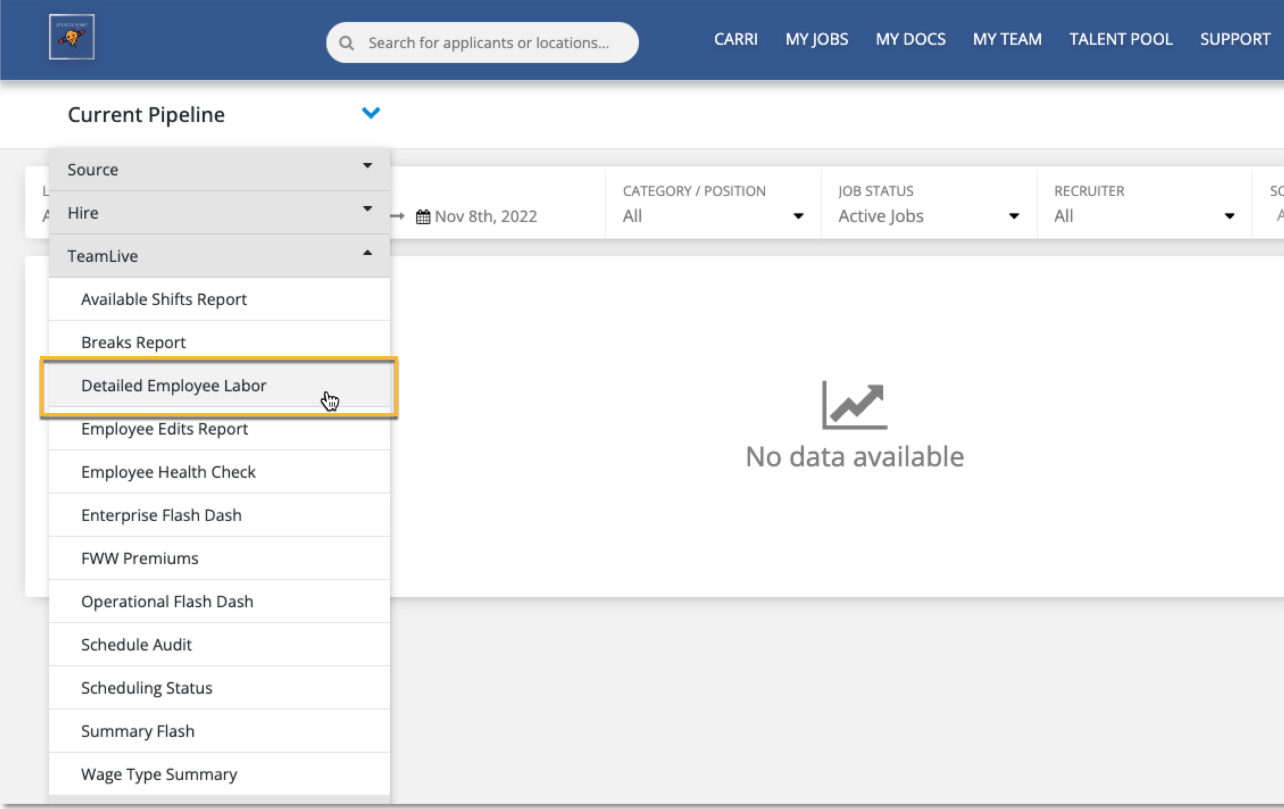
The report in Harri which matches Actual Cost in Tenzo is the Detailed Employee Labor Report. If you are logged into your Harri account, please see this guide from Harri on how to find it. Otherwise, follow these steps:
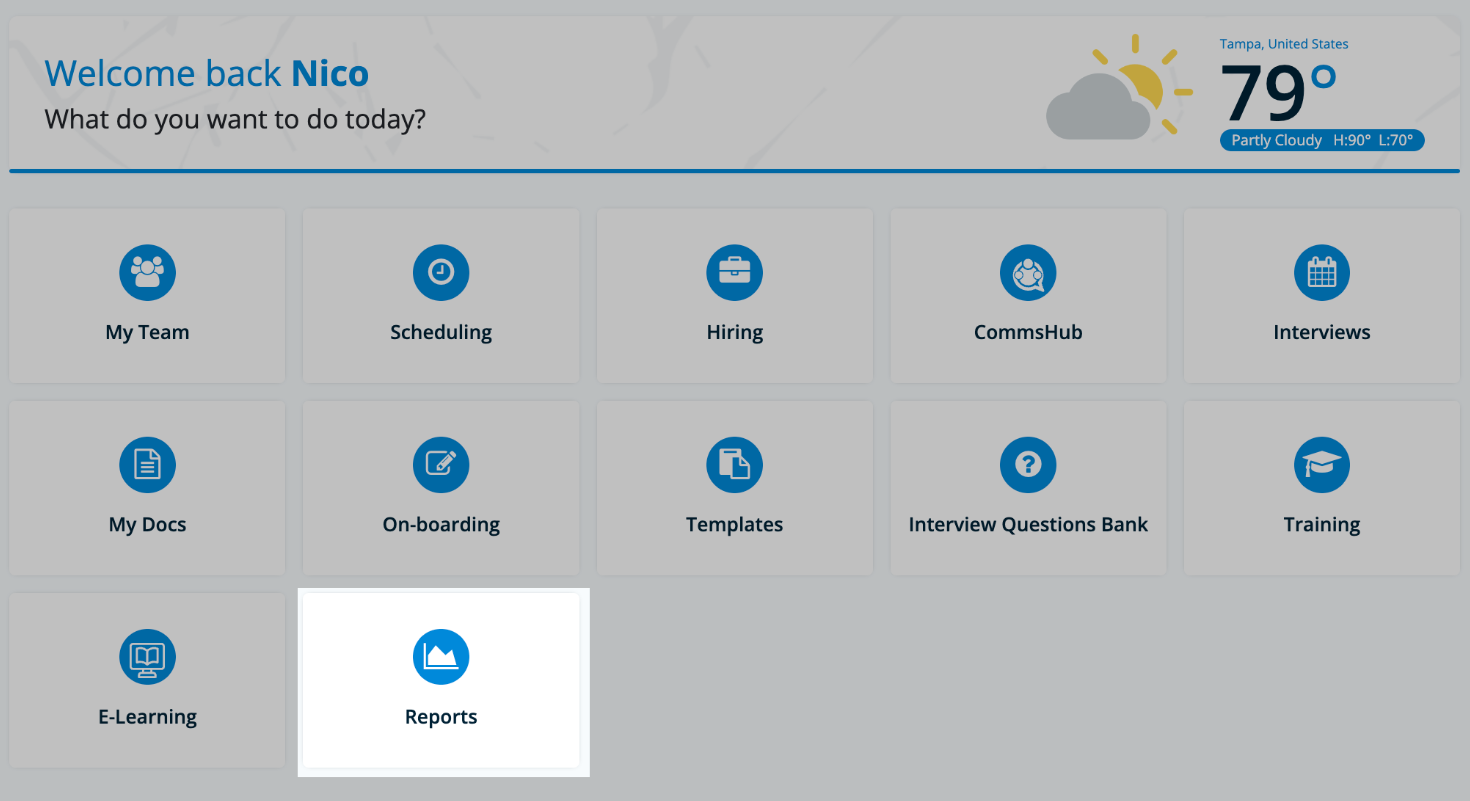
Login to your Harri account and click the Reports tile from the launchpad.
Select Detailed Employee Labor under Teamlive.
On the report you can use the Pay Types filter to toggle viewing Hourly, Salaried, or both.

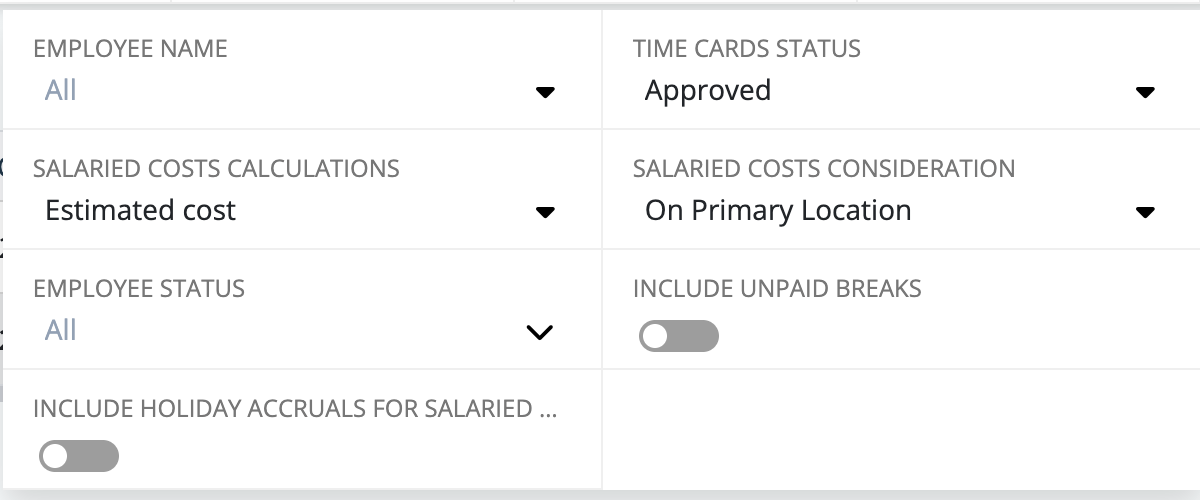
If you are using the default setup the filters, under 'More Filters' should be:
The following columns should match in Tenzo -
Actual Hours:

Actual Cost w/ Overheads:

Planned Cost w/ Overheads:

Actual Cost w/o Overheads:

Overheads:

Planned Cost w/o Overheads:

In Tenzo the matching numbers can be found in Labour → Location. Then choose the same date or date range as is selected on the Detailed Employee Labour Report.
To view overheads and salaried employees, make sure these settings are turned on in Tenzo:
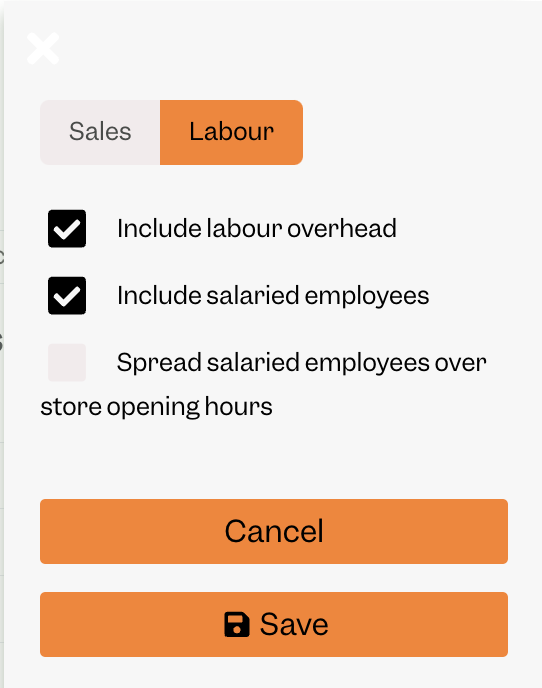
This can be accessed by clicking on the setting icon highlighted in the image above.
To find hours in Tenzo, make sure 'Actual Hours & Cost per Hour' in this drop down is selected.

They can also be found in the 'Trends' tab and choosing 'Actual Hours' in the drop down.
Exceptions
- In Tenzo you may see 'Unassigned Salaried' or 'Unassigned Hourly'. Harri gives Tenzo an accurate total per location, but the granular shift-level data doesn't always account for all of it. These figures are the difference between the two, separated by pay type, so your location total still matches Harri. On earlier dates this may appear under the previous label, 'Unmatched Data'.
- Employee transfers are not supported as Harri's Detailed Employee Labour Report does not include these.
- If salaried employees have a change of salary then Tenzo will use this new salary whilst the pay change is pending. This may cause a small mismatch between Tenzo and Harri for this employee in this time frame.
- Historical data for salaried employees is based off of their salary at the time of import. This could lead to mismatches with historical data as salaries could have changed over time.
- Since salaried wages is calculated per week, salaried costs may show under 'Actual Cost' for days in the future within the current week.
- Shifts need to be approved in Harri for their associated cost and hours to appear in Tenzo.
- We can guarantee data quality for 60 days. Prior to this there could be changes made to the data in Harri which will not pull through to Tenzo.
- If salaried employees use the unpaid break option in Harri, this will not be reflected in Tenzo as this data is not exported.
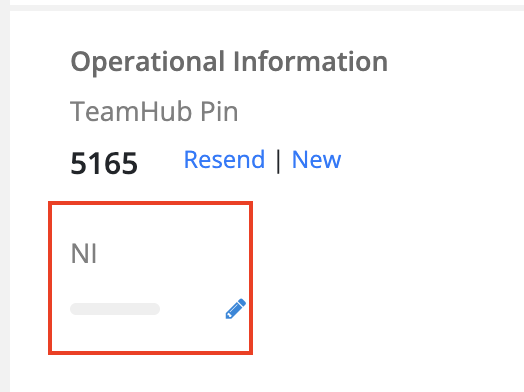
- NI data will only pull through into Tenzo if the employee has there NI category attributed to them in Harri.