
Guide: Tenzo Data Importer (Excel: POS - Point Of Sale)
How Do Core Concepts Map to Tenzo?
Key: ✅ Supported 🚸 Work in Progress ❌ Not Supported
 |
|
|---|---|
| Location | ✅ Location |
| Order Type | ✅ Order Type |
| Revenue Center | ✅ Revenue Center |
| Product Item | ✅ Product Item |
| Product Category | ✅ Product Category |
| Product Division | ✅ Product Division |
| Net Amount | ✅ Unit Net Sales |
| Gross Amount | ✅ Unit Gross Sales |
| Tender Type | ❌ Not Supported |
| Employee | ✅ Employee Name |
| Customer | ✅ |
| Discount Name | ✅ Discount Name |
| TicketItemDiscounts | ✅ Discount Amount |
| TicketDiscounts | ❌ Not Supported — discounts are recorded against items |
| Guest Count | ✅ Guests |
| Transaction length | ✅ |
| Time of Transaction | ✅ Time |
| KDS Bump Time | ❌ Not Supported |
| Ticket Voids | ❌ Not Supported |
| Ticket Item Voids | ❌ Not Supported |
| Table | ❌ Not Supported |
| Service Charge | ✅ Service Charge |
| Tips | ❌ Not Supported |
| Price | ❌ Not Supported |
| Menu Item Visibility | ❌ Not Supported |
| Menu Item Size | ❌ Not Supported |
| Ticket Item Modifiers | ❌ Not Supported |
Data Ingestion
| Real-time optionally available? | ❌ The workbook is read every 4 hours |
| Default polling frequency | Every 4 hours |
| Data retrieved on each poll | All data in the workbook |
| Historical data | All data in the workbook |
How Do I Populate the Template?
Your workbook should be an Excel version of this template — the tab names and column headers need to match.
You can delete the columns that are not relevant for what you are uploading (e.g. revenue center, order type, etc.) and just leave the ones you will be filling.
Formatting:
-
Date Format:
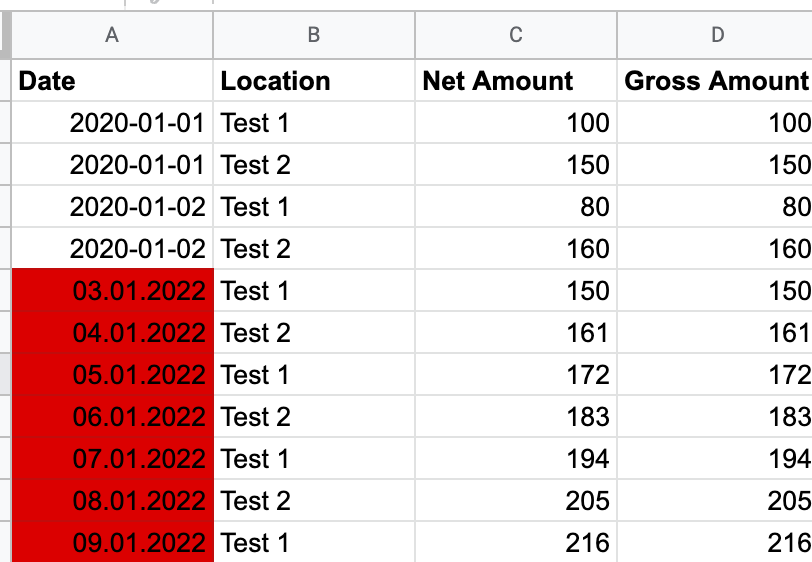
- Format the Date column as a date, or as text in YYYY-MM-DD form (e.g. 2024-08-01, 2024-12-30).
- A Date column formatted as plain text in a regional format such as 01/08/2024 is rejected, because 01/08 is ambiguous between day-first and month-first.
- Include leading zeros: 01, 02, etc.
-
Commas:
- Avoid commas: in all fields (Location, Date, Numbers)
- Reason: Commas can disrupt data loading, causing errors and delays.
-
Location Names:
- Keep consistent: Use the same names for locations across all tabs.
- Manual mapping: Changes to location names require manual updates.
- Notify in advance: If you plan to change location names/codes etc., please let us know ahead of time to minimise delays.
-
Formulas:
- Formulas are fine — Tenzo reads the calculated value, not the formula.
- Save the workbook after editing so the calculated values are stored.
Example of Date Format:
How Do I Compare Workbook Data to Data in Tenzo?
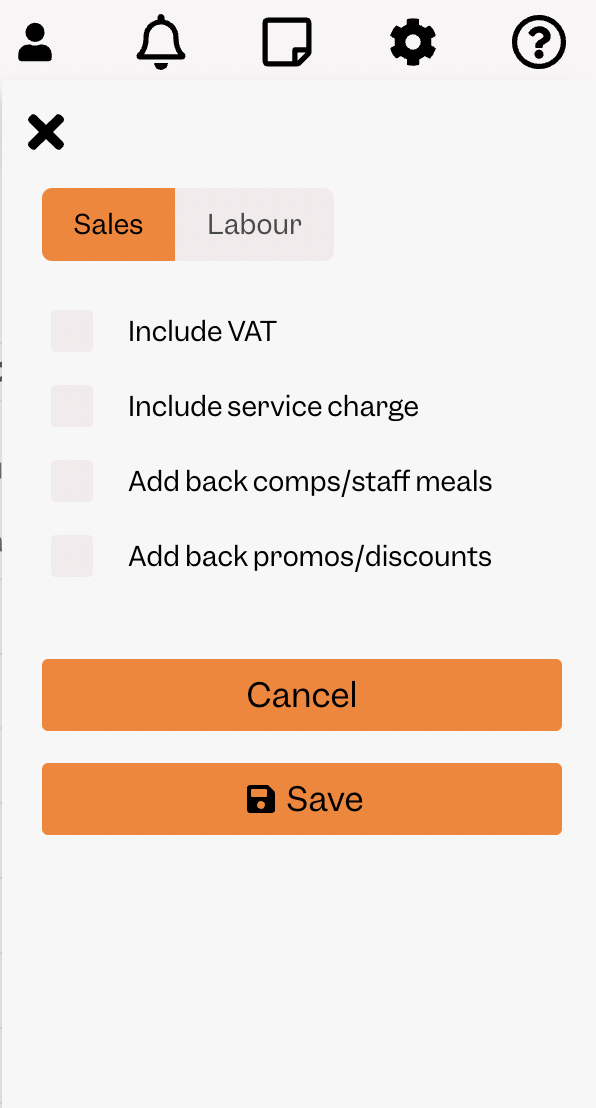
Open the workbook and compare the daily total by line making sure to select in Tenzo the right settings (ie. Net Amount in the workbook will appear in Tenzo with NO filters selected and Gross Amount in the workbook will appear in Tenzo with “Include tax” filters selected).
Net Amount
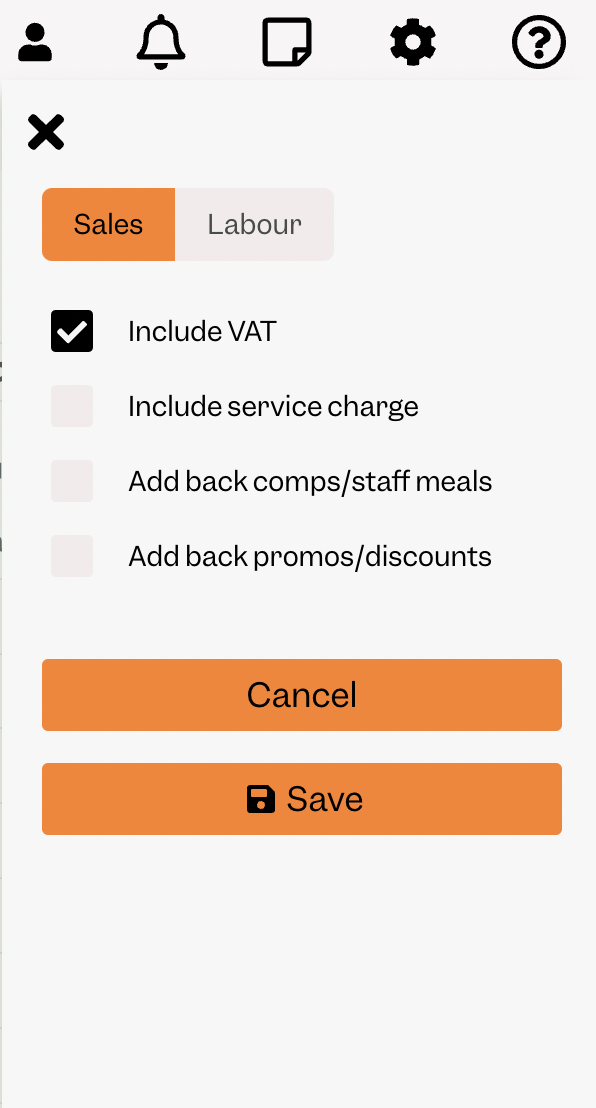
Gross Amount
You will then be able to see the same number by selecting one day within Tenzo’s “Sales by Location” view. 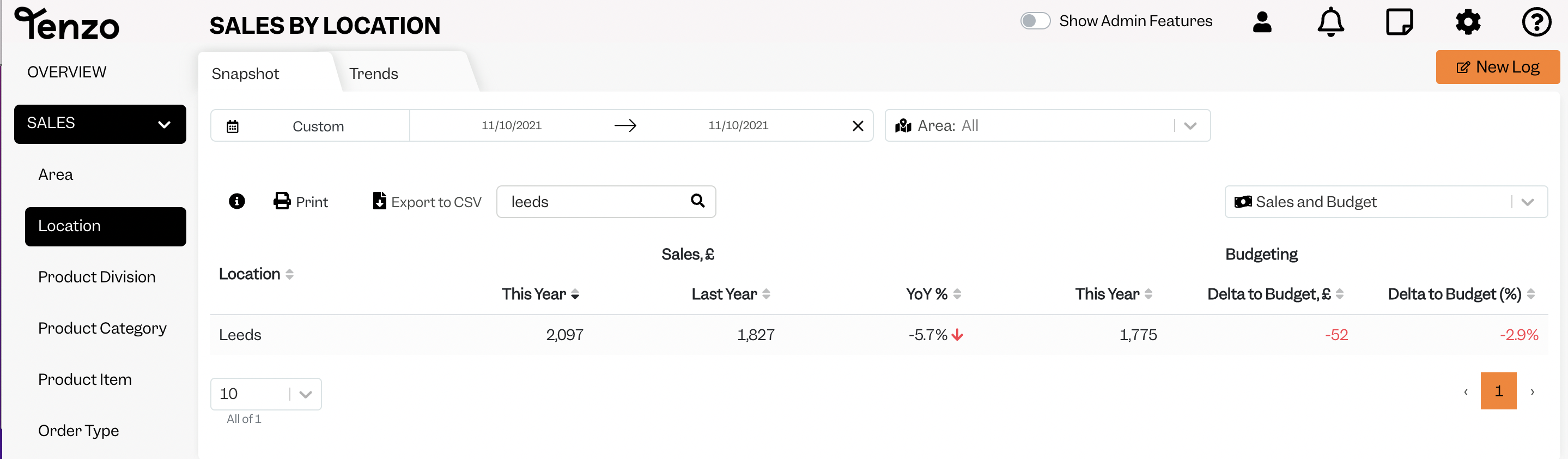
Exceptions
The workbook must live in OneDrive or SharePoint. A file kept only on a local drive cannot be reached by Tenzo.
Other Ways to Send This Data to Tenzo
As well as an Excel workbook, Tenzo can receive data in the Tenzo Data Importer format by Email or as CSV files over SFTP. Talk to your Customer Success Manager if you would like to send your data one of these ways.