
Guide: Tenzo Data Importer (Google Sheets: Reservations)
How Do Core Concepts Map to Tenzo?
Key: ✅ Supported 🚸 Work in Progress ❌ Not Supported
 |
|
|---|---|
| Location | ✅ Location |
| Reservation | ✅ One row per reservation |
| Number of Guests | ✅ Guests |
| Customer | ✅ Customer Name |
| Reservation Time | ✅ Reservation Datetime |
| Booking Created Time | ✅ Creation Datetime |
| Status (incl. No Show / Cancellation) | ✅ Status (Booked, Complete, Canceled, No Show, No Entry, Incomplete) |
| Revenue Center | ❌ Not Supported (the template's Revenue Center column is not imported) |
| Reservation Paid | ❌ Not Supported |
Data Ingestion
| Real-time optionally available? | ❌ The Reservations tab is read twice a day |
| Default polling frequency | Twice daily |
| Data retrieved on each poll | Reservations dated in the last 7 days. Older rows are loaded when the connection is first set up. |
| Historical data | All data in the sheet |
How Do I Populate the Template?
Use this template. Your reservations data goes in the tab named "Reservations".

Each row is one reservation. Date and Location are required on every row; you can delete the columns that are not relevant for what you are uploading and just leave the ones you will be filling.
- Status must be one of: Booked, Complete, Canceled, No Show, No Entry, Incomplete. If left empty, the reservation is treated as Complete.
- Guests defaults to 0 if left empty.
- Reservation Datetime and Creation Datetime default to the row's Date if left empty.
Please note that for the template to work, dates need to be in the same formatting you find at the top of the template, YYYY-MM-DD.
Keep location names consistent with the other tabs in the sheet, and avoid commas in all fields — commas can disrupt data loading, causing errors and delays.
How Do I Compare G-Sheet Data to Data in Tenzo?
Access the GoogleSheet and count the reservations and total guests for one day and location.
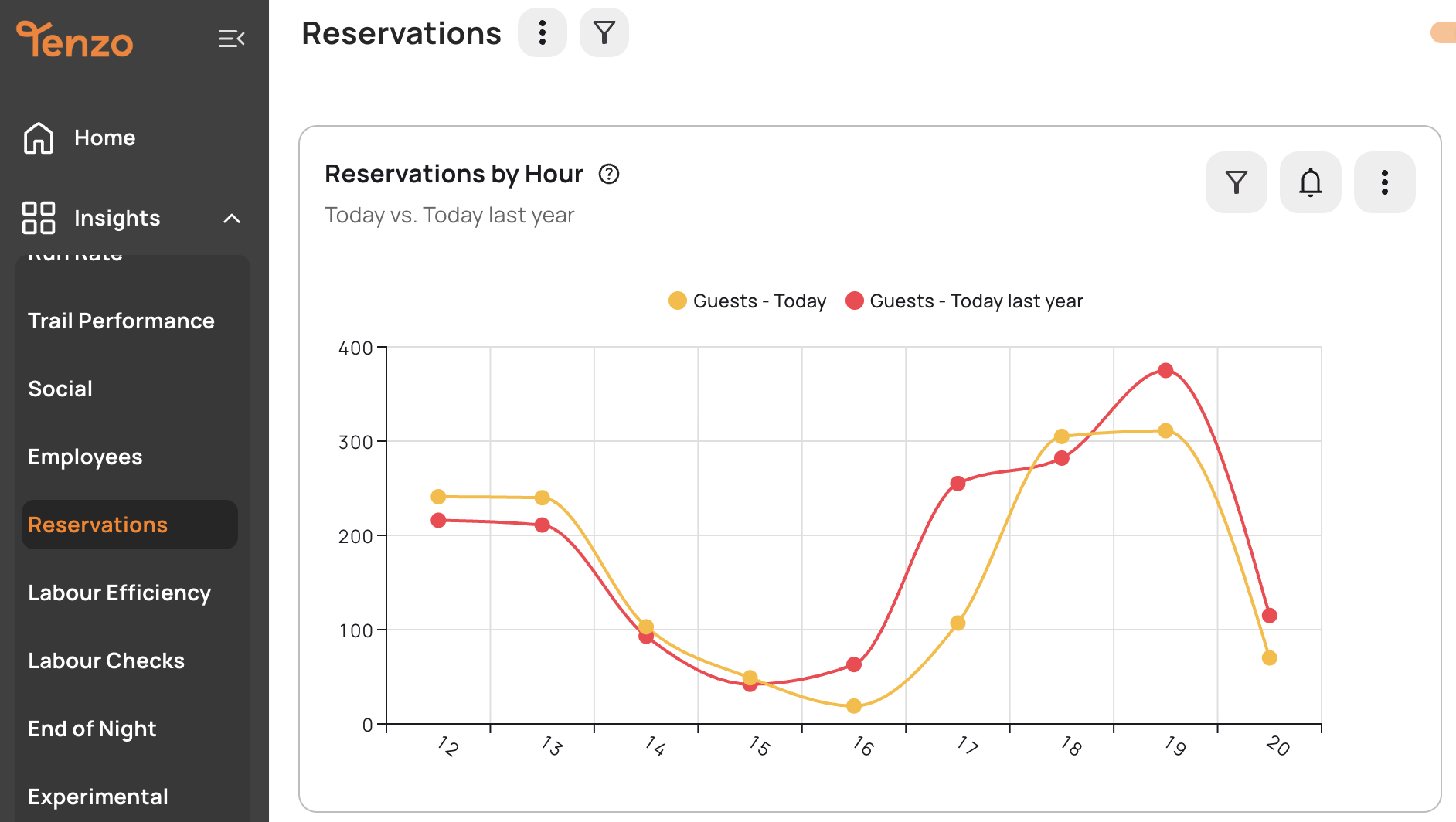
You will then be able to see the same numbers by selecting that day within Tenzo's Reservations view (Card Creator → Reservations).
Exceptions
None