

Guide: Clover
How Do Core Concepts Map to Tenzo?
Key: ✅ Supported 🚸 Work in Progress ❌ Not Supported
 |
|
|---|---|
| Location | ✅ Locations |
| Order Type | ✅ Order Types |
| Revenue Center | ✅ Devices/terminalid |
| Product Item | ✅ Items |
| Product Category | ✅ Categories |
| Product Division | ❌ Not Supported |
| Tender Type | ✅ Tenders |
| Employee | ✅ Employees |
| Customer | ✅ Customers |
| Discount (Names) | ✅ Discounts |
| TicketItemDiscounts (Amounts) | ✅ lineItems |
| TicketDiscounts (Amounts) | ✅ orders |
| Guest Count | ❌ Not Supported |
| Transaction Length | ❌ Not Supported |
| KDS Bump Time | ❌ Not Supported |
| Ticket Voids | ❌ Not Supported |
| Ticket Item Voids | ❌ Not Supported |
| Table | ❌ Not Supported |
| Service Charge | ✅ Service Charge |
| Tips | ✅ Tipamount |
| Ticket Item Modifiers | ✅ Modifiers |
| Price | ❌ Not Supported |
| Menu Item Visibility | ❌ Not Supported |
| Menu Item Size | ❌ Not Supported |
Data Ingestion
| Real-time optionally available? | ❌ |
| Default polling frequency | Every 1 hour |
| Data retrieved on each poll | Today and yesterday |
| Historical data | All data since you started using your POS |
| Data received per day or continuous | Continuous |
| Transport | Pull: Tenzo calls the Clover API for each merchant |
How Do I Compare Clover Data to Data in Tenzo?
Within Clover you must pick which location you’re looking to look up a “Revenue” number for by selecting it from the top left dropdown.

Proceed to the “Reporting -> Sales Report” screen found in the left menu.
You will pick the date range you’re looking to analyse and match the Gross and Net revenue numbers found below:
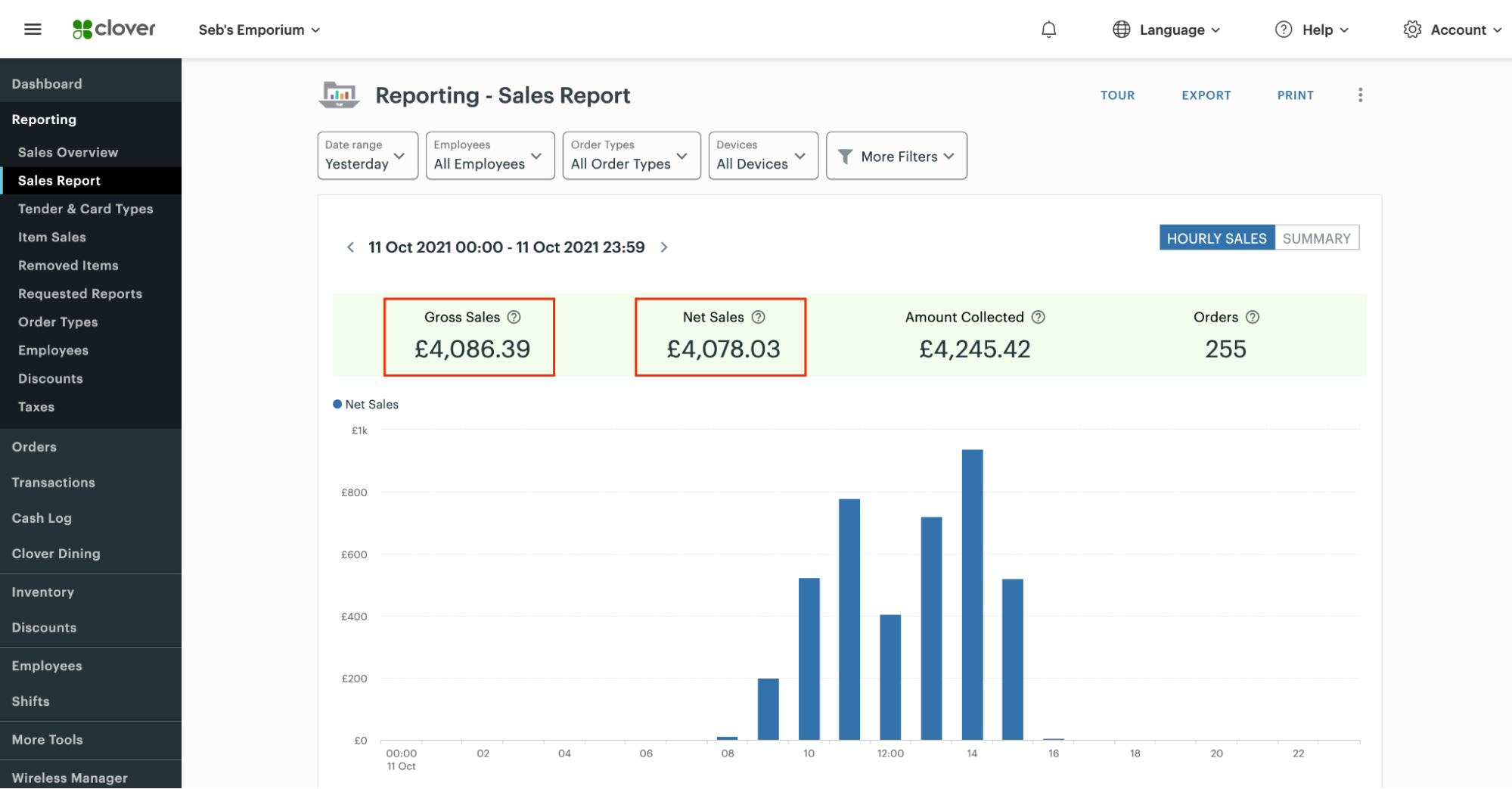
In Tenzo, you must have the VAT and Service Charge settings enabled to match Net Sales.
Additionally, include Discounts to match Gross Sales.
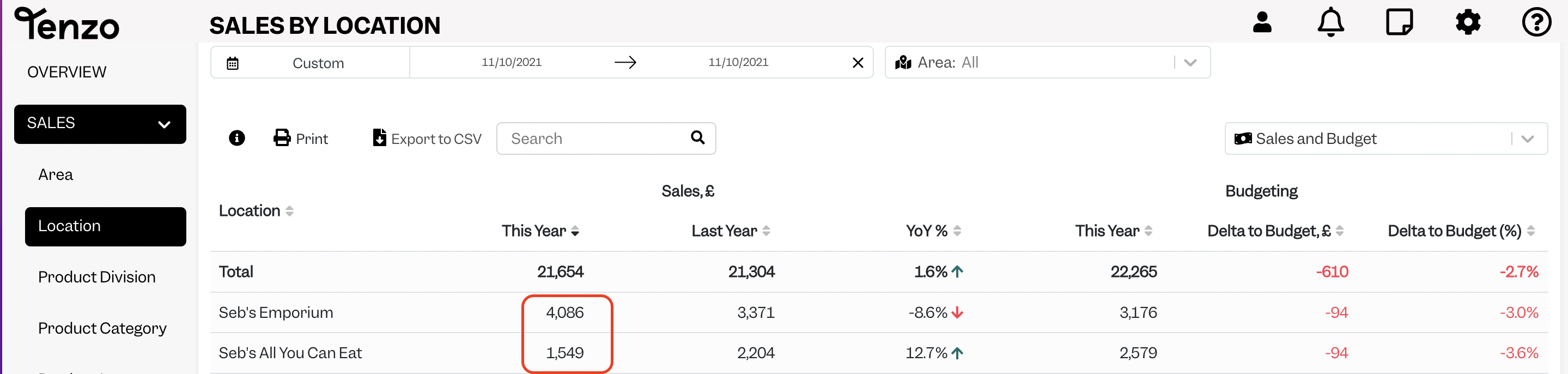
You will then be able to see the same number by selecting one day within Tenzo’s “Sales by Location” view.
Exceptions
None