

Guide: PlanDay Write - sending Tenzo forecasts into Planday
How Do Core Concepts Map to Tenzo?
Key: ✅ Supported 🚸 Work in Progress ❌ Not Supported
 |
|
|---|---|
| Sales | ✅ Hourly Sales |
| Forecasts | ✅ Hourly Forecasts |
Data Ingestion
| Real-time optionally available? | ❌ |
| Default polling frequency | Forecasts every 6 hours Sales twice a day |
| Data written on each poll | Forecasts push forward two weeks Sales push one week back |
| Historical data | You specify the date to start from when setting up the integration. This will push in forecasts from this point assuming there are forecasts in Tenzo. |
Requirements
The requirements for the Planday Write integration are:
- If you’re on the Plus plan in Planday, you get access to Actual Sales and/or Forecasts being pushed into the Revenue line on your schedule. More information about the Plus plan can be found here.
- If you’re on the Pro plan in Planday, you get access to Actual Sales and/or Forecasts pushed into Data Center, which are displayed on the schedule. Data Center is a feature of the Pro plan — more information can be found here.
Note: if pushing into the Revenue Line - you will need to have set up a minimum of one revenue unit per department
How Do I Compare PlanDay Write Data to Data in Tenzo?
Forecasts
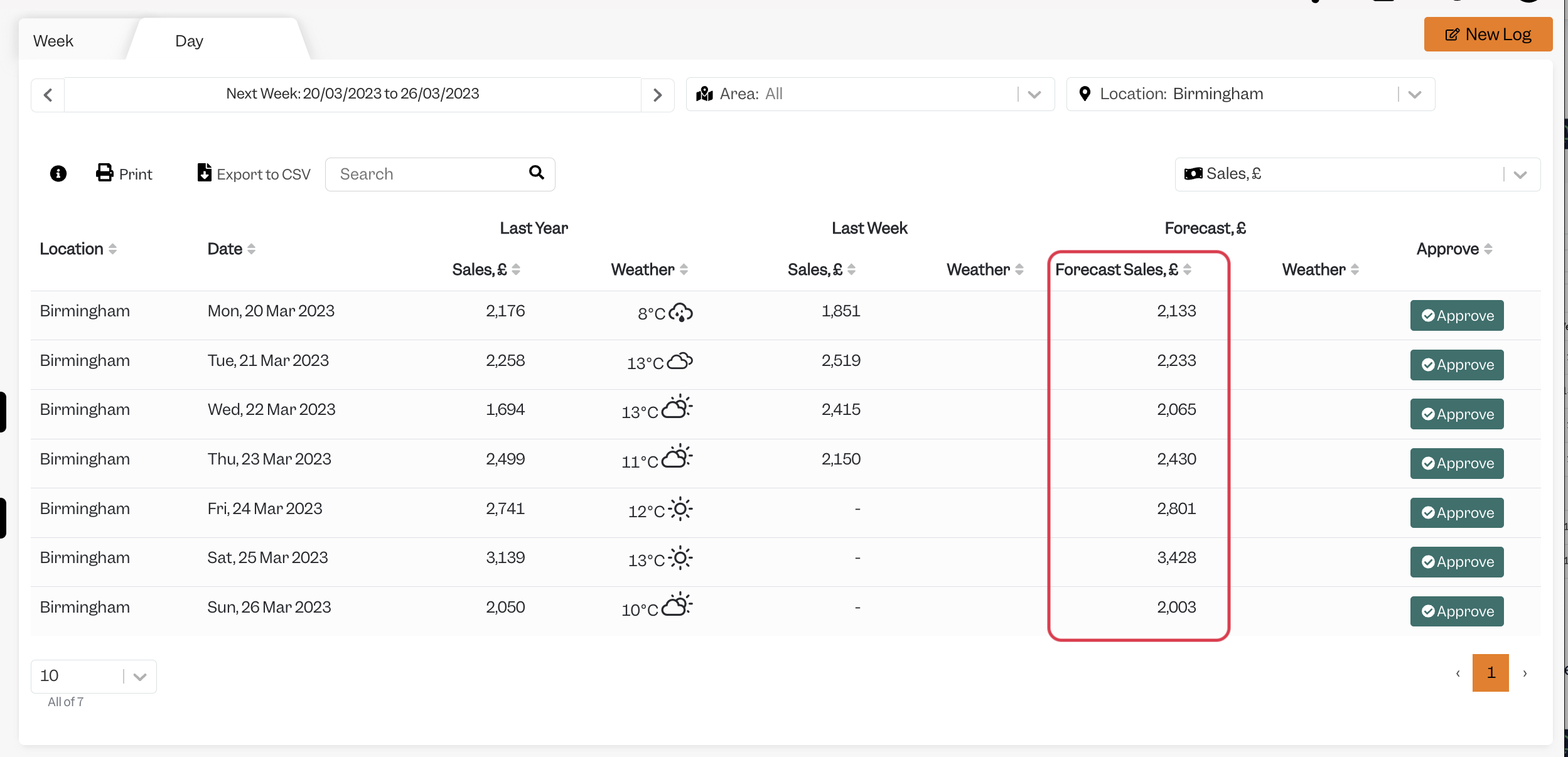
If you are pushing in forecasts, you will find them within the Tenzo Planning module, go to 'Sales by Location' and adjust your sales forecast.
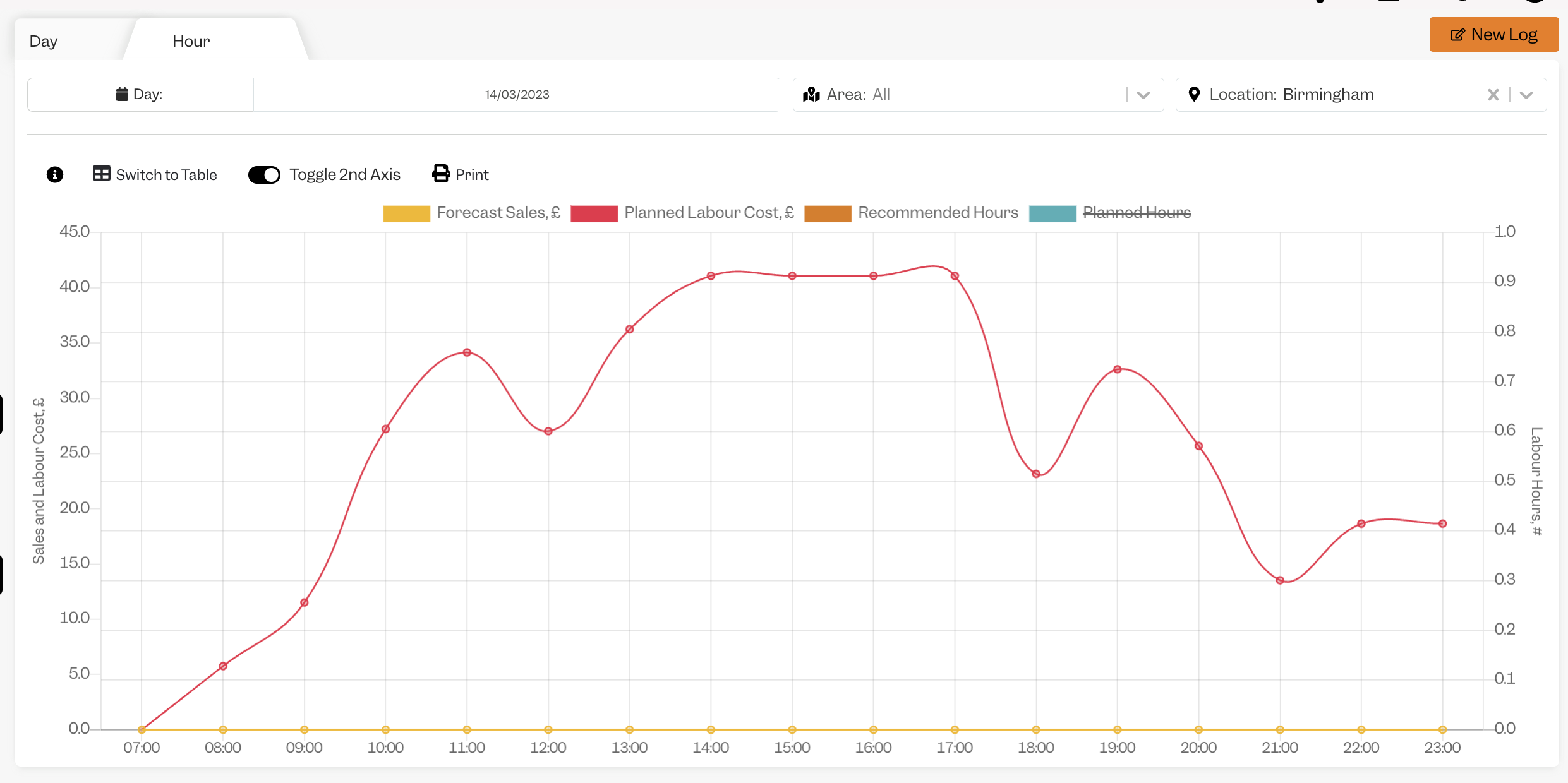
Within the 'Labour Planner' in the Forecasting module in Tenzo, you will see a breakdown of your daily forecasted sales by hour for each location:
Settings
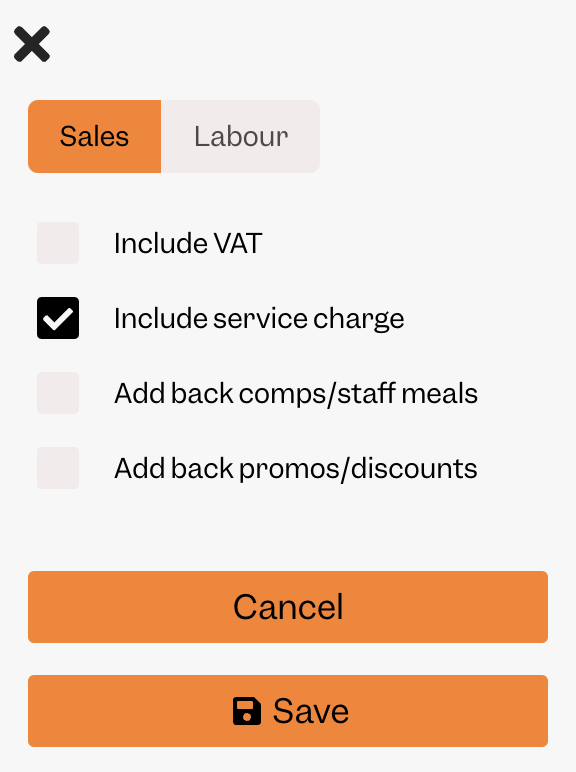
The Forecasted Sales number that is pushed into Planday is without Tax but with Service Charge. These are the settings required in Tenzo:
Actual Sales
If you are pushing in actual sales - you can find the number in Tenzo in the "Sales by Location" report or many of our common cards.
Note: you can push in actual sales either into the Data Center, or into the Revenue line as described below.
Where in Planday Do You See Your Hourly Forecasts or Actual Sales?
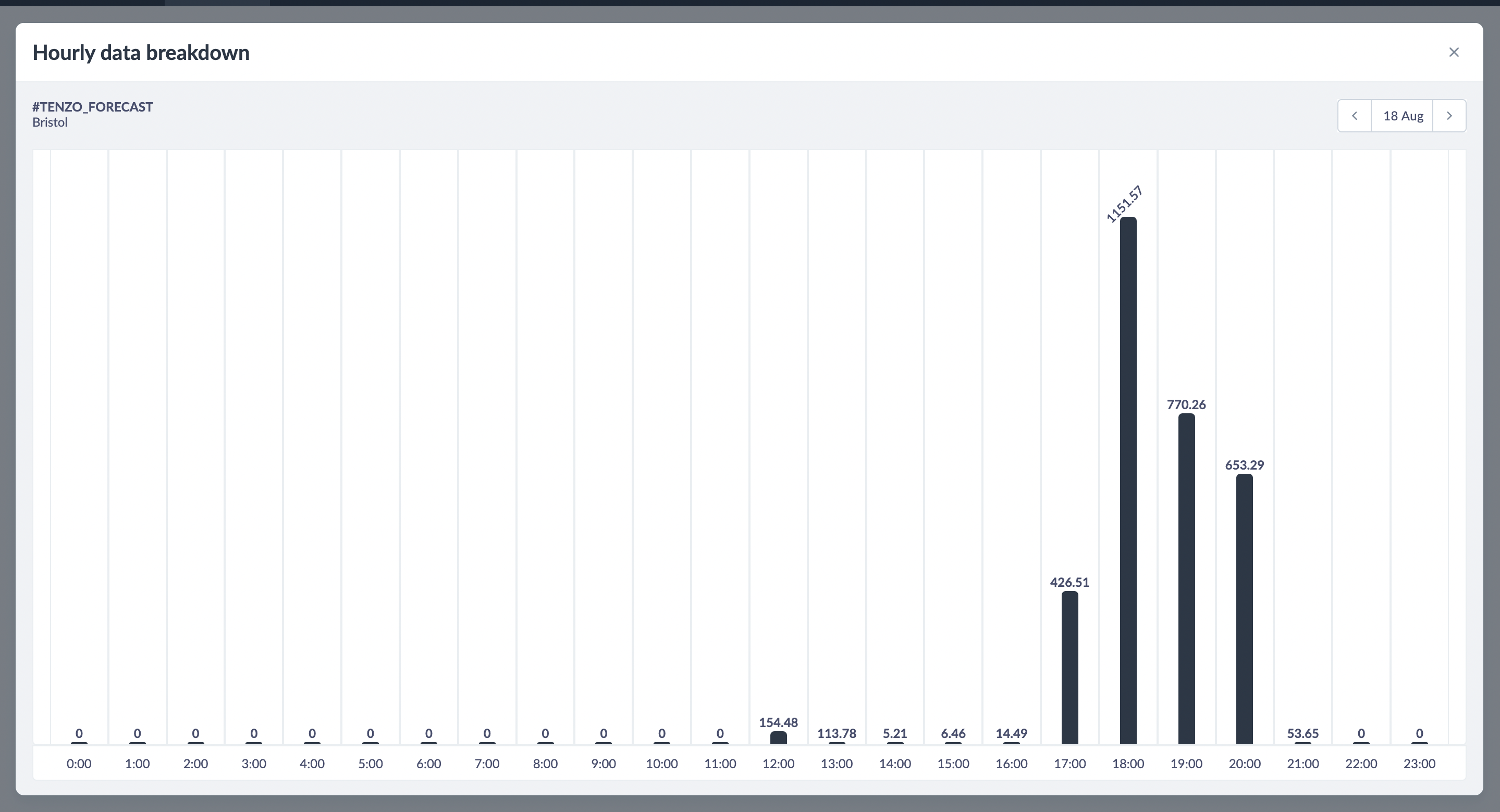
You will then be able to view your Tenzo Hourly Forecast in your schedule that will help you make decisions on your planning. You can also view your Actual Sales in the same manner.

You can click to expand and view the hourly forecast for each day:
Alternatives
If you don't or can't have the Data Center in Planday, alternatively we are able to send our forecast into the Revenue (Forecast) Line in Planday.
This would look like this:

Same for Actual Sales:

As the data is pushed into the Revenue Line, please make sure that a Revenue unit is defined for each department (see the guide here).
Exceptions
None.