

Guide: Ancon
How Do Core Concepts Map to Tenzo?
Key: ✅ Supported 🚸 Work in Progress ❌ Not Supported
 |
|
|---|---|
| Location | ✅ Outlet |
| Order Type | ✅ Order Type |
| Revenue Center | ✅ ClientTenants (POS/Express Licenses) |
| Product Item | ✅ Product |
| Product Category | ✅ Product Group |
| Employee | ✅ TenantUser |
| Customer | ❌ Not Supported |
| Discount (Names) | ❌ Not Supported |
| TicketItemDiscounts (Amounts) | ✅ Discounts |
| TicketDiscounts (Amounts) | ❌ Spread over items |
| TicketItemModifiers | ✅ Modifications |
| Guest Count | ❌ Not Supported |
| Ticket Voids | ✅ Payment Status |
| Ticket Item Voids | ❌ Not Supported |
| Service Charge | ❌ Not Supported |
| Tips | ✅ Tips |
| Tender Type | ✅ |
| Table | ❌ Not Supported |
| Price | ❌ Not Supported |
| Menu Item Visibility | ❌ Not Supported |
| Menu Item Size | ❌ Not Supported |
| Transaction Length | ❌ Not Supported |
| KDS Bump Time | ❌ Not Supported |
Data Ingestion
| Real-time optionally available? | ❌ |
| Default polling frequency | Every 4 hours |
| Data retrieved on each poll | Today and yesterday |
| Historical data | Back to the earliest order held in Ancon |
| Data received per day or continuous | Continuous |
How Do I Compare Ancon Data to Data in Tenzo?
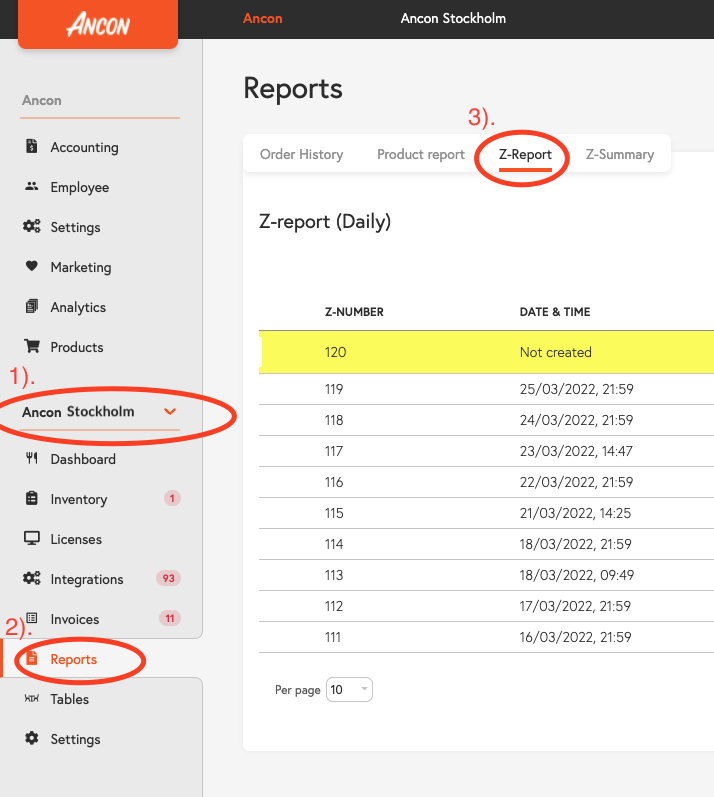
Within Ancon per outlet you can go to the Reports section and click on Z-Report to get an overview on a day by day basis.
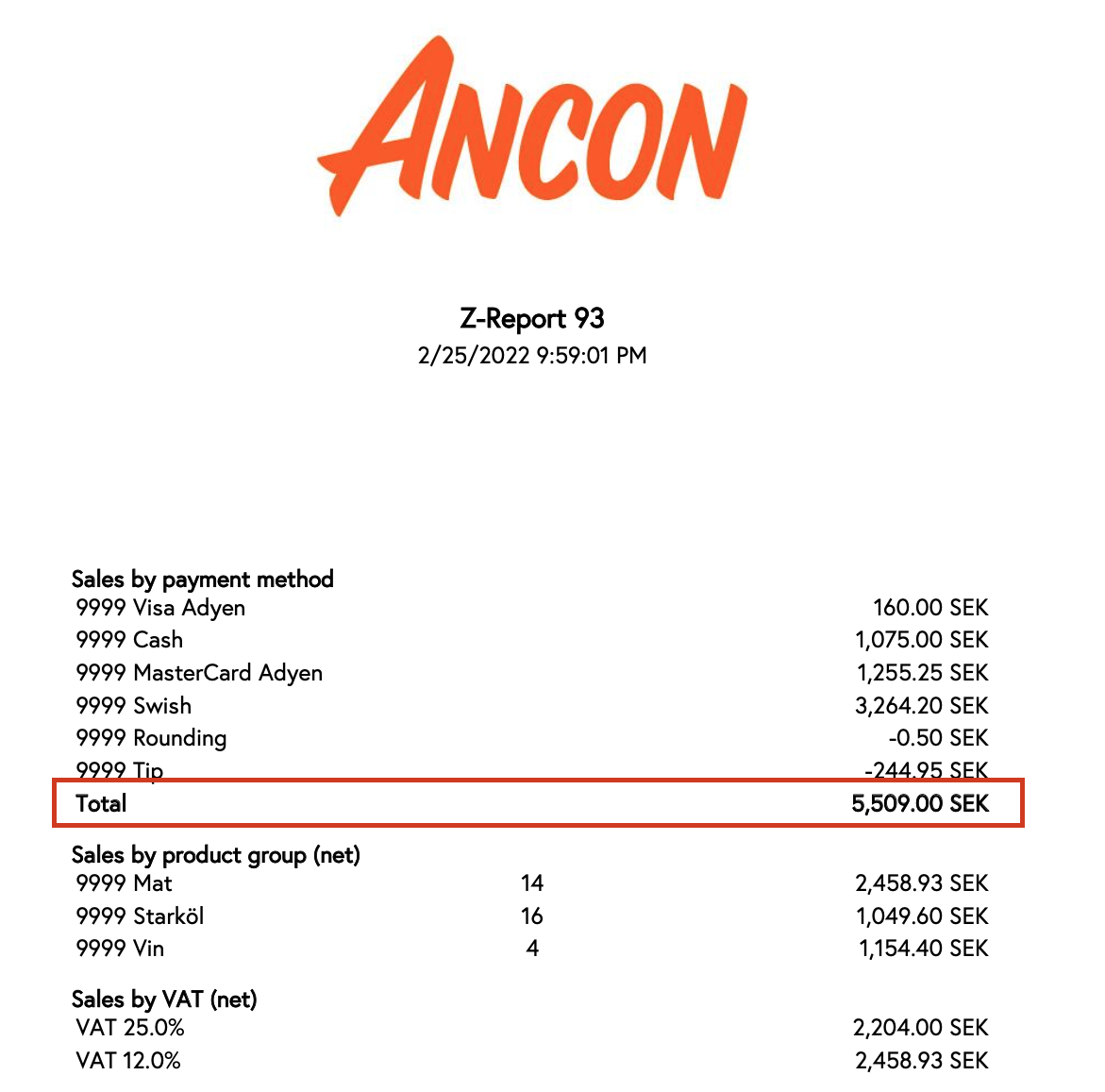
The highlighted box indicates the gross total for that day's sales. This can be compared with Tenzo in the Sales module under Location and choosing a single day to compare to.
Note: A Z-report is generated for the time period elapsing from the previous generation of the report. However Tenzo shows daily sales. Therefore you need to make sure that the Z-report is displaying the same day as Tenzo (e.g. a report generated in the morning of Monday may be showing Sunday's sales).
Exceptions
- Discount names currently show as 'Not Available'.