

Guide: Deputy Write - sending Tenzo forecasts into Deputy Beta
How Do Core Concepts Map to Tenzo?
Key: ✅ Supported 🚸 Work in Progress ❌ Not Supported
 |
|
|---|---|
| Sales | ✅ Hourly Sales |
| Forecasts | ✅ Hourly Forecasts |
Data Ingestion
| Real-time optionally available? | ❌ |
| Default polling frequency | Forecasts: every 6 hours. Sales: twice a day. |
| Data written on each poll | Forecasts: the next two weeks. Sales: the last 7 days. |
| Historical data | You specify the date to start from when setting up the integration. This will push in forecasts from this point, assuming there are forecasts in Tenzo. |
How Do I Compare Deputy Write Data to Data in Tenzo?
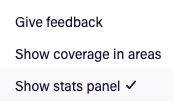
On the Schedule view in Deputy, go to Insights → Show stats panel:

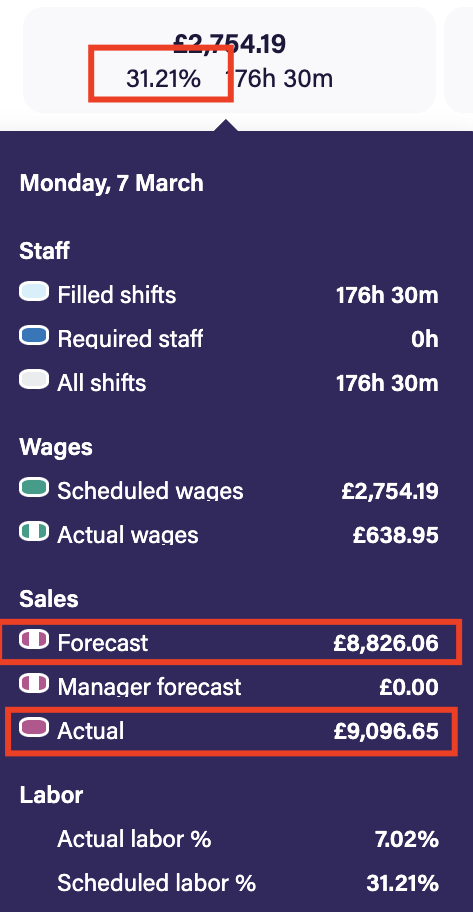
Then hover over any day on the stats panel and look for Forecast under Sales.
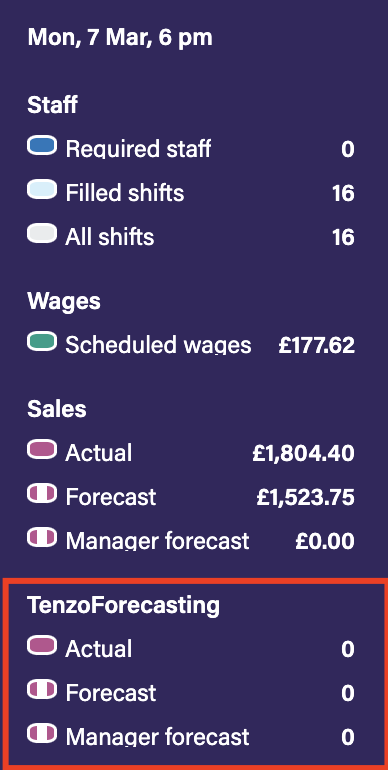
If you opt for a different metric, it can show up as:
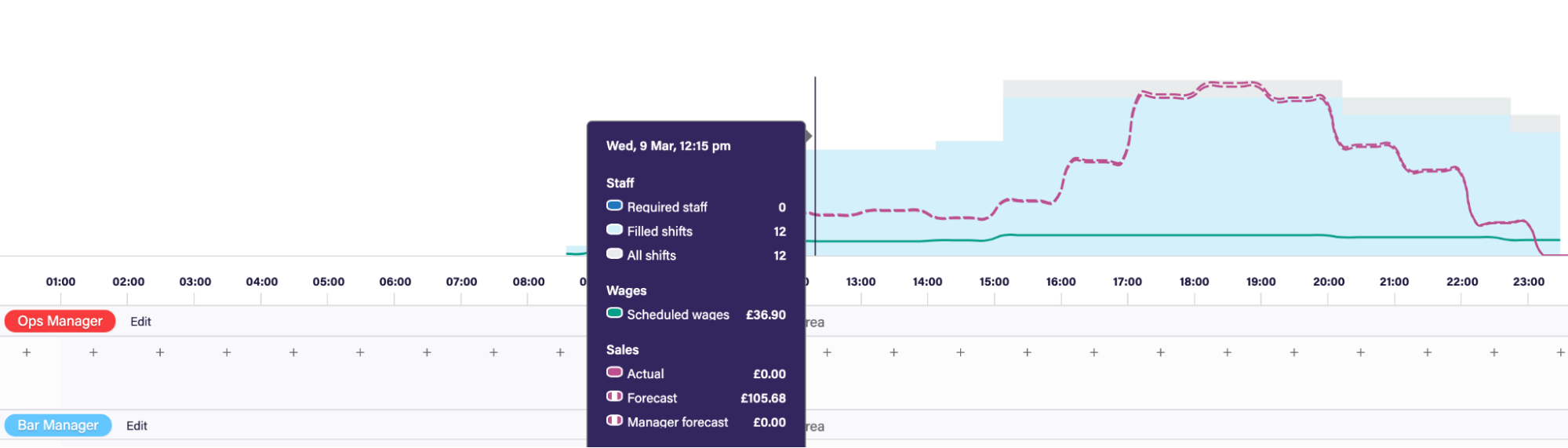
You can also see hourly data on both the week and day views – here’s an example of the hour forecast:
For past days, you will also be able to see actual sales.
NOTE: If you are not seeing the forecasts in Deputy, please check that these settings are switched On:
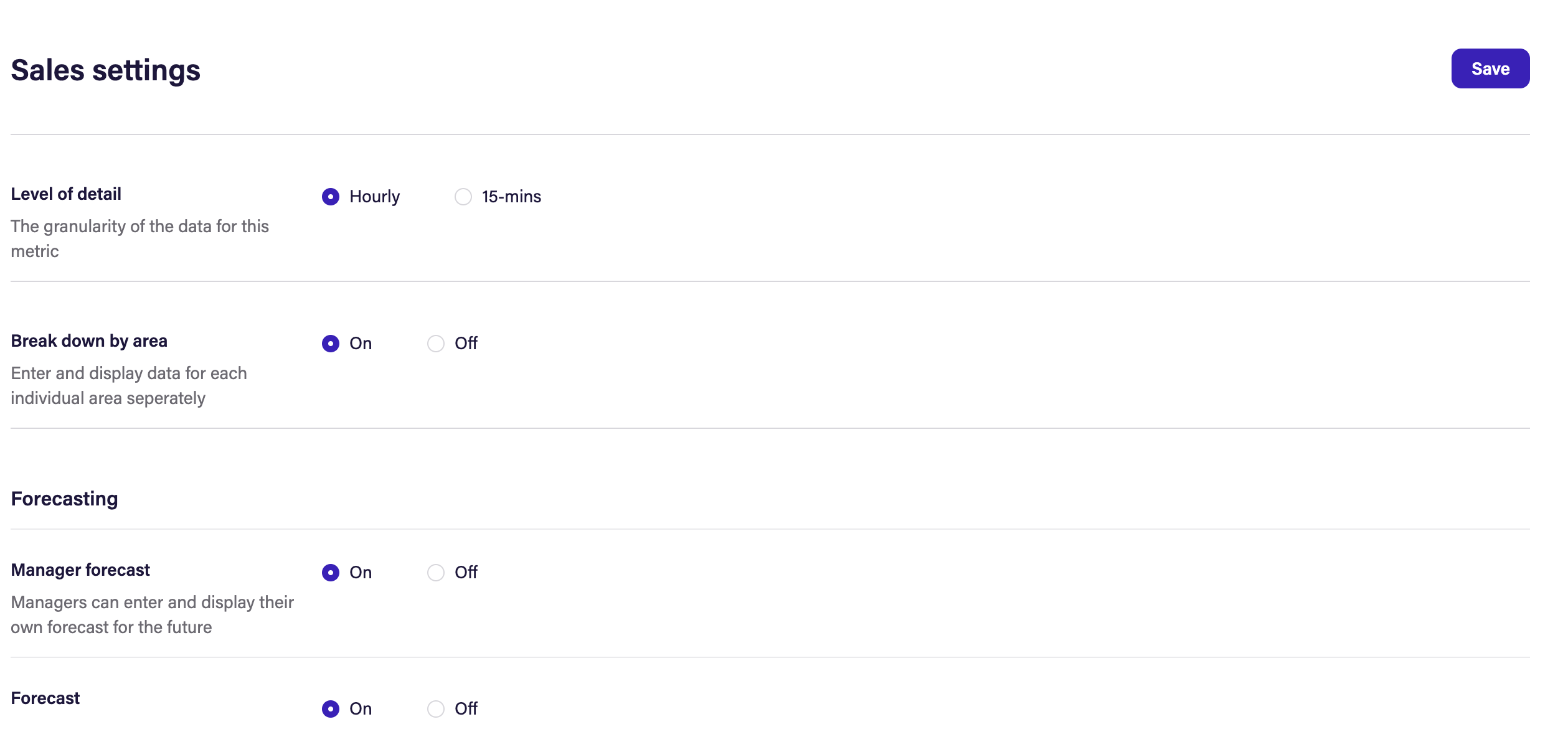
These settings can be accessed by going to:
- Schedule → Insights → Settings cog in top right of page.
- Sales (under Metrics in the left side bar).
Exceptions
None.