
Guide: Planday
How Do Core Concepts Map to Tenzo?
Key: ✅ Supported 🚸 Work in Progress ❌ Not Supported
 |
|
|---|---|
| Location | ✅ Location + Department |
| Shift (Actual) | ✅ Approved Shifts & Costs |
| Shift (Planned) | ✅ Assigned Shifts & Costs |
| Hours | ✅ Hours |
| Salaried Employees | ✅ Salaried Employees |
| Employee | ✅ Employee |
| Role | ✅ Employee Groups |
| House Part | ✅ Department (or Section) |
| Overheads | ✅ Flat Percentage |
| Holiday | ❌ NOT SUPPORTED BY TENZO |
| Breaks | ✅ Unpaid breaks |
| Overtime | ❌ NOT SUPPORTED BY TENZO |
| Exception costs / one-off costs | ❌ NOT SUPPORTED BY TENZO |
| Borrowed/loaned employees | ❌ NOT SUPPORTED BY TENZO |
Data Ingestion
| Real-time for today's data? | ✅ |
| Default polling frequency | Every 8 hrs |
| Data retrieved on each poll | This week, Back two weeks, Forward 2 weeks |
| Historical data | All data since you started using the system |
| Data received per day or continuous | Per Day |
How Do I Compare Planday Data to Data in Tenzo?
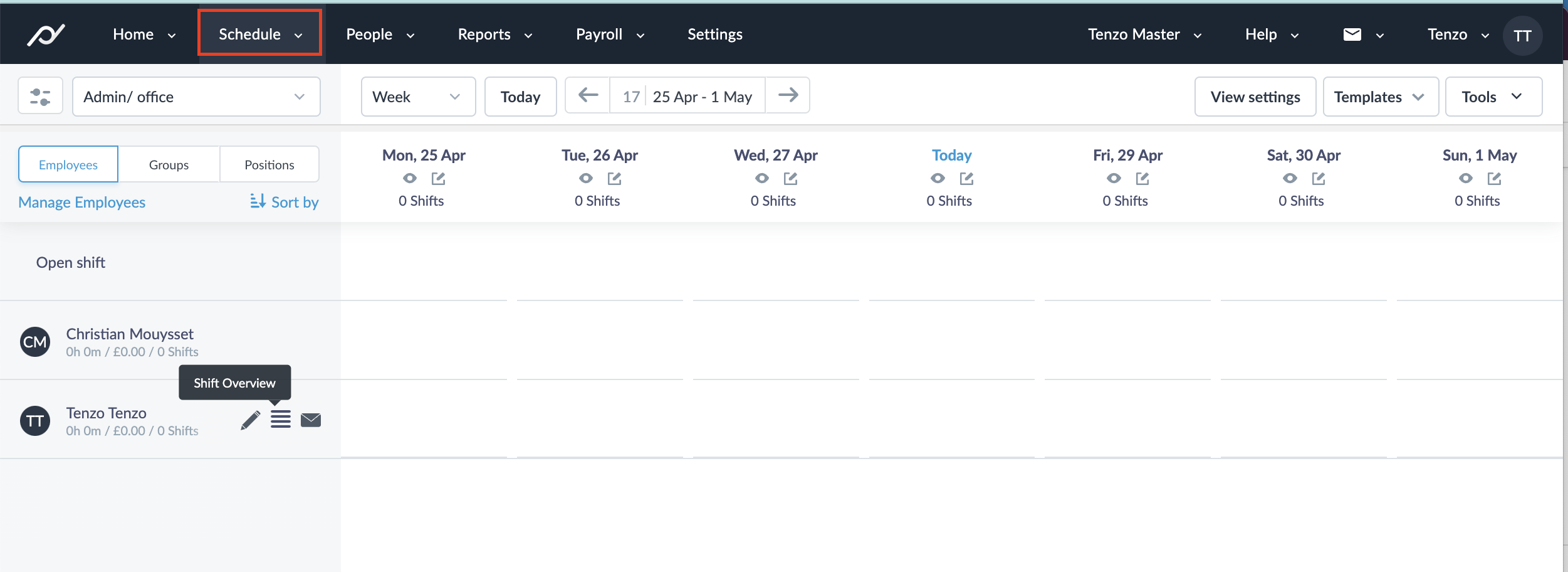
In Planday navigate to Schedule View.
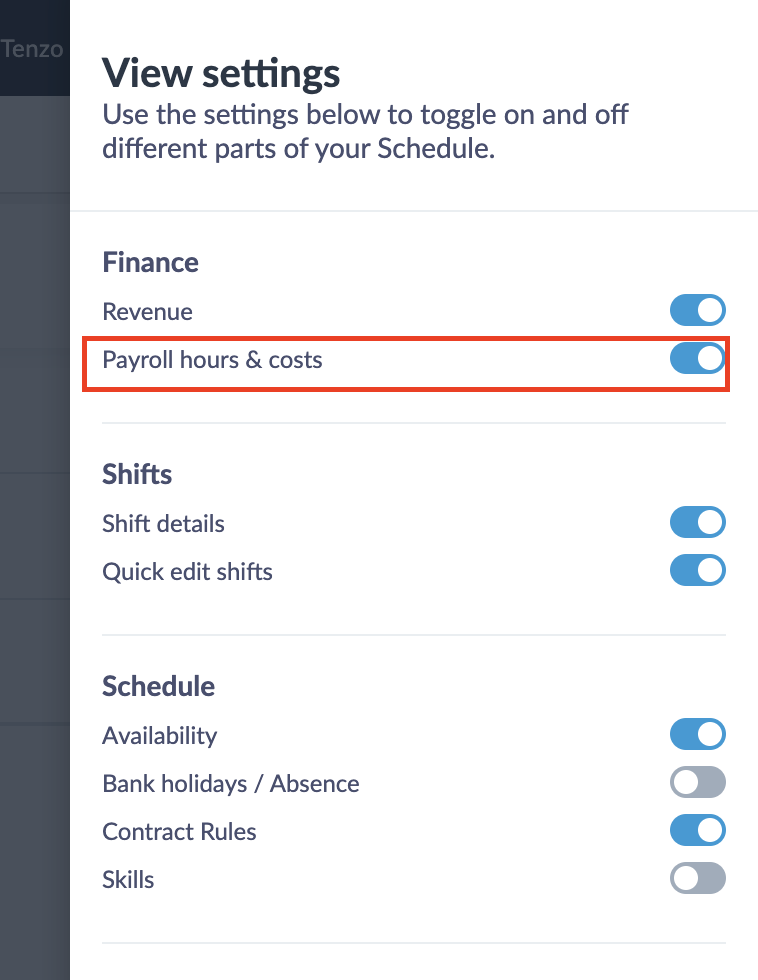
Click View Settings on the right-hand side of the screen and from the menu that appears ensure that the "Payroll Hours & Costs" toggle is selected.
This will result in a bar being shown at the bottom of the schedule which will show the Payroll Hours & Costs for each day on the schedule view, and the total for the week / selected period shown on the left-hand side.
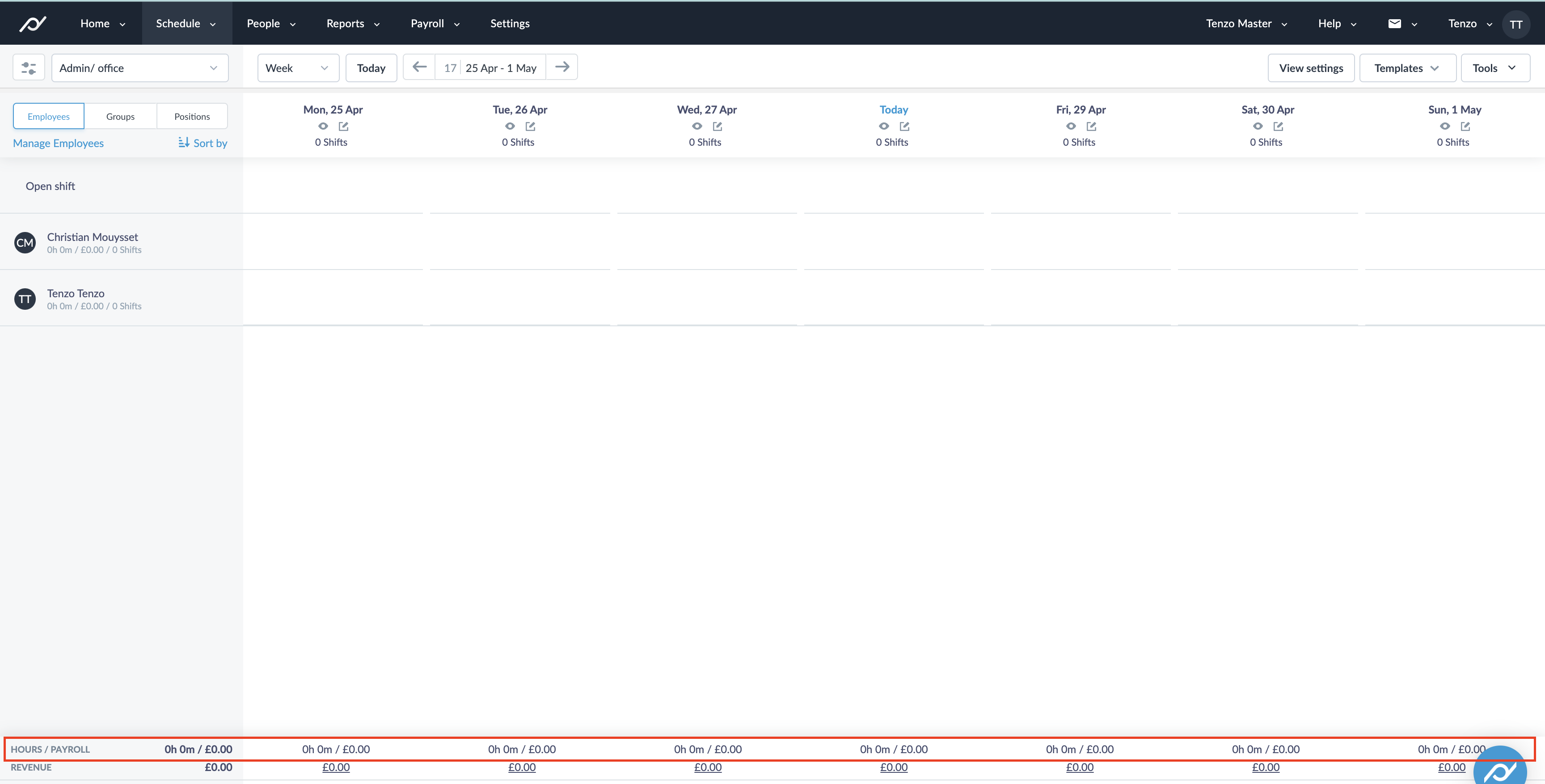
Within Tenzo, these can be matched to Labour → Location, Actual Cost and Actual Hours.
Overhead Costs:
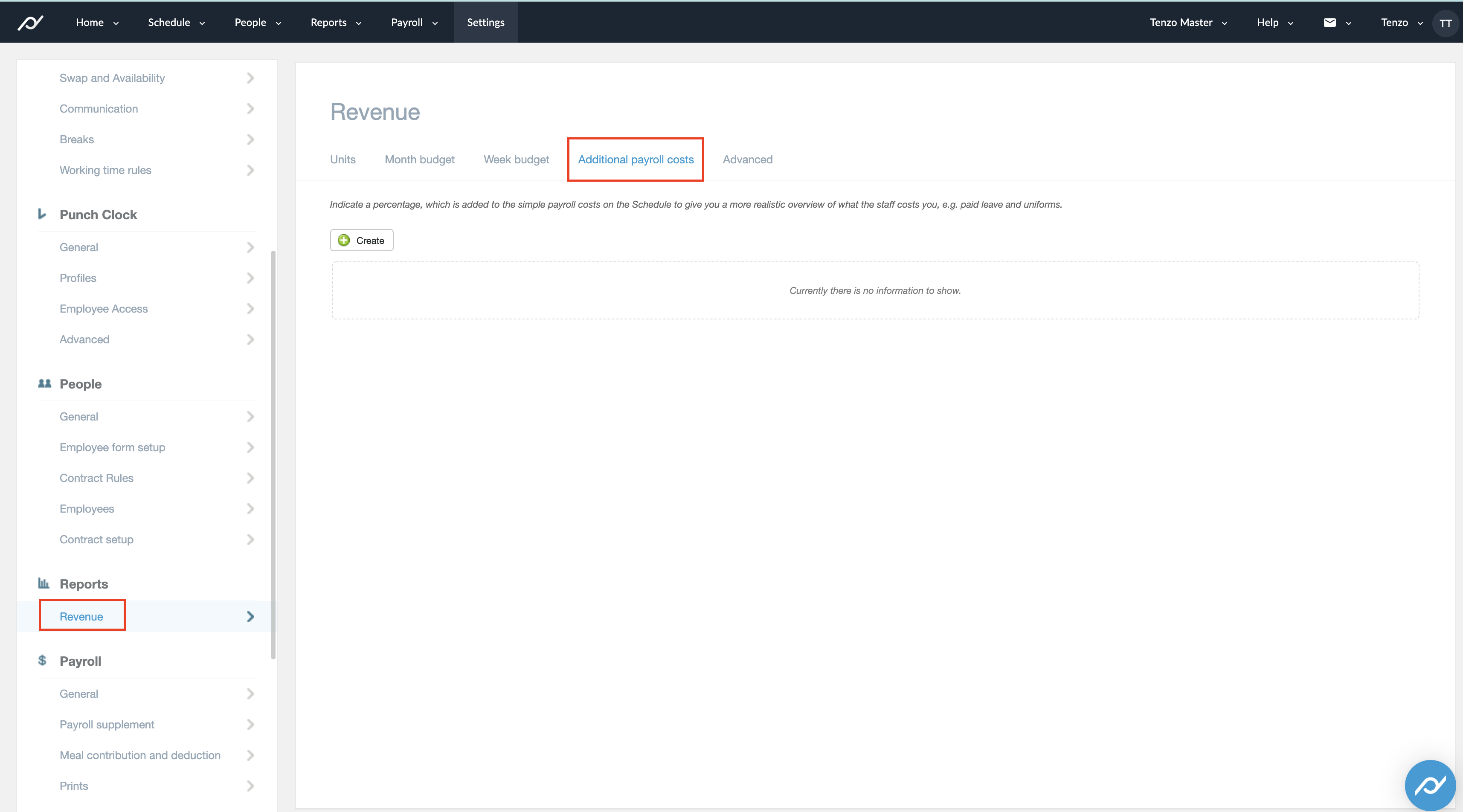
Planday allows multiple overhead costs to be set for different groups of employees, currently, this feature is not supported by Tenzo. We can only use one overhead rate and apply it to all employees.
The overhead costs can be seen by navigating to the Settings > Reports > Revenue > Additional Payroll Costs page within Planday, shown below.
Training shifts:
Planday shift types can be marked as training when the connection is set up. Hours on a shift with one of those types are reported as training rather than worked time in Tenzo, so they can be kept out of productivity measures.
Breaks:
Tenzo can import each shift's unpaid break minutes from Planday. Worked hours in Tenzo already exclude unpaid breaks; importing them records the break time on each shift as well. This is off by default — ask your Customer Success Manager to turn it on. It needs the payroll permission on the Planday connection.
Salaried Employees:
In order to see salaried employees within Tenzo they must be present on the schedule in Planday. If any salaried employees are not on the schedule, please click here and follow this guide from Planday.
Write Integration
We also have a Planday Write integration, where Tenzo will write data into Planday. For more information please see this guide.
Exceptions
- Positions need to be assigned in Planday in order for Roles to flow through to Tenzo.
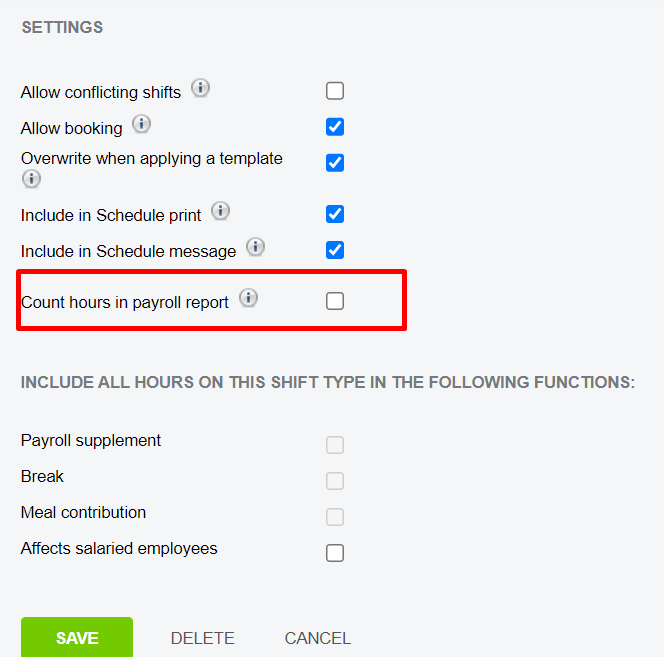
- It is possible that some costs/hours will not show on the Schedule. For example if you were to create a shift type with the 'Count hours in payroll export' setting unchecked, then shifts with this type will not show cost or hours on the schedule.
- Depending on how payroll costs are configured for salaried employees, a shift may or may not be assigned to the employee. If a salaried employee is not assigned to a shift, the Employee Group in Planday will be empty, which means that the Role in Tenzo will appear as "Not available". The total cost will still be valid but will be assigned to a "Not available" line. This typically occurs when cost allocation follows the payroll costs based on Business Days section in this guide.