

Guide: Tenzo Data Importer (Google Sheets: Forecasts)
How Do Core Concepts Map to Tenzo?
Key: ✅ Supported 🚸 Work in Progress ❌ Not Supported
 |
|
|---|---|
| Location | ✅ Location |
| Daily Sales Forecast (net) | ✅ Net Amount |
| Daily Sales Forecast (gross) | ✅ Gross Amount |
| Service Charge | ✅ Service Charge |
Data Ingestion
| Real-time optionally available? | ❌ The sheet is read every 4 hours |
| Default polling frequency | Every 4 hours |
| Data retrieved on each poll | All data in the sheet |
| Historical data | All data in the sheet |
How Do I Populate the Template?
Use this template. Your forecast data goes in the tab named "Daily Forecasts".
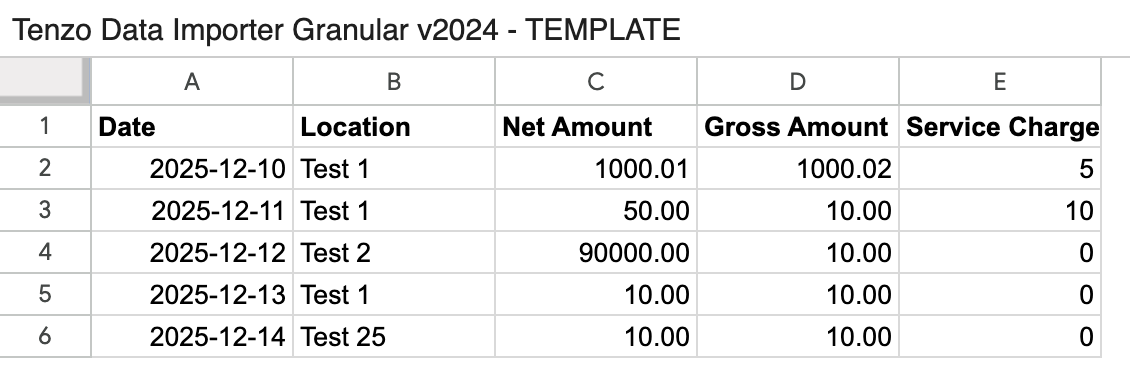
Each location name used in the sheet must be mapped to a Tenzo location when the datasource is set up. Rows for unmapped locations are skipped, so make sure every location in the sheet is mapped before uploading.
Each row is one location's forecast for one day — use one row per Date and Location combination.
- Net Amount is the forecast sales excluding tax; Gross Amount is the forecast sales including tax. If Gross Amount is left empty, the Net Amount is used.
- Service Charge defaults to 0 if left empty.
- Uploading a new forecast for a day replaces the previously imported forecast for that day — the latest upload is the active forecast.
Please note that for the template to work, dates need to be in the same formatting you find at the top of the template, YYYY-MM-DD.
Keep location names consistent with the other tabs in the sheet, and avoid commas in all fields — commas can disrupt data loading, causing errors and delays.
How Do I Compare G-Sheet Data to Data in Tenzo?
Access the GoogleSheet and compare the daily amount by line.
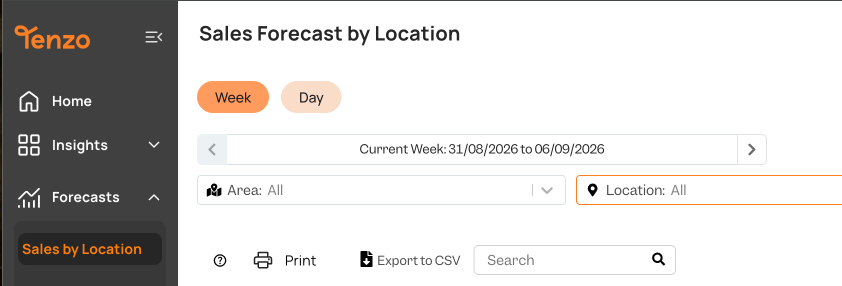
You will then be able to see the same number as the forecast value for that day and location within Tenzo's Sales Forecast by Location view (Forecasts → Sales by Location). Net Amount appears with no filters selected, Gross Amount with "Include tax" selected.
Exceptions
None