

Guide: Procure Wizard
How Do Core Concepts Map to Tenzo?
Key: ✅ Supported 🚸 Work in Progress ❌ Not Supported
 |
|
|---|---|
| Location | ✅ Purchaser Unit |
| Vendor | ✅ Supplier |
| Division (Cards only) | ✅ Primary Category |
| Category | ✅ Product Category |
| Item | ✅ Product Description |
| Purchases | ✅ Purchases (Invoice Date) — Purchase Orders |
| Actual Usage | ✅ Actual COS |
| Theoretical Usage | ✅ Theoretical COS |
| Recorded Wastage | ✅ Wastage |
| Menu Items | ✅ Dish Title (identified by EPOS Code) |
| Recipe Costs (for Menu Engineering) | ✅ Actual Cost |
| Transfers | ❌ Not Supported |
Data Ingestion
| Real-time optionally available? | ❌ |
| Default polling frequency | Every 20 minutes (Tenzo checks for new report emails). How often data arrives depends on the report schedule in Procure Wizard, usually daily for purchases and usage and weekly for menu item costs |
| Data retrieved on each poll | Whatever period the scheduled reports cover (set in Procure Wizard). Purchases are dated by invoice date. Usage is dated to the day before the report date. Menu item costs are dated to the day Tenzo receives the email |
| Historical data | Only what Procure Wizard emails to Tenzo. To load history, run the reports in Procure Wizard for the earlier period and send them to Tenzo |
Requirements
The Advanced Stock Control module is required in Procure Wizard in order for Tenzo to receive Actual and Theoretical Usage. Without this, the integration will only bring in Purchases and Recipe Costs.
How Do I Compare Procure Wizard Data to Data in Tenzo?
Purchases
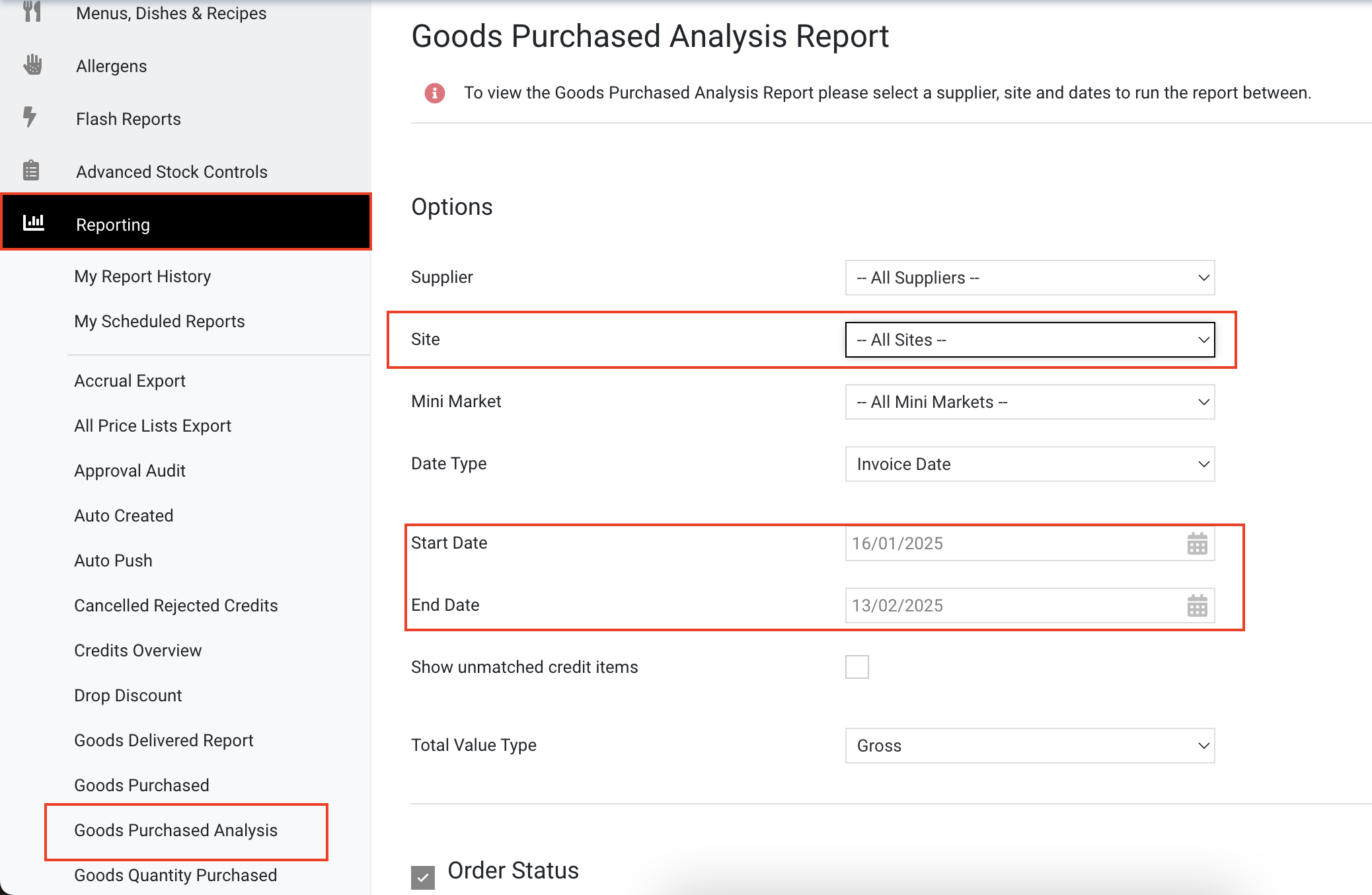
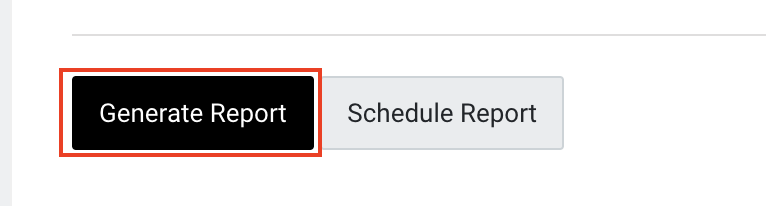
In PW admin, go to Reporting and click on the Goods Purchased Analysis report. You can specify which location and which date range to view. Then click Generate Report.
As standard Tenzo should match to the generated report without changing any of the other settings. However please confirm this with your CSM.
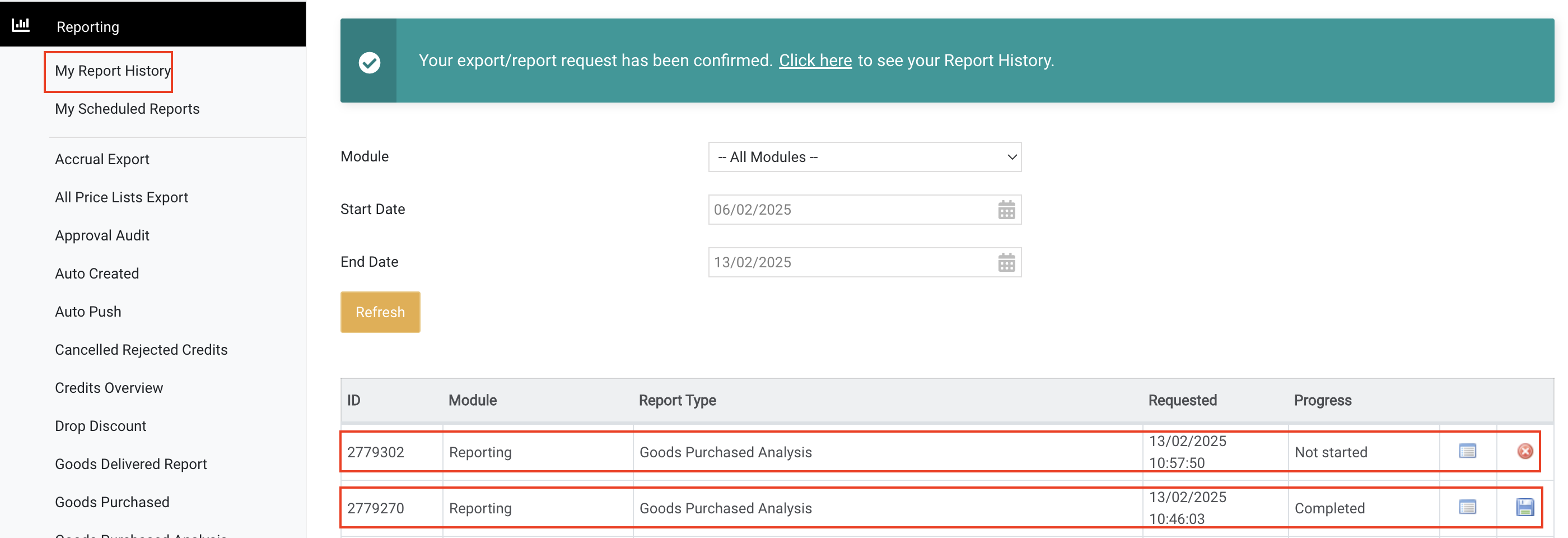
The report can be viewed on the My Report History page. Once it has downloaded click on the floppy disk to download a csv of the report.
Tenzo's purchases will match to the Invoice date and Invoice QTY x Invoiced UnitCost
Actual vs Theoretical & Wastage
Top level AvT and Wastage are visible in Procure Wizard by creating a Cost Group Summary Report.
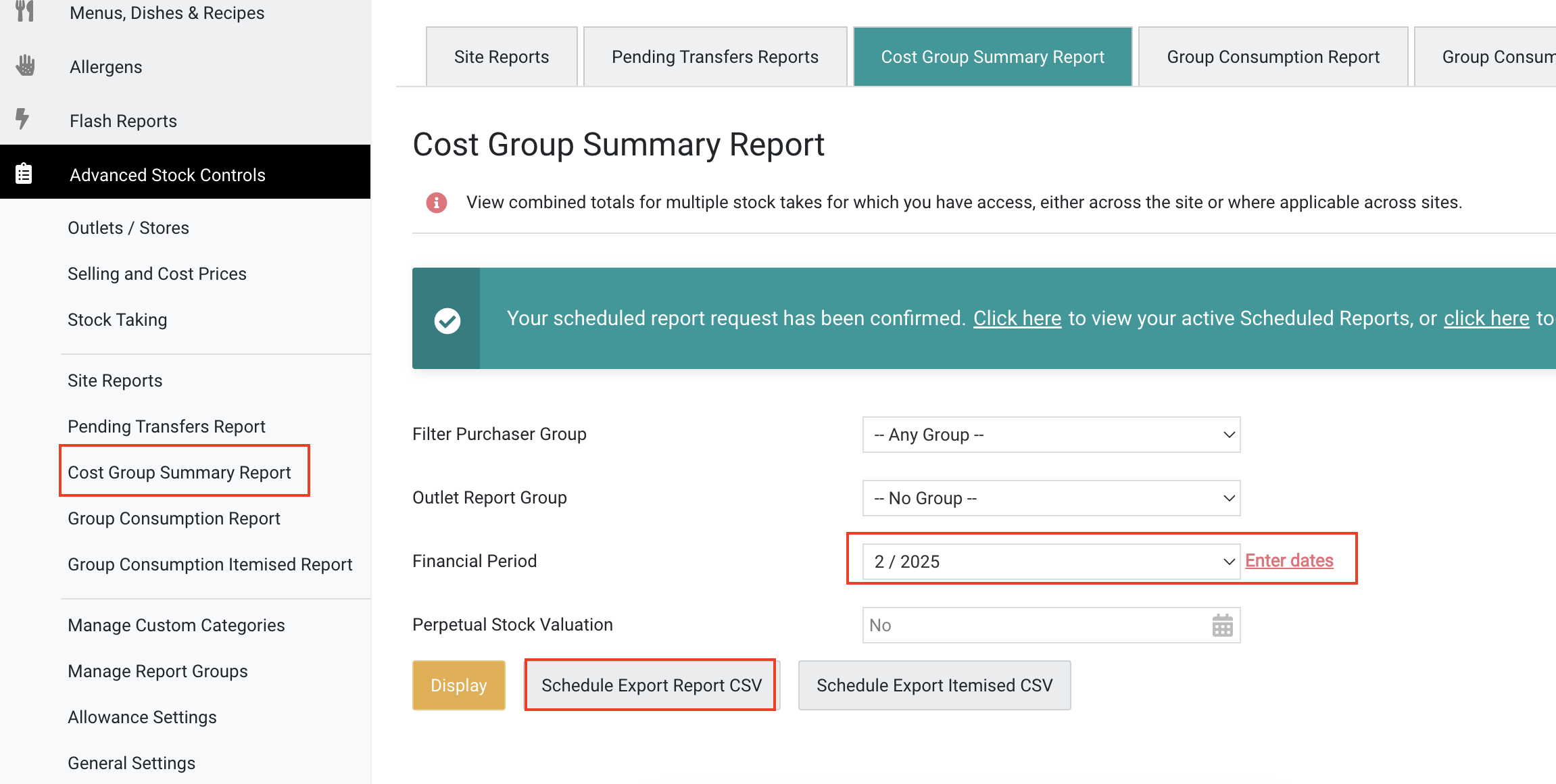
In PW admin go to Advanced Stock Controls and click on the Cost Group Summary Report.
Select which monthly period you'd like to view and click Schedule Export Report CSV.
On the next page select frequency of today and click create.
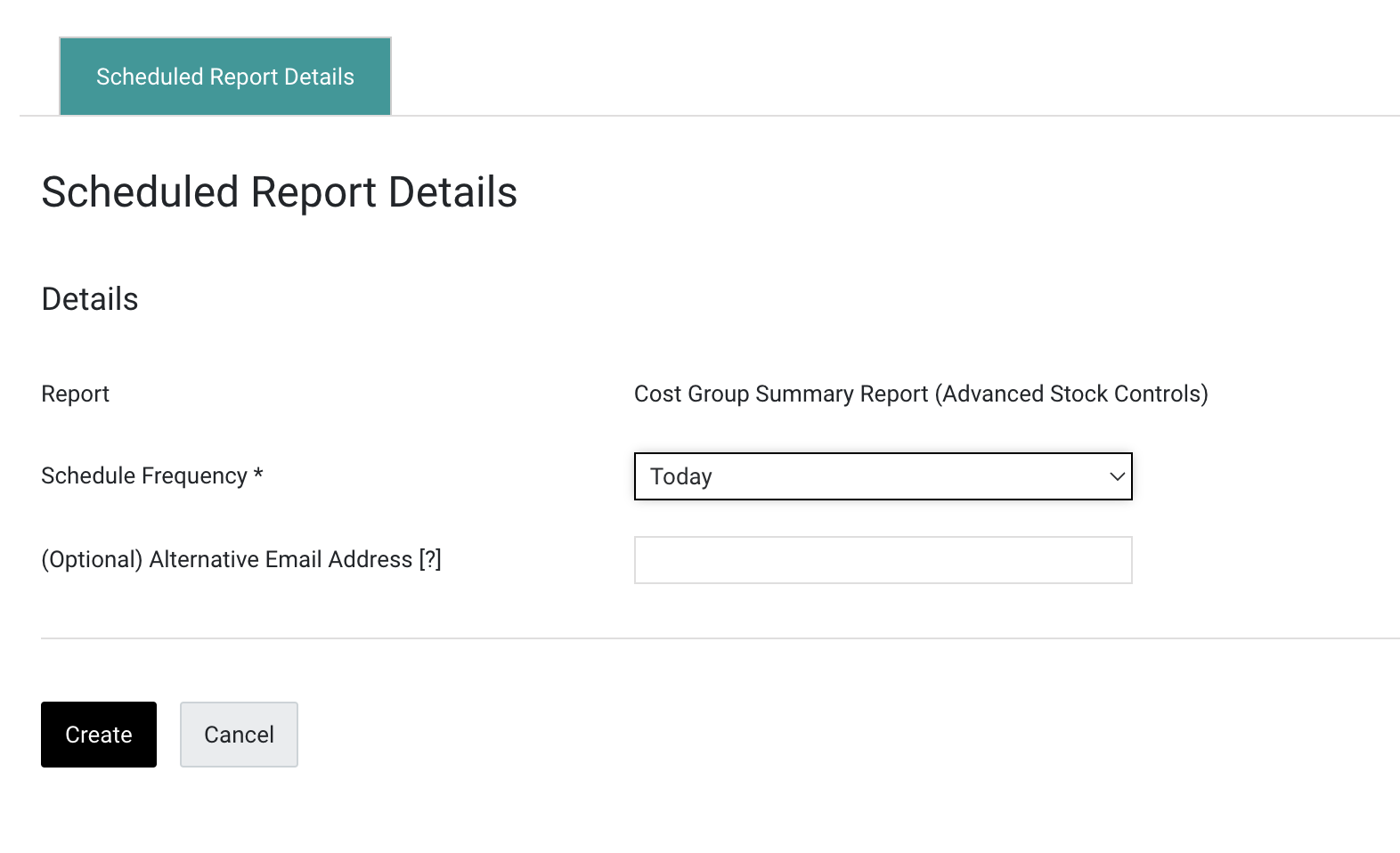
Now return to the report schedule page and click on the floppy disk to view the report when it's ready. 
Tenzo will match to the total of Actual COS, Theoretical COS, and Wastage data for each location.
Exceptions
None