

Guide: Tenzo Data Importer (Google Sheets: Inventory)
How Do Core Concepts Map to Tenzo?
Key: ✅ Supported 🚸 Work in Progress ❌ Not Supported
 |
|
|---|---|
| Location | ✅ Location |
| Vendor | ✅ Vendor |
| Category | ✅ Item Category |
| Item | ✅ Item |
| Purchases | ✅ Amount |
| Actual Usage | ✅ Amount (on separate tab) |
| Theoretical Usage | ✅ Amount (on separate tab) |
| Wastage | ✅ Amount (on separate tab) |
| Menu Item Costs | ✅ Cost (on separate tab) |
| Transfers | ❌ Not Supported |
Data Ingestion
| Real-time optionally available? | ❌ |
| Default polling frequency | Once a day, overnight (between 12am and 4am) |
| Data retrieved on each poll | All data in the sheet |
| Historical data | All data in the sheet |
How Do I Populate the Template?
Use this template.
You can delete the columns that are not relevant for what you are uploading (e.g. revenue center, order type, etc.) and just leave the ones you will be filling.
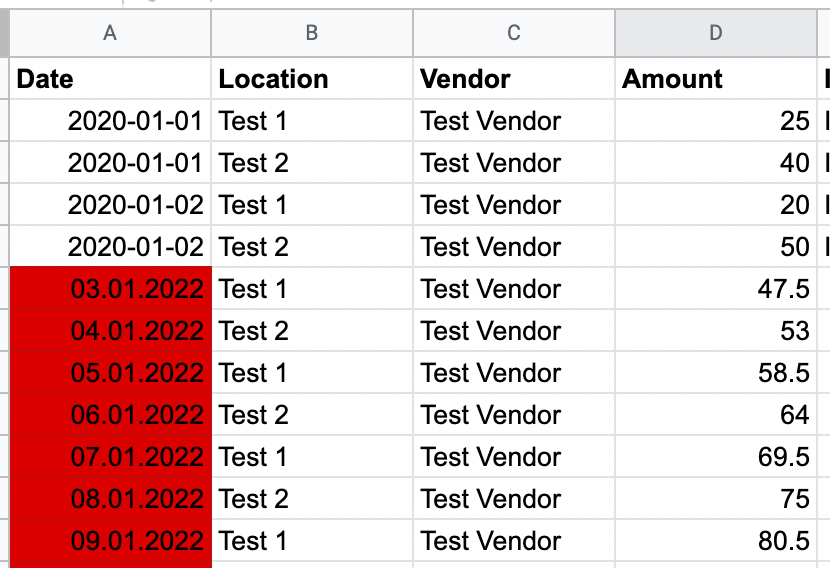
Please note that for the template to work, dates need to be in the same formatting you find at the top of the template, YYYY-MM-DD:
How Do I Compare Data to Data in Tenzo?
Access the GoogleSheet and compare the daily total by line.
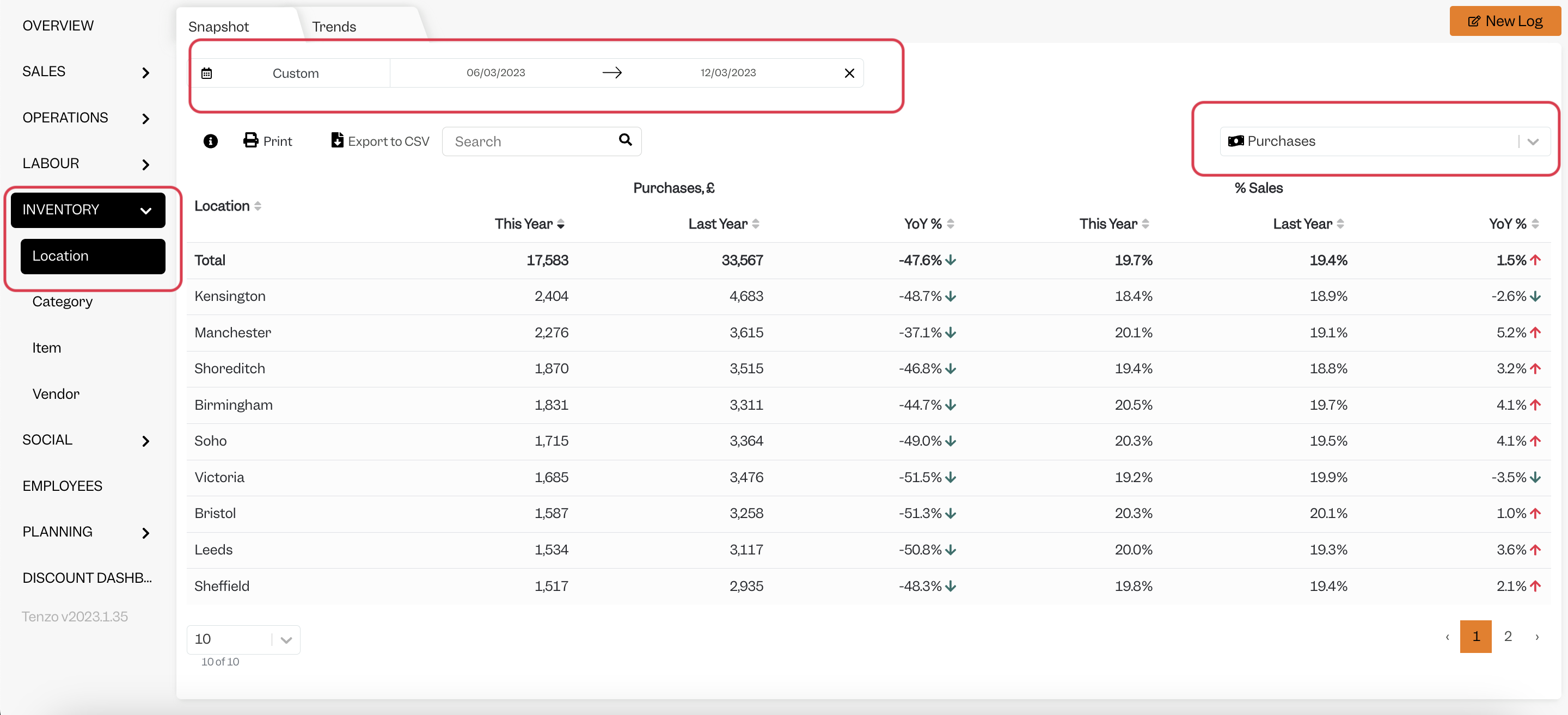
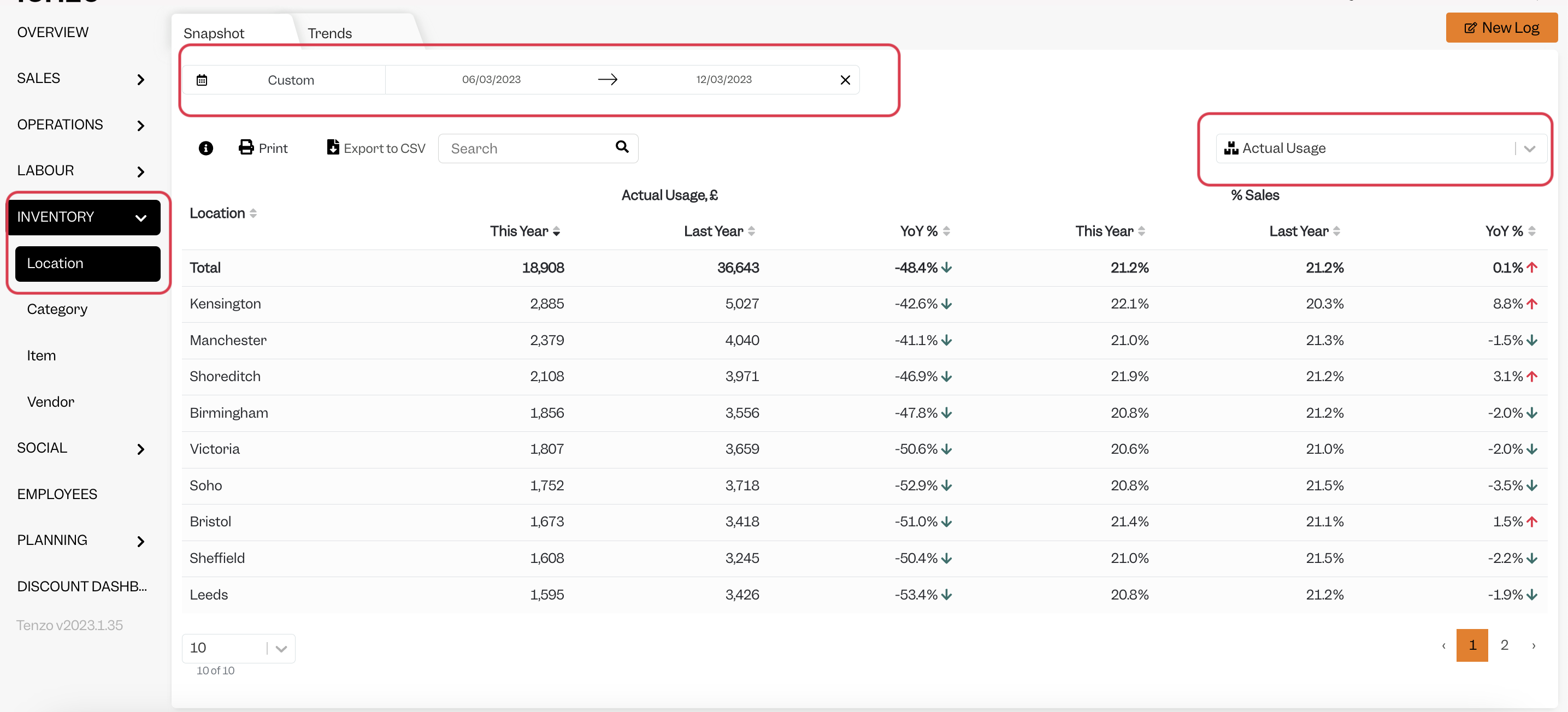
You will then be able to see the same number by selecting one day within Tenzo’s “Inventory by Location” view and select on the drop-down on the right “Purchases” or “Actual Usage”.
Purchases
Actual Usage
Exceptions
None
Other Ways to Send This Data to Tenzo
As well as a Google Sheet, Tenzo can receive data in the Tenzo Data Importer format by Email or as CSV files over SFTP. Talk to your Customer Success Manager if you would like to send your data one of these ways.